"The site went down last night and nobody knows why"
Every WordPress owner meets this moment eventually. A page shows a critical error. Checkout is slow. A plugin update ran overnight and now a form does not submit. Your host says "check the error log", and the error log turns out to be thousands of lines of PHP warnings, stack traces and file paths, most of which have been there for months. Somewhere in there is the one line that matters.
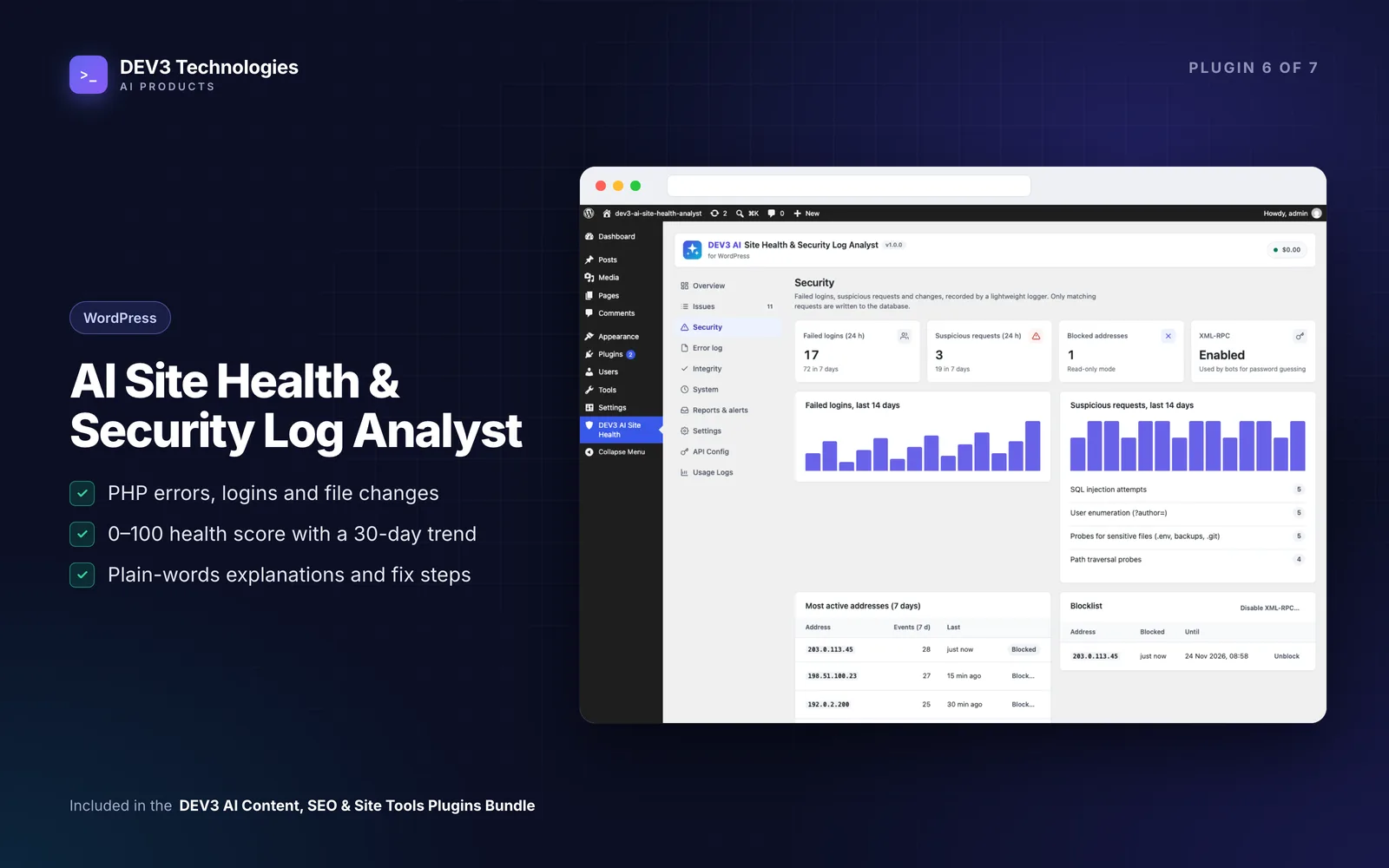
Security has the same problem. Failed logins, odd requests for .env files and changed plugin files all leave traces, but nobody reads raw logs every morning. This guide shows how to turn that noise into a short, ranked list of real problems, with plain-English explanations, using DEV3 AI Site Health & Security Log Analyst.
What good site monitoring looks like
- Repeated errors grouped into one issue, with a count and when it was first and last seen.
- A clear priority order, so you fix the fatal error before the deprecation notice.
- An explanation you can act on, or hand to a developer, instead of a raw stack trace.
- Alerts for the things that cannot wait, and a weekly summary for everything else.
- Nothing changes on its own. Monitoring should watch and explain, not quietly deactivate plugins.
Step by step: from error log to fix
1. Install and scan
Install the plugin, open DEV3 AI Site Health and click Scan now. After the first scan, checks run hourly in the background. The plugin is read-only by default: it never changes your site on its own.
It collects:
- The PHP error log (
debug.logor thephp.inierror log), reading only new lines and folding stack traces. - WordPress Site Health results, on a schedule.
- Failed logins, brute-force attempts and suspicious requests (path traversal, SQL injection,
.envand backup probes, user enumeration, 404 floods). - Plugin, theme and core changes, including ones made over FTP or SSH.
- Pending updates, inactive plugins and old PHP.
- WP-Cron health: overdue tasks, tasks with no code behind them, cron not running.
- Slow database queries when
SAVEQUERIESis on. - File integrity: core files and wordpress.org plugins checked against the official checksums.
2. Make sure PHP errors are actually logged
Many sites have error logging switched off, so there is nothing to read. The Overview screen shows a hint when logging is off. Add these lines to wp-config.php, keeping the log outside the web root if you can:
define( 'WP_DEBUG', true );
define( 'WP_DEBUG_LOG', WP_CONTENT_DIR . '/../logs/debug.log' );
define( 'WP_DEBUG_DISPLAY', false );
If your host already writes a PHP error log, point Settings → Custom log path at it instead (it must end in .log or .txt).
3. Read the ranked issue list
Back on the overview you get a 0-100 health score with a 30-day trend, and a list of issues. Each issue has a count, first and last seen, and sample entries. For each one you can:
- Resolve it. If the error comes back, the issue re-opens automatically.
- Ignore it if it is known and harmless.
- Bulk-update several at once.
Work from the top. A new fatal error after an update is more urgent than a notice that has been logged quietly for a year.
4. Ask for an explanation
Click Explain with DEV3 AI on an issue. You get a summary, the likely cause, the impact, the steps to fix it and who should fix it (you, your developer or your host). You can ask follow-up questions, or run "Explain critical & high with DEV3 AI" for everything urgent at once.
This needs your own Google Gemini key under API Config. Without a key, every issue still has a built-in explanation.
Before anything is sent, secrets (API keys, passwords, tokens, cookies, database credentials), absolute paths, emails, IP addresses, user names and your site address are masked. Click What is sent? to see the exact payload. Only that masked summary of the issue goes to Google, and only when you click.
5. Look at the raw lines when you need them
The Error log screen shows the newest PHP entries with a level filter. That is useful when a developer asks for "the exact error".
6. Set up alerts and a weekly report
Open Reports & alerts. Turn on email alerts for new fatal errors, new critical issues, changed files, failed-login and suspicious-request thresholds, and a low score. Alerts have a cool-down so you are not flooded. The weekly report can include an optional DEV3 AI summary, and you can preview it and send it now.
Optional: one-click fixes
Some problems have an obvious fix: deactivate the plugin that is throwing fatal errors, restore a changed core file, block a single IP, remove a scheduled task with no code behind it, or disable XML-RPC. These are off until you enable Settings → Allow one-click fixes. Even then, each one shows a preview, needs your confirmation and appears in Fix history with Undo.
Tips and pitfalls
- It is not a firewall. The plugin logs and explains. Blocking is optional and limited to single IP addresses you choose.
- Check file changes after every update window. A changed core file that does not match the official checksum is worth investigating, even if the site looks fine.
- Watch cron on low-traffic sites. WP-Cron only runs when someone visits. If scheduled posts or backups are late, the cron checks will show it. A real server cron job calling
wp-cron.phpfixes it. - Use WP-CLI on servers you manage:
wp dev3sh scan --source=php,updates
wp dev3sh issues --status=open --format=table
wp dev3sh integrity
wp dev3sh report
- Integrity checks call wordpress.org to download checksums. Nothing else leaves the site unless you click a DEV3 AI button or enable the AI summary in the weekly report.
Who this is for
- Site owners who want to know what broke before a customer tells them.
- Agencies and freelancers who maintain many WordPress sites and need a clear weekly report per client.
- Store owners for whom an hour of checkout errors costs real money.
Read the case study to see how it was built. If the issues point at deeper problems in a theme or custom code, our web development team can take it from there.
Getting started
DEV3 AI Site Health & Security Log Analyst is part of the DEV3 AI Content, SEO & Site Tools bundle. Install it, turn on PHP logging, click Scan now and see what your site has been trying to tell you.