No licence key or activation is needed: install the zip and every feature works.
Requirements
- WordPress 6.0 or newer and PHP 7.4 or newer (single site, or per site on multisite)
- To analyse PHP errors, PHP error logging must be on: set
WP_DEBUG_LOG in wp-config.php, use PHP's error_log, or point the plugin at a log file in Settings. The Error log screen shows the snippet if logging is off - Working WP-Cron for hourly checks, alerts and the weekly report. The file integrity check needs outgoing access to wordpress.org
- Slow-query capture only runs when
SAVEQUERIES is on - Optional: a Google Gemini API key for plain-words AI explanations. Without one, every issue still gets a built-in explanation
1. Install the plugin
- Unzip the bundle download and find
dev3-ai-content-seo-site-tools-plugins-bundle/dev3-ai-site-health-analyst/dev3-ai-site-health-analyst.zip.
- In WordPress, go to Plugins → Add New → Upload Plugin, choose the zip and click Install Now.
- Click Activate. DEV3 AI Site Health & Security Log Analyst for WordPress appears in the plugin list and its menu, DEV3 AI Site Health, appears in the admin sidebar.
2. Connect Google Gemini (optional)
- Create a free API key in Google AI Studio (sign in with a Google account, then Create API key).
- Go to DEV3 AI Site Health → API Config, paste the key and click Validate & save. The key is stored encrypted and never sent to the browser.
- Optional: pick the model (gemini-2.5-flash is the fast default) and set a monthly budget. Secrets, paths, emails and IPs are masked before anything is sent.
Prefer config files? Add define( 'DEV3SH_GEMINI_API_KEY', 'your-key' ); to wp-config.php instead.
3. Set it up
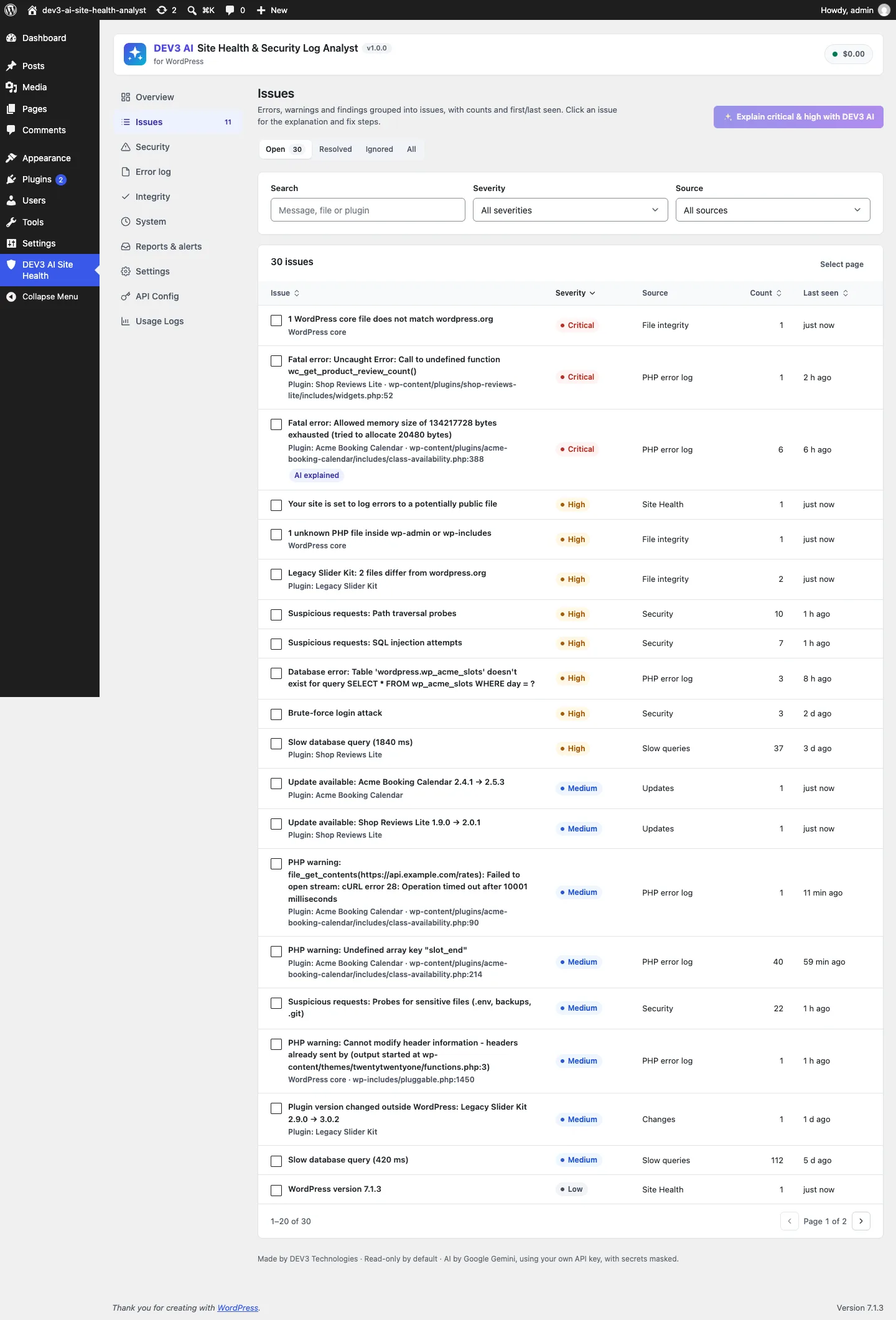
- Open DEV3 AI Site Health → Overview and click Scan now for the first check. After that, checks run every hour in the background.
- Open Integrity and click Run check now to compare WordPress core and wordpress.org plugins with the official checksums (weekly by default).
- In Settings, choose which sources to collect, whether to include notices and deprecations, the failed-login and 404 thresholds, IP anonymisation and how long security events are kept.
- In Reports & alerts, add recipients, choose which alerts to send, and set the weekly report day and hour. Use Send now to test it.
- One-click fixes stay off until you switch on Allow one-click fixes (with confirmation) in Settings.
Prefer the command line? wp dev3sh scan, wp dev3sh issues --status=open and wp dev3sh report --send are available.
Updating
Download the new bundle version, then upload the plugin zip in Plugins → Add New → Upload Plugin and choose Replace current with uploaded. Settings, issues and history are kept.
Uninstalling
Deactivate and delete the plugin from Plugins. Issues and events are kept unless you turn on the delete-data-on-uninstall option first.