All case studies

DEV3 Technologies · own product

DEV3 AI Entry Insights: lead scores and summaries for every form entry, without slowing a single submit

Our own WordPress plugin: it captures Gravity Forms, WPForms and Contact Form 7 submissions into one inbox, scores them with explainable rules at once, then lets the Google Gemini API add a summary, intent and lead score in the background.

Industry
Lead management (WordPress forms)

Live project preview

Client systems are private — screenshots shown where permitted.

DEV3 Technologies · own product — screenshots
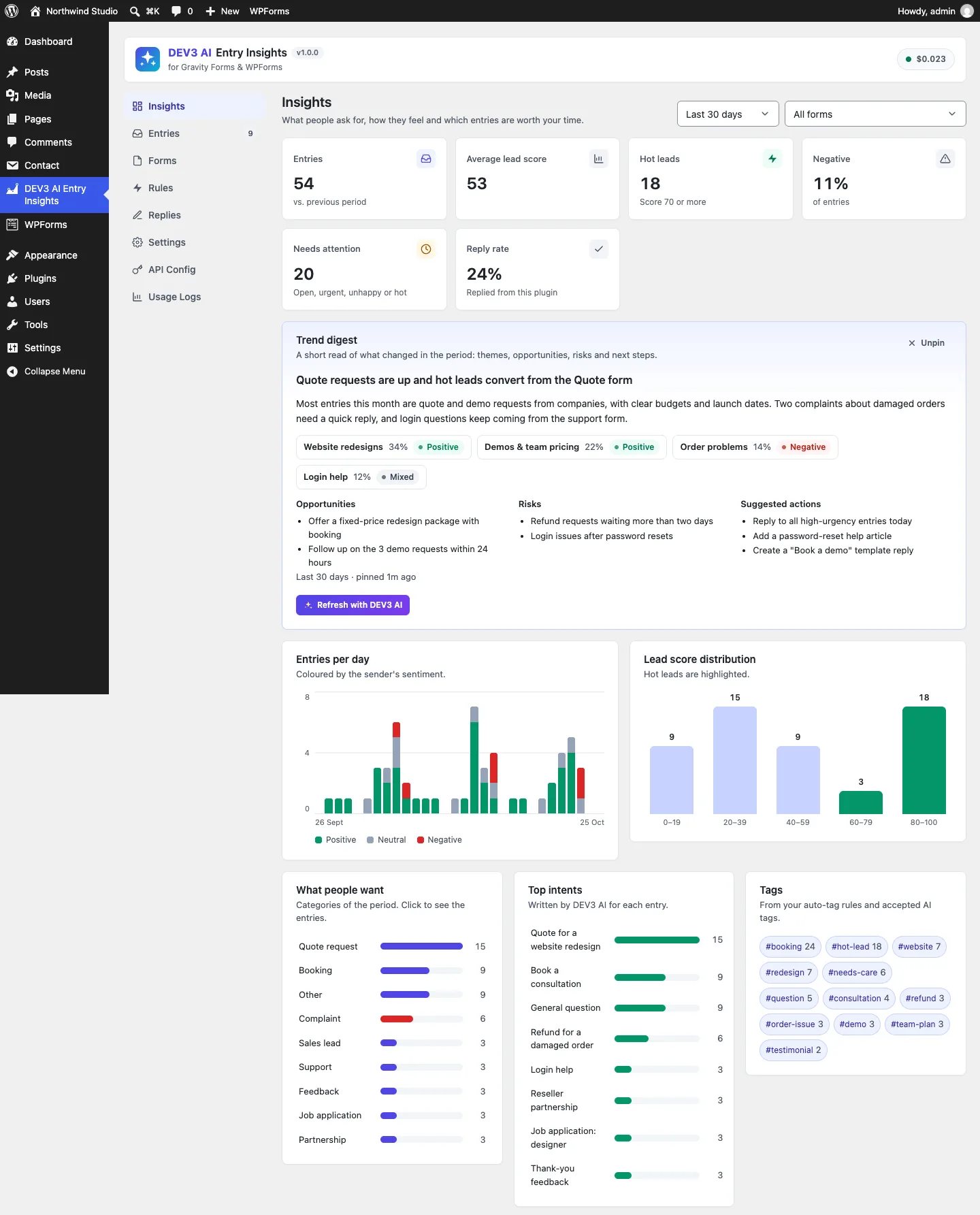
The Insights dashboard: entries, average lead score, hot leads and reply rate, a pinned DEV3 AI trend digest, sentiment per day, score distribution, categories, intents and tags.

The Insights dashboard: entries, average lead score, hot leads and reply rate, a pinned DEV3 AI trend digest, sentiment per day, score distribution, categories, intents and tags.

The challenge

Small teams get dozens of form submissions a week across several forms and often more than one form plugin. The serious enquiries sit between newsletter sign-ups, support questions and spam, and WPForms Lite and Contact Form 7 do not even keep a copy. An AI that reads each entry and says who wants what sounds useful, but calling a model inside the submit request makes every form slower and fails whenever the API does. We needed one place for entries from three different plugins, a useful score the moment an entry lands, AI enrichment that never blocks or erases anything, and a prompt that leaves phones, hidden fields and full email addresses behind.

Our solution

We built DEV3 AI Entry Insights for Gravity Forms & WPForms as a WordPress plugin in PHP with a React admin. It has no front-end output: forms render exactly as before, and the plugin listens to each form plugin's own after-submit hooks.

Key design decisions

  • One field model for three plugins. Adapters for Gravity Forms (gform_after_submission), WPForms Lite and Pro (wpforms_process_complete) and Contact Form 7 (wpcf7_mail_sent and wpcf7_mail_failed) turn each submission into [{key, label, type, value}] rows with a shared type vocabulary. Compound fields such as names and addresses are flattened, and spam-marked submissions are skipped.
  • Rules first, always. The capture runs a deterministic rules engine in the same request: configurable points for a phone number, a company email, a budget field, buying words and tight deadlines, a lexicon sentiment, urgency words and keyword categories. Every entry has a score and a reason before any AI runs, and with no API key the plugin stays fully usable.
  • AI off the submit path. Entries are marked pending and a WP-Cron queue analyses them in 20-second slices under a transient lock. When cron is not running, the admin screens run a short catch-up slice once the oldest pending entry has waited 30 seconds.
  • Enrich, never erase. A failed AI call keeps the rule values and records the error. Score mode can be AI, rules or a blend of both. Rule tags that stop matching are removed, tags people added stay, and AI tags wait as suggestions until someone accepts them.
  • Privacy by field type. Phone, password, hidden, file, signature, consent and card fields never reach the prompt, emails become their domain and names become the first name. A PHPUnit test checks the composed text.
  • Drafts, not auto-replies. Reply drafts in the sender's language and the trend digest are drafts until a person sends or pins them. The only automatic email is the optional hot-lead and urgent alert, sent once per entry and only after the AI has finished.

Architecture

Entries live in the plugin's own table with the answers, the rule score, the AI fields, tags, suggested tags, an AI state and a short history. A versioned prompt with a JSON response schema (every string with a maxLength, enums for sentiment, urgency and 11 categories) returns the insight, which is clamped again in PHP. The inbox, dashboard, rules, replies and forms screens talk to an admin-only REST API. Gravity Forms and WPForms Pro entries can be imported in background jobs, and a Gravity Forms entry gets a meta box and an "add as note" action. The API client, encryption, usage caps, jobs and settings screens come from a shared core used across DEV3's plugins.
Results

The plugin is complete. It ships in the DEV3 AI Forms & Lead Generation Plugins Bundle on the DEV3 marketplace, alongside the Form Builder, Popup & Lead Capture and Form Autofill & Spam Shield plugins, and is being prepared for CodeCanyon. What was built and verified:

  • 60 PHPUnit tests across adapters, the capture pipeline, rules, REST routes and the shared core, including the queue, cron catch-up, AI failure fallback, stale-tag cleanup, alert timing and the private-field filter
  • 34 Jest tests for the dashboard, inbox, entry drawer, reply review, forms, rules and settings screens and the shared UI kit
  • WPForms Lite and Contact Form 7 submissions captured for real in a WordPress test environment; Gravity Forms built against its documented GFAPI and hooks and tested with stubs
  • All AI paths (insights, reply drafts, trend digest) tested with mocked Google Gemini API responses; a run with a live key is the next step
  • Build, PHP_CodeSniffer at 0 errors and 0 warnings, translation template and packaging gates passed

Setup guide

No licence key or activation is needed: install the zip and every feature works.

Requirements

  • WordPress 6.0 or newer and PHP 7.4 or newer
  • At least one supported form plugin, active: Gravity Forms 2.5 or newer, WPForms Lite or Pro 1.8 or newer, or Contact Form 7 5.8 or newer
  • Optional: a Google Gemini API key. Without one, every entry still gets a rule-based score, sentiment, urgency, category and tags

1. Install the plugin

  1. Download the DEV3 AI Forms & Lead Generation Plugins Bundle and unzip it. The plugin is inside at dev3-ai-forms-lead-generation-plugins-bundle/dev3-ai-entry-insights/dev3-ai-entry-insights.zip.
  2. In WordPress, go to Plugins → Add New → Upload Plugin, choose that zip and click Install Now.
  3. Click Activate. DEV3 AI Entry Insights for Gravity Forms & WPForms appears in the plugin list and its menu, DEV3 AI Entry Insights, appears in the admin sidebar.

2. Connect Google Gemini (optional)

  1. Create a free API key in Google AI Studio (sign in with a Google account, then Create API key).
  2. Go to DEV3 AI Entry Insights → API Config, paste the key and click Validate & save. The key is stored encrypted and never sent to the browser.
  3. Optional: set a monthly AI budget on the same screen. When it is reached, AI features pause and the rules keep working.

Prefer config files? Add define( 'DEV3EI_GEMINI_API_KEY', 'your-key' ); to wp-config.php instead.

3. First-time setup

  1. Open Forms. Each detected form plugin is listed with its version. Check that Capture new submissions is on, and use the Capture and DEV3 AI switches to choose which forms are recorded and analysed.
  2. Gravity Forms or WPForms Pro already holding entries? Use Import existing entries on the Forms screen. WPForms Lite and Contact Form 7 keep no entries of their own, so capture starts from the moment you activate the plugin.
  3. Open Rules and set the Starting score, the points for each signal and the Hot lead from score threshold. Use Try the rules to test a sample message without saving anything or calling the AI.
  4. Open Replies and fill in Brand voice for DEV3 AI drafts (tone, sign-off, facts and guidelines) and the Sender name and email.
  5. Open Settings to choose whether new entries are analysed automatically, turn on Email alerts for hot leads and urgent or unhappy entries, and set how many days entries are kept.

Updating

Download the new bundle version, then upload the plugin zip in Plugins → Add New → Upload Plugin and choose Replace current with uploaded. Settings and entries are kept.

Uninstalling

Deactivate and delete the plugin from Plugins. Captured entries and settings stay in the database unless you turned on Delete all plugin data when the plugin is deleted in Settings.

How to use

Work through new entries

  1. Open DEV3 AI Entry Insights → Entries. The Inbox lists every captured submission with its lead score, sentiment, urgency, category and tags, newest first.
  2. Switch to Hot leads or Needs attention to see only high scores, urgent entries and unhappy senders. Narrow further with the form picker, Filters (sentiment, category, urgency, tag, minimum score, dates) or the search box.
  3. Click an entry to open it. The Insights card shows the summary, intent, score and the reason for it, and the answers are listed below.
  4. Use Archive, Star or Mark as new at the bottom of the drawer, and leave an Internal note for your team.

Reply with a DEV3 AI draft

  1. Open the entry and scroll to Reply. Pick a Tone and, if you like, add Notes for this reply with facts the draft may use, such as a start date or a price you are happy to quote.
  2. Click Draft reply with DEV3 AI. The draft is written in the sender's language and your brand voice from Replies, and is marked Not saved yet.
  3. Edit the subject and message, or click Regenerate. When it reads right, click Send to the sender's address. The entry moves to Replied and the reply is logged in its history.
  4. No API key, or a standard answer? Choose Start from a template… instead. Templates fill {first_name}, {form}, {site} and {summary} without any AI call.

Accept or dismiss suggested tags

  1. In the entry drawer, Tags shows your rule tags plus a Suggested by DEV3 AI box.
  2. Click a suggestion to add it, Accept all to add them all, or Dismiss. Add your own with Add a tag….
  3. To create tags automatically, open Rules → Auto-tags and click Add tag rule, for example "Lead score is at least 70 → hot-lead" or "Category is Complaint → needs-care".

Read the trends

  1. Open Insights and choose Last 7 days, Last 30 days or Last 90 days and a form.
  2. Review the KPIs, entries per day by sentiment, the lead score distribution, categories, top intents, tags, the per-form table and the Needs attention list.
  3. Click Summarize trends with DEV3 AI for a short digest of themes, opportunities, risks and suggested actions. Click Pin to dashboard to keep it, or Refresh with DEV3 AI later.

Process older or many entries at once

  1. On Forms, click Import existing entries for a Gravity Forms or WPForms Pro form, choose how many (newest first) and click Start import. It runs as a background job, so you can keep working.
  2. Click Analyze unanalysed with DEV3 AI to analyse everything still waiting, or Re-score all with rules after you change your scoring rules.
  3. In Entries, tick several rows and use Bulk actions to mark them read, archive, star, delete, add a tag or analyse them.
  4. Click Export CSV to download the filtered list with its insights.

Related case studies