All case studies

DEV3 Technologies · own product

DEV3 AI Auto Blogger: an editorial calendar where AI drafts posts and nothing goes live without a person

Our own WordPress plugin: a drag-and-drop editorial calendar, topic backlog and approval workflow, with Google Gemini API research, outlines and native-block drafts, and a publish guard that keeps every AI-written post unpublished until an approver signs off.

Industry
Publishing & Content (WordPress)

Live project preview

Client systems are private — screenshots shown where permitted.

DEV3 Technologies · own product — screenshots
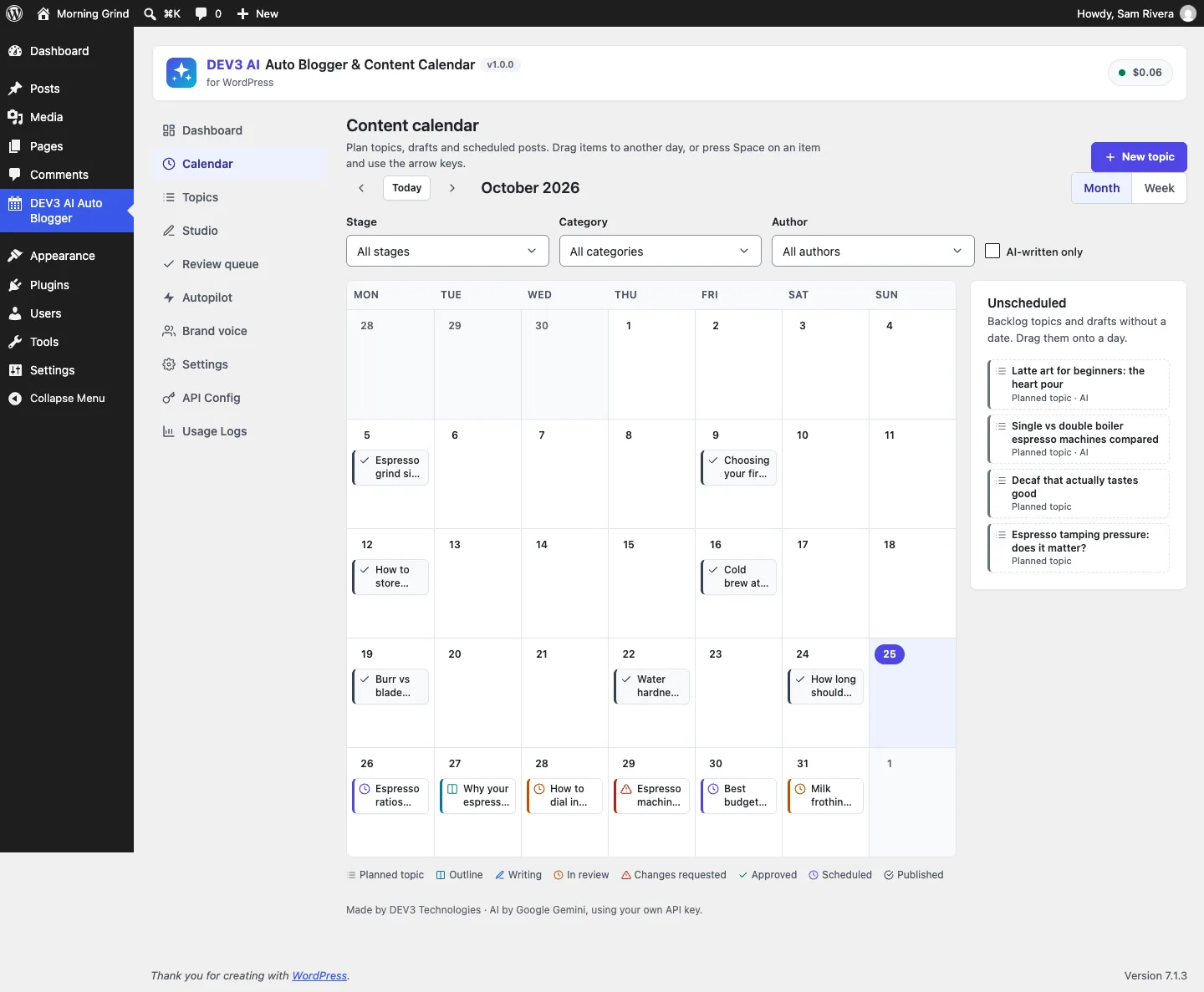
The content calendar: topics, drafts and scheduled posts by stage, an unscheduled tray to drag from, and a legend that never relies on colour alone.

The content calendar: topics, drafts and scheduled posts by stage, an unscheduled tray to drag from, and a legend that never relies on colour alone.

The challenge

Auto-blogging plugins usually publish whatever the model writes, on a timer. That fills sites with unreviewed text and runs straight into search engines' policies on scaled, low-value content. Editorial calendar plugins, on the other hand, have no AI and a loose idea of approval: anyone who can publish can skip review. We wanted both halves in one plugin, with one hard rule: an AI-assisted post must not reach published or scheduled status until a person with approval rights has approved it. That rule had to hold for every path WordPress offers, including WP-Cron, the REST API, XML-RPC, quick edit and authors who have publish rights.

Our solution

We built DEV3 AI Auto Blogger & Content Calendar as a PHP plugin with a React admin app and a block editor panel. The calendar, backlog and workflow work without AI; the AI writes drafts that wait for people.

Key design decisions

  • A stage machine on top of post statuses. Outline, writing, review, changes requested, approved, scheduled and published, mapped onto WordPress's draft, pending, future and publish statuses, with a history log of who did what.
  • A publish guard at the data layer. A wp_insert_post_data filter at priority 99 checks every save. An unapproved, plugin-managed post heading for publish or future is quietly saved as pending instead, whatever code path sent it.
  • Approvers count, authors don't. Approval needs edit_others_posts by default (filterable). An editor who publishes in person is recorded as the approver; an author with publish rights is downgraded to pending.
  • A scoped bypass for autopilot. Scheduled AI runs submit drafts for review. Only a schedule with "Auto-publish without review" switched on (off by default) can schedule posts, inside a counter-based bypass that ends when the callback returns.
  • Native blocks, not pasted HTML. Drafts come back as typed block objects that PHP turns into core paragraph, heading, list, quote, table and details blocks. A test checks the markup survives a parse_blocks → serialize_blocks round trip unchanged.
  • Duplicate detection by meaning. Research ideas are embedded and compared with the site's posts and backlog (cosine threshold 0.82); a keyword-overlap check takes over when AI is off.

Architecture

The calendar has month and week views, drag and drop with pointer, touch and keyboard (Space to pick up, arrow keys to move, Enter to drop, with live announcements), and an agenda list on phones. The Studio takes an item from topic to outline, draft, review and schedule. Drafts are written section by section as a background job and only reach the post when someone clicks Accept draft into post. In the block editor, a pre-publish panel locks the Publish button until "I have reviewed this AI-assisted draft" is ticked. Brand voices, e-mail notifications and a daily digest round it out. The API client, jobs, embeddings store and settings come from a shared core used across DEV3's plugins.
Results

The plugin is complete. It ships in the DEV3 AI Content, SEO & Site Tools Plugins Bundle on the DEV3 marketplace, alongside 6 other content and site plugins, and is being prepared for CodeCanyon. What was built and verified:

  • 72 PHPUnit tests in wp-env, including the publish guard for anonymous and cron saves, authors with publish rights, approvers publishing in person, the scoped autopilot bypass, and auto-publish staying off unless a schedule enables it
  • 39 Jest tests for the calendar, keyboard drag and drop and admin screens
  • Section-by-section drafts produce block markup that survives a parse and serialize round trip unchanged
  • The AI paths (research, outline, drafts, images, voice learning) were tested with mocked API responses; a run with a live key is the next step
  • Known limit: autopilot relies on WP-Cron, so low-traffic sites should trigger cron from a real server cron job

Setup guide

No licence key or activation is needed: install the zip and every feature works.

Requirements

  • WordPress 6.0 or newer (block editor) and PHP 7.4 or newer
  • Working WP-Cron for autopilot schedules and notifications. On low-traffic sites, trigger wp-cron.php from a server cron job
  • Optional: Yoast SEO or Rank Math, which receive the meta description
  • Optional: a Google Gemini API key. Without one, the calendar, backlog, workflow, outline editor and scheduling all work

1. Install the plugin

  1. Unzip the bundle download and find dev3-ai-content-seo-site-tools-plugins-bundle/dev3-ai-auto-blogger/dev3-ai-auto-blogger.zip.
  2. In WordPress, go to Plugins → Add New → Upload Plugin, choose the zip and click Install Now.
  3. Click Activate. DEV3 AI Auto Blogger & Content Calendar for WordPress appears in the plugin list and its menu, DEV3 AI Auto Blogger, appears in the admin sidebar.

2. Connect Google Gemini (optional)

  1. Create a free API key in Google AI Studio (sign in with a Google account, then Create API key).
  2. Go to DEV3 AI Auto Blogger → API Config, paste the key and click Validate & save. The key is stored encrypted and never sent to the browser. You can set a monthly budget here too.
  3. Optional: pick the model (gemini-2.5-flash is the fast default; in Settings you can use gemini-2.5-pro for full drafts).

Prefer config files? Add define( 'DEV3AB_GEMINI_API_KEY', 'your-key' ); to wp-config.php instead.

3. Set it up

  1. Open DEV3 AI Auto Blogger → Dashboard and follow the Setup checklist.
  2. In Brand voice, create a voice (tone, audience, do's and don'ts, banned words) or click Learn my voice with DEV3 AI on a few of your best posts.
  3. In Settings, choose the post types to manage, who can approve and schedule (editors and administrators by default), notifications, the default length and language, and the duplicate threshold. Build the site index so research can spot duplicates and suggest internal links.
  4. Leave "I have reviewed this AI-assisted draft" switched on if you want the Publish button locked until an approver ticks it.
  5. Optional: in Autopilot, click New schedule. Drafts from schedules wait in the Review queue unless you switch on Auto-publish without review for that schedule.

Updating

Download the new bundle version, then upload the plugin zip in Plugins → Add New → Upload Plugin and choose Replace current with uploaded. Settings, topics, schedules and history are kept.

Uninstalling

Deactivate and delete the plugin from Plugins. Your data is kept unless you turn on the delete-data-on-uninstall option in Settings first. Posts are normal WordPress posts and always stay.

How to use

Research topics and fill the backlog

  1. Open DEV3 AI Auto Blogger → Topics.
  2. In Research topics with DEV3 AI, enter seed keywords and an audience, pick the number of ideas and a brand voice, then click Research with DEV3 AI.
  3. Ideas similar to existing posts or backlog topics are flagged as Possible duplicate and left unticked. Tick the ones you want, edit titles, and add them to the backlog.
  4. No AI? Use Add topic or Import (one title per line, or CSV title,keyword,date) and Check duplicates.

Plan on the calendar

  1. Open Calendar and switch between Month and Week.
  2. Drag topics from Unscheduled onto a day, or move items between days. With the keyboard, press Space on an item, use the arrow keys, then Enter.
  3. Click an item to open its drawer: open it in the Studio, set a date and time, approve or schedule it. On a phone, the calendar becomes an agenda list with a date field per item.

Write a post in the Studio

  1. Click Start writing on a topic. The Studio opens on 1. Outline.
  2. Click Outline with DEV3 AI, or write sections yourself. Adjust the SEO title, meta description, sections, FAQ and target length, then Save outline. Prefer to write it yourself? Click Write it myself to put the outline into the post as headings.
  3. In 2. Draft, click Write draft with DEV3 AI. The draft is written section by section and shown as a preview; nothing changes in the post yet.
  4. Read it, adjust the title and descriptions, then click Accept draft into post. Optionally generate a featured image or use Suggest titles.

Review, approve and schedule

  1. Edit the post in WordPress, then click Submit for review.
  2. An editor opens Review queue and clicks Approve, or Request changes with a note. The author gets an e-mail either way.
  3. Once approved, pick a date and time in 4. Schedule and click Schedule. Until then, publishing an AI-written post from anywhere saves it as pending.

Run an autopilot schedule

  1. In Autopilot, click New schedule, choose days and time, posts per run, the topic source (backlog or seed keywords), category, author, voice and length, then Save schedule.
  2. Click Run now to test it. New drafts land in the Review queue with the note "Human review required before publishing".

Related case studies