"We know we should blog every week. We manage about once a quarter."
Most business blogs do not fail for lack of ideas. They fail because the process lives in someone's head, a spreadsheet nobody opens and a Slack thread from last month. Topics get written twice. Drafts sit in WordPress with no owner. Someone tries an AI writer, a half-checked post goes live, and now the team is nervous about using it at all.
What a small team actually needs is a plan everyone can see, a simple path from idea to published post, and a rule that nothing written by AI reaches the site until a person has approved it. This guide shows how to set that up inside WordPress with DEV3 AI Auto Blogger & Content Calendar, and how to plan a full month of posts in one sitting.
What a working content process looks like
- One calendar that shows what is planned, in progress, scheduled and published.
- A backlog of topics, with duplicates caught before anyone starts writing.
- Clear stages so everyone knows whether a post is an idea, an outline, a draft in review or approved.
- A consistent voice, even when several people (or an AI) write.
- An approval gate that cannot be skipped by accident.
Step by step: planning and running a month of content
The plugin needs the block editor. The calendar, backlog, workflow, outline editor and scheduling all work without an API key; the AI writer is optional.
1. Open the dashboard and work through the checklist
After activating, open DEV3 AI Auto Blogger in the admin menu. The dashboard shows a checklist of what is left to set up. If you want AI help, add a Google Gemini key under API Config, or define it in wp-config.php:
define( 'DEV3AB_GEMINI_API_KEY', 'YOUR_GEMINI_API_KEY' );
Set a monthly budget there before you use autopilot or bulk research.
2. Fill the backlog
Open Topics. You can:
- Add topics by hand.
- Import one title per line, or CSV lines in the form
title, keyword, YYYY-MM-DD. - Click Research with DEV3 AI to get ideas from seed keywords and your site.
Research checks ideas against your existing posts and backlog by meaning, not just matching words. Likely duplicates are flagged and left unticked. Tick the ideas you want and click Add to backlog. Each topic can carry a priority, search intent and a planned date.
A tip for planning a month: start with four to six seed keywords tied to what you sell, research once, then keep the ideas that match questions your customers really ask.
3. Set up a brand voice
Open Brand voice and create a profile, or click Learn from posts to draft one from one to five of your published posts. Pick posts that sound the way you want the blog to sound. The profile guides AI outlines and drafts so the tone stays consistent.
4. Lay the month out on the calendar
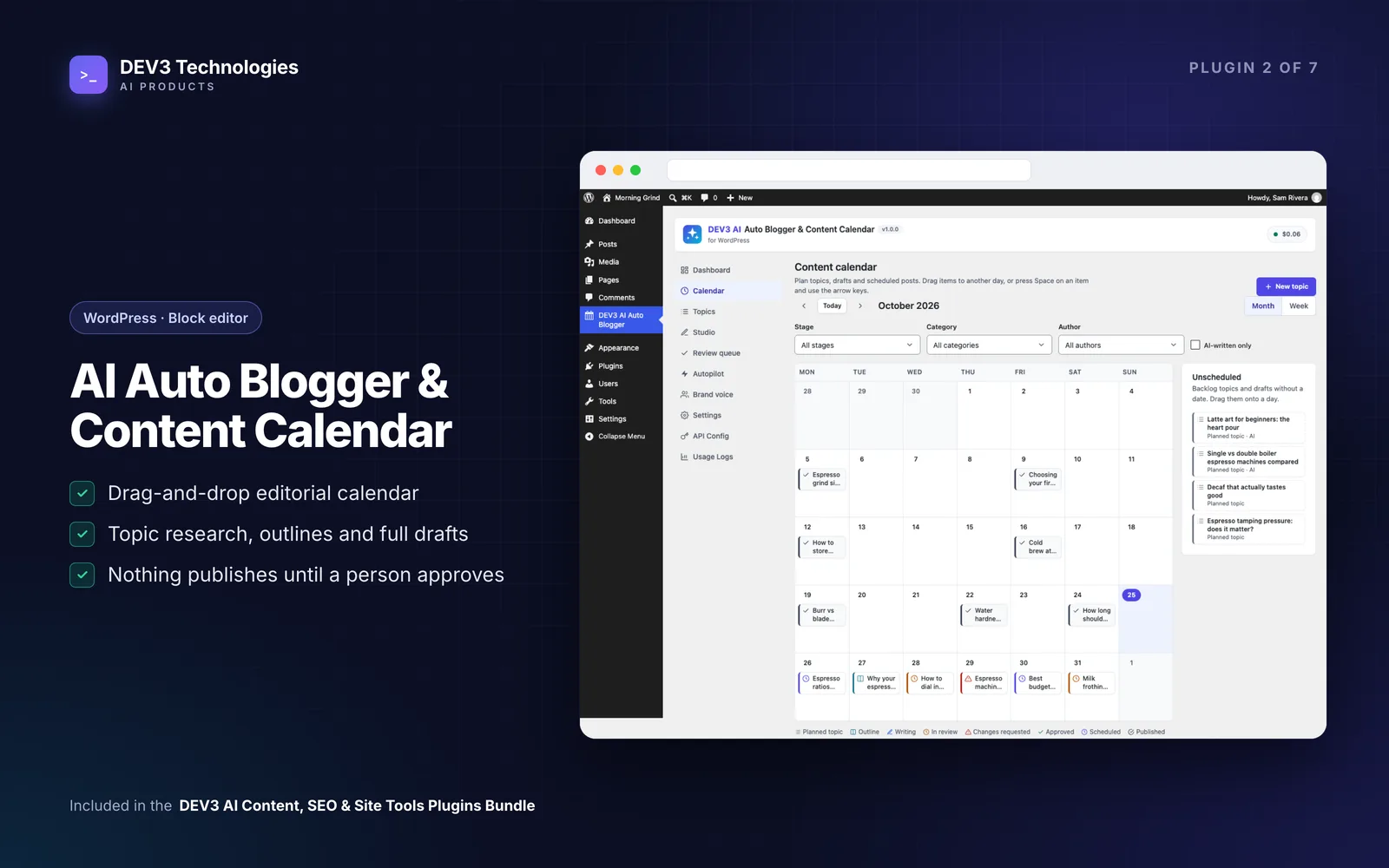
Open Calendar in month or week view. Planned topics, drafts, scheduled and published posts all appear with their stage: Planned topic, Outline, Writing, In review, Changes requested, Approved, Scheduled or Published.
Drag items between days, or to the Unscheduled tray if a date is not fixed yet. The + on a day adds a topic there. The calendar is keyboard accessible (Space to pick up, arrows to move, Enter to drop) and shows as an agenda list on phones.
5. Write in the Studio
Click Start writing on a topic to open the Studio:
- Click Outline with DEV3 AI, or Write it myself if you prefer to outline by hand. AI outlines can include an SEO title, slug, meta description, FAQ and internal-link suggestions.
- Edit the outline, then Accept outline.
- Click Write draft with DEV3 AI. This runs as a background job and writes the draft section by section as native core blocks (paragraphs, headings, lists, tables, quotes, FAQ details).
- Read the preview. Nothing changes in the post until you click Accept draft into post.
The Studio also offers an AI featured image and title suggestions.
6. Review and approve
When the post is ready, click Submit for review. The post is set to Pending and approvers are emailed (editors and administrators by default). Approvers click Approve or Request changes. Only approved items can be scheduled.
This is the safety net: posts written with DEV3 AI cannot be published or scheduled until a person approves them.
7. Optional: let autopilot keep the backlog moving
Once the process works, administrators can set up Autopilot. It runs on chosen weekdays, writes drafts from the backlog and puts them in the review queue. "Auto-publish without review" is off by default and has to be confirmed per schedule. For most teams, leaving it off is the right choice: autopilot does the first draft, people do the judgement.
Tips and pitfalls
- Plan dates, not just topics. Topics with a planned date show up on the calendar, which is what keeps a schedule honest.
- Use "Request changes" rather than editing silently. It keeps the stage accurate and tells the writer what happened.
- Keep the voice profile short and specific. Learn from your best one to five posts, then edit the result.
- Background jobs stuck as queued? WP-Cron only fires on site visits. Keep the job screen open, or add a real cron job that calls
wp-cron.php. - Know what is sent to Google. Only what a feature needs: topic titles, keywords, outline text, your brand voice and, for research and duplicate checks, post titles and excerpts.
Who this is for
- Small marketing teams and founders who want a regular blog without a separate project-management tool.
- Agencies that run content for several clients and need an approval step their clients can trust.
- Editors who want AI to do first drafts while keeping full control over what is published.
Read the case study to see how the plugin was built. If you want an AI content workflow connected to your own systems, our AI implementation team can help.
Getting started
DEV3 AI Auto Blogger & Content Calendar is part of the DEV3 AI Content, SEO & Site Tools bundle, which also includes the SEO Assistant for polishing every post before it goes out. Install it, fill your backlog and put next month on the calendar.