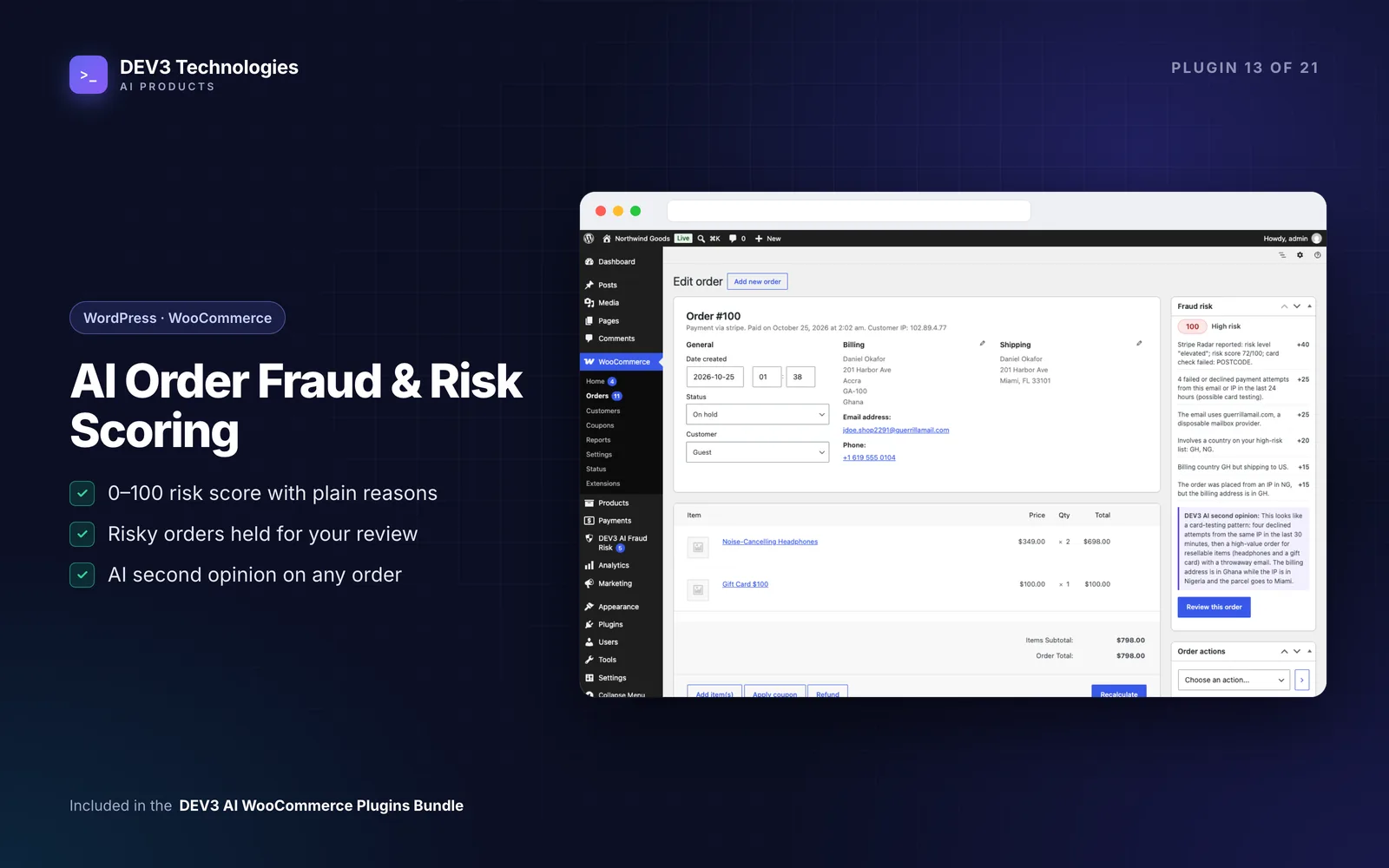
Fraud on a WooCommerce store rarely looks dramatic at first. It's a run of small orders from the same IP, each with a declined card, until one goes through. It's a big first order shipping to a different country from the billing address. It's an order for five gift cards from a disposable email address. Then come the chargebacks, the fees, and the stock you shipped and won't see again.
The usual reactions both hurt. Do nothing, and you pay for it in chargebacks. Install a tool that cancels anything suspicious, and sooner or later it cancels a real customer's order, and you're the one explaining the refund. This guide shows a middle road with DEV3 AI Order Fraud & Risk Scoring: score every order, hold the risky paid ones, and let a person make the final call.
What good fraud prevention looks like for a small store
- Every order gets a score you can read. Not just "high risk", but why.
- Risky orders are held, not cancelled. You decide before anything ships.
- Review is fast. One queue, clear reasons, a few buttons.
- Your payment gateway's own checks are used, not ignored.
- Known-good customers sail through, and known-bad ones can't check out.
- The rules improve as you review more orders.
- Customers never see the score. A held order gets, at most, a neutral note.
Step 1: Install and let it score
You'll need WordPress 6.0+, PHP 7.4+ and WooCommerce 8.0+ (HPOS and legacy order storage, classic and block checkout are all supported). Install and activate the plugin, then open DEV3 AI Fraud Risk. New orders are scored straight away, with no API key needed. Every order gets a 0–100 score built from 16 rule-based signals, each with points and a plain sentence explaining it.
If you use the WooCommerce Stripe Gateway, Stripe Radar's risk level and score, outcome, and CVC and address checks are read automatically. WooPayments fraud outcomes are read from its order meta.
Step 2: Scan your past orders
On the Dashboard, click Scan past orders. This scores older orders so velocity, history and the charts have data from day one. Past orders are never held or cancelled by the scan. It's also a useful first look: the dashboard shows risk levels and the most common reasons across your history.
Step 3: Check thresholds and add your high-risk lists
Open Rules → Thresholds & actions. The defaults are:
| Level | Score |
|---|---|
| Flag | 40+ |
| Review | 60+ |
| Hold | 75+ |
| Cancel | 95+ |
Hold high-risk orders automatically is on. Cancel orders automatically is off, so cancel-level orders are held instead. Leave it that way until you've reviewed a good number of orders.
Then add what's risky for your store:
- High-risk lists: countries you don't normally ship to, products fraudsters target (gift cards are the classic one) and categories.
- Extra disposable email domains you've seen.
- Signal points: each signal can be switched off or given different points. A store that sells a lot internationally might lower the billing/shipping mismatch points, for example.
Step 4: Set up alerts and the checkout guard
In Settings:
- Turn on Email me about risky orders and choose when to alert.
- Decide whether to use the Checkout guard. It stops block-listed customers and limits the number of orders per IP per hour, on both the classic and block checkout. This is your main defence against card testing, where someone tries card after card in quick succession.
- Keep or edit the neutral Shopper notice shown on the thank-you page of a held order. It's a "routine check" message, and you can turn it off.
Step 5: Build a daily review routine
Once a day (or whenever the menu badge shows a number), open Review queue → Waiting for review. Each order shows its score, top reasons, action, total and age.
- Click an order to open its Order risk page: the score gauge, Why this score with every reason and its points, the gateway result, History & velocity and a timeline.
- Under Your decision, choose Approve (a held order goes back to Processing), Cancel order or Mark as fraud.
- Tick Also add the email to the allow list for a genuine customer, or Also block the email and IP address for a fraudster, so the decision is remembered next time.
Every decision is written to the order notes with your name. For clear-cut cases, select several orders and use Bulk actions. You'll also see a Risk column in WooCommerce → Orders and a Fraud risk box on each order screen, so staff who live in the orders list don't miss anything.
When you're not sure: ask for a second opinion
With a Google Gemini key in API Config, click Get a second opinion with DEV3 AI on an order's risk page. You get a verdict (likely legit, uncertain or likely fraud), a confidence level, reasons and Checks before you ship, such as things to confirm with the customer. Only countries, totals, product categories and signals are sent, never the customer's name, address, phone or email. Use suggestion pre-selects a decision, but you still confirm it.
Step 6: Keep your lists tidy
Open Allow & block lists. Add an email, email domain, IP or CIDR range, phone or customer. Allow-listed customers skip every rule, and block-listed customers score 100 and, with the checkout guard on, can't check out. Import CSV and Export CSV move lists between stores, and the Matches column shows which entries are earning their keep.
Step 7: Tune the rules from your own decisions
After a few weeks of reviews, open Rules:
- Add Custom rules, such as Billing country is one of plus Order total is at least, with an action of flag, review, hold, cancel or Allow (skip holds).
- Use Test on an order to compare saved rules with your changes on a real order. Nothing is stored.
- Click Tune my rules with DEV3 AI. It compares how often each signal fired on approved and fraud orders, and proposes new points and thresholds as a draft. Choose Accept selected & save or Discard.
Tips and pitfalls
- Don't switch on auto-cancel on day one. A held order costs you a few minutes. A wrongly cancelled order costs you a customer.
- Allow-list your regulars. Repeat B2B buyers and VIP customers shouldn't land in the queue every time.
- Staff and imported orders are scored but never held automatically, so phone orders won't get stuck.
- Give shop managers access deliberately. The screens need
manage_optionsby default. Use thedev3fr_manage_capabilityfilter if your fulfilment team should review orders.
Who it's for
Stores that sell easily resold goods (electronics, gift cards, branded fashion, digital codes), stores that have seen card testing, and any shop that wants fraud decisions made by people with clear reasons in front of them. The case study covers the order lifecycle and gateway signals in more depth.
Get started
DEV3 AI Order Fraud & Risk Scoring is part of the DEV3 AI WooCommerce Plugins Bundle. Install it, scan your past orders, and spend a week reviewing the queue before you change a single threshold. If you need a broader security review of your store, get in touch.