You built your WooCommerce store for retail customers, and now trade buyers are emailing. A café wants 48 mugs a month. A boutique asks for your wholesale price list. A distributor sends a paragraph like "200 kraft mugs and 50 A5 notebooks, delivery to Berlin" and wants a quote by Friday. Before long you're running two businesses: a store for retail, and a spreadsheet, an inbox and a PDF template for everyone else.
The usual fix is a stack of plugins: one for wholesale prices, one for an order form, another for quotes. They don't share a price calculation, so a quote you type by hand can disagree with what the same buyer sees in the cart. This guide shows how to run retail and B2B from one store with DEV3 AI B2B Wholesale & Quote Requests, so every price comes from the same rules.
What good B2B selling on WooCommerce looks like
- Trade buyers apply, and you approve them. Not everyone who ticks "I'm a business" gets your wholesale prices.
- Each tier has its own terms. Discount, minimum order, tax exemption, payment and shipping methods.
- Quantity breaks are automatic. Buy 50, pay less per unit, without you editing the cart.
- Repeat buyers can order fast from a table or a pasted list, not by clicking through 30 product pages.
- Quotes use the same prices as the cart, and an accepted quote becomes an order without retyping anything.
- Retail customers see none of this unless you want them to.
Step 1: Create the pages
Install and activate the plugin, then open DEV3 B2B & Quotes → Settings. Under Pages, click Create page for:
- the quote request page,
- the quick-order page,
- the wholesale registration page.
You can also add the matching blocks to pages you've already designed. In Settings you also choose whether guests see prices, who gets the Add to quote button, the default quote validity and terms, and when follow-up reminders go out.
Step 2: Define your trade tiers
Go to Roles & tiers. Two roles are created for you: Wholesale (10% off) and Distributor (20% off with a $250 minimum). Edit them or add more. For each role you can set:
- a default discount,
- a minimum order value and minimum quantity,
- tax exemption,
- allowed payment gateways and shipping methods (for example, invoice payment only for distributors),
- a free-shipping threshold,
- the price label buyers see.
Minimums and restrictions apply on both the classic and the block checkout, and the cart shows what's missing if a minimum isn't met.
Step 3: Add pricing rules and quantity breaks
Open Pricing rules → New rule and choose:
- Who: everyone, all wholesale roles, or one role.
- What: all products, certain categories, or specific products.
- Discount: percent off, amount off or a fixed unit price.
- Quantity breaks: for example 25% off from 50 units.
- Priority and dates: for seasonal trade promotions.
Higher priority wins, and a price set on a product's Wholesale tab always beats rules. That tab is also where you set wholesale-only or retail-only visibility, a minimum quantity and a pack size (handy if mugs ship in boxes of 12). Use Price preview to check what a product costs for a given role and quantity before any buyer sees it.
On product pages, buyers can see a "Buy more, save more" table and struck-through retail prices.
Step 4: Approve wholesale applications
Buyers apply through the registration form, and you get a "New wholesale application" email. Open Wholesale customers → Pending:
- Optional: click Screen with DEV3 AI for a short summary, signals and questions to ask. It's advice only.
- Choose the role. It can differ from the one requested.
- Click Approve, or Decline with a reason.
The customer is emailed and sees their role's prices from their next page view.
Step 5: Give repeat buyers a quick-order table
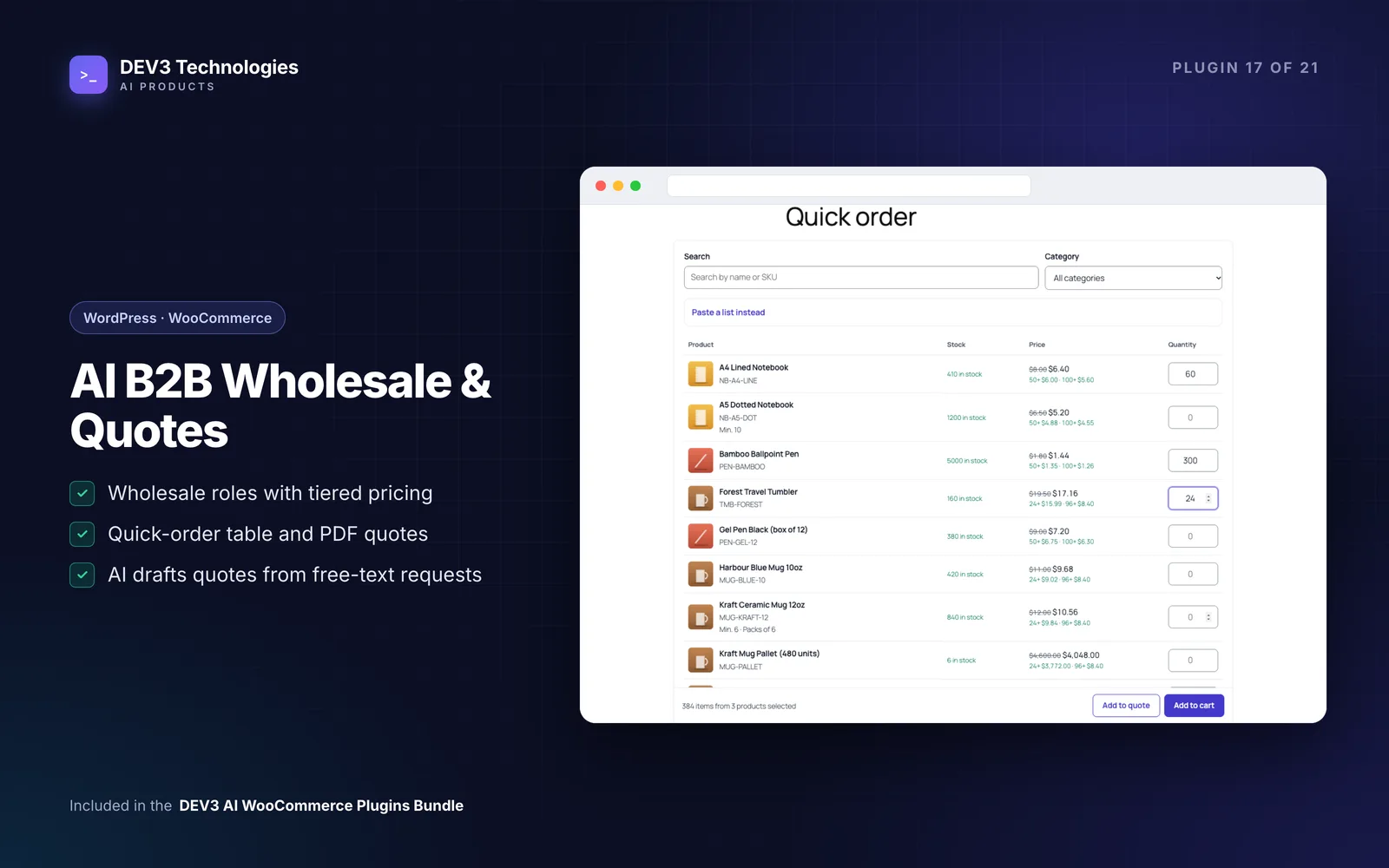
Share the quick-order page. Buyers search or filter by category, type quantities and click Add to cart or Add to quote. Buyers who already have a list can click Paste a list instead and paste lines such as:
MUG-KRAFT-12, 48
They confirm the matched products before anything is added. Role prices, pack sizes and quantity tiers apply automatically.
Step 6: Handle quote requests
Quote requests arrive from the quote page, the Add to quote button and Request a quote for this cart. Open one in Quotes:
- If the buyer wrote free text, paste it into Customer request and click Draft with DEV3 AI. You get draft lines, unmatched items and questions. The AI only picks real catalogue products, and every price comes from your rules. Click Accept lines when it looks right.
- Lines are priced for the customer's role and quantity. Type a price to override a line, or click Re-price from rules to go back.
- Add shipping, any extra discount, the tax mode, a valid-until date and terms. Write a cover message, or use Write with DEV3 AI for a draft.
- Click Send quote. The customer gets an email with a PDF quote and a link to view it.
Step 7: Turn accepted quotes into orders
The customer opens the quote from My Account → Quotes or the private link in the email, then accepts, declines or sends a message. Accepting creates a pending WooCommerce order with exactly the quoted prices, shipping and discount, and takes them to the pay-for-order page. For customers who pay by invoice, click Convert to order in the quote editor instead. Unanswered quotes get a reminder and expire automatically.
Tips and pitfalls
- Start with two tiers. Wholesale and Distributor cover most stores. Add tiers when a real customer needs different terms, not in advance.
- Use pack sizes, not just minimums. A minimum quantity of 12 still allows 13. In the quick-order table, quantities are rounded to minimums and pack sizes, so orders arrive in whole boxes.
- Preview before announcing. Run Price preview for your top products at a few quantities, for each role. Rule priority surprises are easier to fix before buyers see them.
- Decide on guest prices early. Some trade-only shops hide prices from guests entirely. Retail-plus-wholesale stores usually show retail and reveal trade prices after login.
- Keep AI as a helper. Quote drafts, emails and application screening are all drafts you accept, edit or reject. The plugin is fully usable without AI.
Who it's for
Brands and makers that sell both retail and trade, distributors with tiered accounts, and suppliers that get "can you quote me for…" emails every week. If your quote process today involves a spreadsheet and a PDF template, this replaces both. The case study covers how quotes, pricing rules and accepted orders tie together.
Get started
DEV3 AI B2B Wholesale & Quote Requests ships in the DEV3 AI WooCommerce Plugins Bundle. Create the three pages, set up two tiers and a quantity break, and send yourself a test quote. For custom B2B portals or ERP links, talk to our web development team.