"Every custom order turns into an email thread"
If you sell anything personalised on WooCommerce (engraved boards, printed T-shirts, made-to-measure blinds, gift boxes with extras), you know the pattern. The product page has a variation or two, and everything else happens in the order notes or over email: "What font?", "Can you send the photo again, it's blurry?", "That size costs more, I'll send an invoice for the difference."
Each of those messages costs you time, and each manual price adjustment is a chance to undercharge. Customers feel it too: they can't see what they're paying for until someone replies.
This guide walks through setting up proper product options with DEV3 AI Product Options & Add-Ons for WooCommerce, so the product page collects everything you need and prices it correctly before the order is placed.
What good looks like
A well-built personalised product page:
- Asks only relevant questions. If the customer doesn't want engraving, the engraving text box shouldn't be there.
- Shows a live total. Every choice that changes the price updates it immediately.
- Prices the way you actually charge. Per letter, per square metre, a flat set-up fee, cheaper per item at higher quantities.
- Gets usable files. Uploads have the right type, size and resolution, so you aren't chasing a better photo.
- Carries everything into the order. Options appear in the cart, checkout, order emails and the order admin, and the customer can edit them from the cart.
- Charges what the server calculates. The browser shows the price, but the server decides it.
Step-by-step setup
1. Install and decide where options live
Upload the zip in Plugins › Add New › Upload Plugin and activate it (WordPress 6.0+, PHP 7.4+, WooCommerce 8.0+). Open DEV3 AI Product Options in the admin menu; shop managers and administrators can use it.
You can attach options in two ways:
- Option sets: global groups of fields assigned to all products, or to categories (sub-categories included), tags or individual products, with exclusions and priorities. Use these for anything shared, like "Gift wrap & message" across your whole gift range.
- Product options: open a product and use the DEV3 AI Options tab. Choose product fields + matching sets, only product fields, or no options. Per product you can switch off a matching set or override fixed prices.
2. Add fields
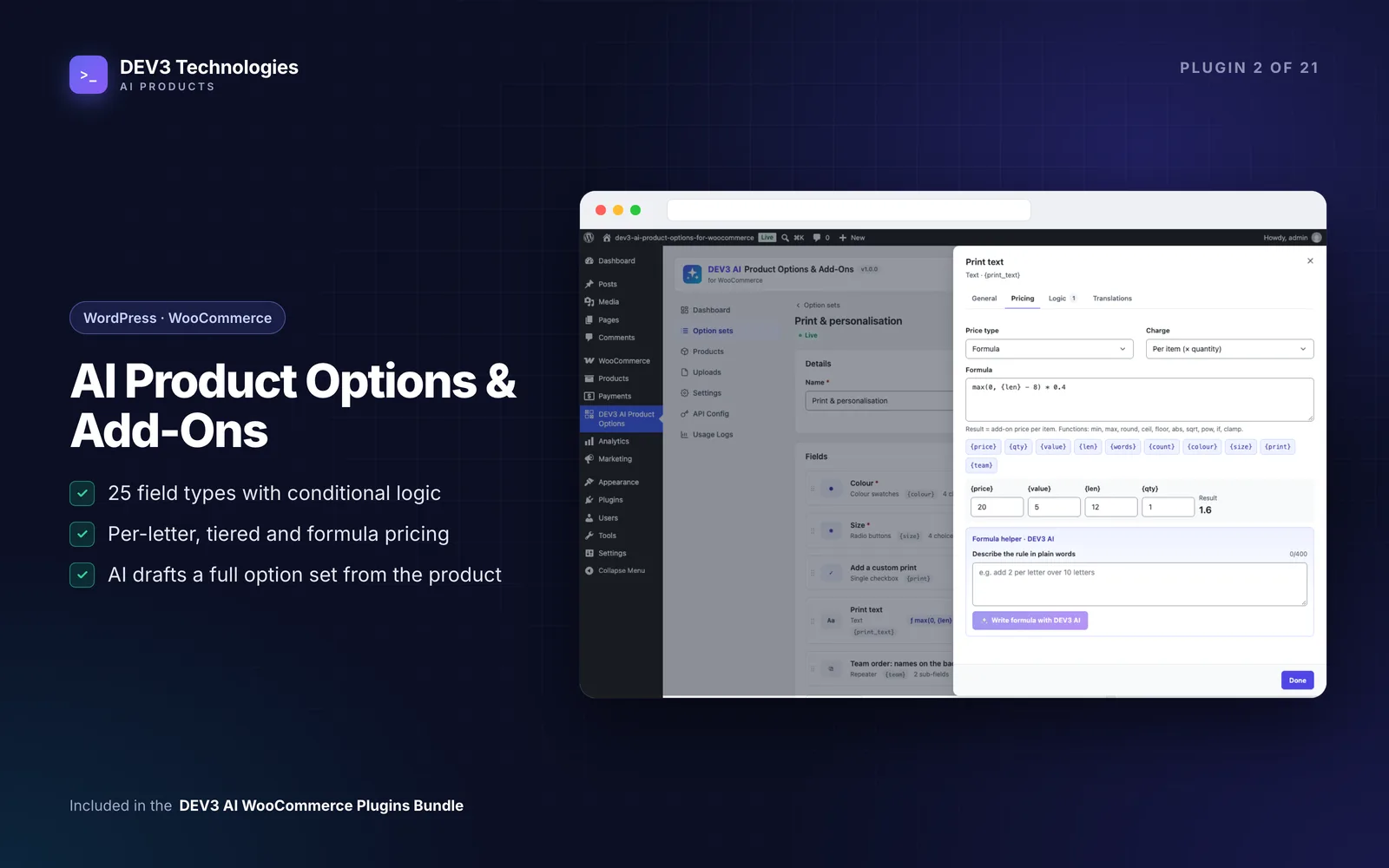
There are 25 field types, grouped as text, numbers, choices, date & time, files & colour, an advanced hidden value, and layout (section, step, paragraph, repeater). For a personalised cutting board, a sensible set is:
- Image swatches for the wood type, each choice with its own price.
- Radio or dropdown for size.
- Single checkbox "Add engraving".
- Text for the engraving, with a maximum length.
- Checkbox group for extras (gift box, care oil).
Every field has a label, a key (used in formulas), help text, a tooltip, a required flag and half or full width.
3. Add conditional logic
Show the engraving text only when "Add engraving" is checked. Rules can match all or any conditions, with operators such as is, is not, contains, is empty, greater/less than and is checked. Hidden fields are never required and never priced, so a customer can't be charged for something they can't see.
The logic checker runs as you edit. It flags impossible rules (Size is S and M), circular dependencies, rules on deleted fields, formula errors, division by zero, conflicting quantity tiers, duplicate choices with different prices and more. Publishing is blocked while it reports errors, unless you choose to publish anyway.
4. Set prices the way you charge
Each field can use one of six price types: flat, percent of the product (or variation) price, per character with free characters, per unit, quantity tiers, or a formula. Choose whether the price is charged per item or once per cart line, which is how you add a one-off set-up fee.
Formulas use the field keys you defined. A few practical examples from the docs:
max(0, {len} - 10) * 2        2 per letter over 10
{width} * {height} / 10000 * 18   18 per m²
if({qty} >= 10, 1, 2)         cheaper for 10+
If writing formulas isn't your thing, the formula helper (field › Pricing › Formula) turns plain language like "add 2 per letter over 10 letters" into a validated formula, with worked examples. It needs a Google Gemini API key, added in API Config.
5. Collect files that are actually usable
Add a File upload field and set the allowed types, maximum files, maximum size and minimum width/height. Files are stored with random names in a protected uploads folder and linked from the order for staff. Files that never become part of an order are deleted after the retention period.
With AI connected you can turn on the upload vision check: describe what the image must show, and the shopper is told how to fix an image that doesn't fit. Choose warn or block in Settings. If AI is unavailable, the upload is accepted and marked "not checked".
6. Use steps for long forms
For products with many choices, add Step fields to turn the form into a wizard. It keeps phones manageable: upload a photo on step one, choose a style on step two. Repeaters handle "one name and number per team player" style orders with minimum and maximum entries.
7. Let DEV3 AI draft the first version
On a product or option set, Generate options reads the product title and description and drafts the full set (fields, choices, prices, conditions). The draft is validated and run through the logic checker; you review it, then add or replace fields. Review with DEV3 AI adds suggestions to the logic checker, and Labels & translations rewrites help texts in a tone or translates them per field. Nothing is saved without your click.
Tips and pitfalls
- Start with option sets for shared extras, then use product fields for one-off items. Sets can be exported and imported as JSON, which is handy when moving between staging and live.
- Variable products are supported. Options apply to the parent, and percent prices follow the selected variation's price.
- Taxes follow the product. Option prices are entered like product prices and taxed with the product's tax class.
- Shop page buttons. When a product has a required option, the shop/category button links to the product instead of adding to cart (configurable).
- On Nginx, add a deny rule for the uploads folder; the built-in protection covers Apache.
- Styling inherits your theme. Set an accent colour in Settings or override the CSS variables on
.dev3po-form.
Who it's for
Makers and print shops, gift and personalisation stores, made-to-measure products, team kit sellers, and agencies building WooCommerce stores that need options on block and classic themes, Elementor or WPBakery. For the engineering behind the pricing engine, see the case study.
Wrapping up
When the product page asks the right questions, shows a live total and hands you clean files, custom orders stop being email threads. DEV3 AI Product Options & Add-Ons is part of the DEV3 AI WooCommerce Plugins Bundle; if you need a custom configurator beyond it, our web development team can help.