Personalised products sell. A T-shirt with a team name, a mug with a family photo, a poster with someone's own slogan: customers will happily pay more for something that's theirs. The trouble starts after the order. The customer emailed a blurry JPEG. The text runs off the edge of the print area. The file is the wrong size for your printer. And every order means a back-and-forth to get artwork you can actually print.
A product designer on your WooCommerce store fixes most of that, if it's set up well. Customers design on the product itself, see the price as they go, and you download a file that's ready for the press. This guide shows how to set that up with DEV3 AI Product Designer.
What a good custom-product setup looks like
- Customers design on a realistic mockup, with each side (front, back, sleeve) as its own view.
- They can only place artwork where you can print, inside a print area with bleed and a safe zone.
- The price updates live as they add elements, and the cart charges the right amount.
- It works on a phone, because that's where a lot of shoppers will be.
- Problems are caught before checkout: low-resolution photos, text near the edge, tiny text.
- You get print-ready files at the physical size and DPI your printer needs.
- Customers who aren't designers get help, from templates to AI artwork and slogan ideas.
Step 1: Define your product types
Install the plugin, then open DEV3 AI Designer → Product types. Add a preset (T-shirt, mug, poster, phone case, tote) or create your own. For each view, set:
- The mockup image customers design on.
- The print area and its size in millimetres. Take these from your printer or blank supplier, not from guesswork.
- Bleed and safe zone. Bleed covers trimming tolerance, and the safe zone keeps important text away from the edge.
- Minimum DPI. Uploads below it get flagged.
Then choose the tools customers get (text, photo uploads, AI artwork, clipart, shapes, templates), the fonts and the colour palette. If your printing method can only reproduce certain colours, a limited palette saves arguments later. Click Save, then Preview in designer to try it yourself.
Print-area prices are set per view here, so you can charge more for a back print or a sleeve.
Step 2: Set store-wide rules
In Settings, set:
- the default price per element,
- whether guests can design or must log in,
- the button label,
- the minimum print DPI and the DPI of exported print files,
- how many AI artwork requests each shopper can make per day,
- the upload size limit and how long unordered designs are kept.
Add your own words to Blocked words for artwork prompts if there's anything your shop won't print.
Step 3: Turn the designer on for products
Go to DEV3 AI Designer → Products, find a product and click Configure (or use the DEV3 AI Designer tab in the product editor):
- Turn on Enable the designer and choose the Product type.
- Decide whether a design is required before add to cart.
- Optionally add a design fee, a starting template and a custom button label.
- Click Save.
The product page now shows a Customize design button.
Step 4: Give customers a head start with templates
Most shoppers don't want a blank canvas. Open Templates, create a template for a product type and design it in the same studio customers use. Lock elements that shouldn't move (your logo, a border), and set a template price if you like.
With a Google Gemini key in API Config, Generate templates with DEV3 AI drafts templates from an occasion and style, such as a birthday or a stag do. You review each draft before it's saved. Upload brand fonts and clipart under Fonts & clipart, alongside the 12 bundled fonts.
What your customers will see
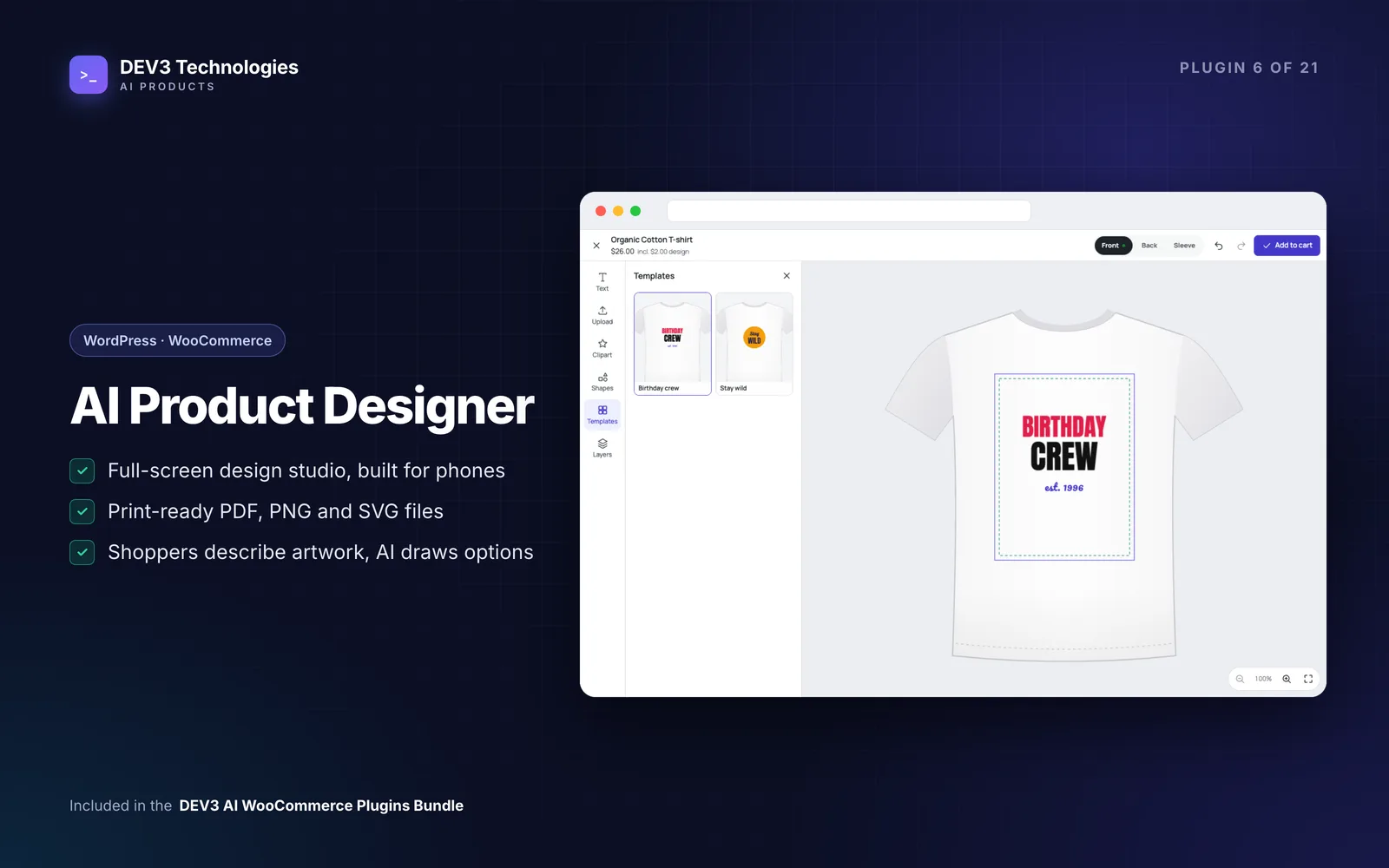
When a shopper clicks Customize design, a full-screen studio opens:
- They switch between views at the top.
- They add text, photos, clipart, shapes or a template from the tool bar. On phones, there's a bottom tool bar, pinch to scale and twist to rotate.
- With AI on, AI art creates artwork from a description, and Slogan ideas (AI) suggests text for an occasion and style. Without AI, built-in slogan ideas are used.
- They click Add to cart. The design check flags print problems first, and the shopper can fix them or continue.
Logged-in shoppers can save designs under My designs. The cart price is calculated on the server from the saved design, so the total can't be changed in the browser.
Step 5: Print the order
Open Designs & orders and choose an ordered design to see its previews, details and print check. Under Print-ready files:
- Choose the resolution (300 DPI for print) and background.
- Tick crop marks if your printer wants them, and Also save files to the order to keep a copy.
- Click PDF, PNG or SVG for each side, or All sides as one PDF.
PDFs come out at the exact physical size with bleed boxes. PNGs carry real 300 DPI metadata. SVGs are vector with embedded fonts and images. Files are rendered from the saved design with the same engine as the canvas, so they match what the customer saw. Export large print files from a modern desktop browser.
If a customer edits a design that's already on an order, a new design is created, so the printed file always matches the order.
Tips and pitfalls
- Ask your printer first. Print area sizes, bleed and DPI should come from whoever presses the shirts or prints the mugs.
- Start with one product. Get the T-shirt right, then copy the approach to mugs and totes.
- Set AI limits. Daily per-shopper limits keep AI artwork costs predictable, and the blocklist plus AI moderation keep prompts in line.
- Use the print check yourself. The optional AI review checks spelling and layout, which is worth running before a big order goes to press.
- Test on your phone. Design a full product on a phone before launch. If you find it fiddly, so will customers.
Who it's for
Print-on-demand shops, local print businesses moving online, merch stores for clubs, schools and events, and gift shops selling personalised mugs, posters, phone cases and totes. The plugin works fully without AI, and the AI tools are there when customers need inspiration. The case study explains how designs are checked and priced on the server.
Get started
DEV3 AI Product Designer is part of the DEV3 AI WooCommerce Plugins Bundle. Set up one product type with your printer's measurements, design a test order on your phone, and export the files. For a custom print workflow or printer integration, our web development team can help.