"Half our returns say 'too small'"
If you sell clothing, shoes or accessories on WooCommerce, you know the return reasons by heart: too small, too big, didn't fit. Every one of them costs you shipping, handling and often a sale. And most of the time the shopper never looked at your size chart, because it was a blurry image in the product description that was unreadable on a phone.
Shoppers don't want to study a table. They want to know which size to pick. You, meanwhile, want to know which styles keep coming back for fit, so you can fix the chart or warn shoppers.
This guide shows how to set up proper size charts and a "What size am I?" quiz with DEV3 AI Size Guide & Fit Advisor for WooCommerce, and how to use your return reasons to keep them accurate.
What good looks like
A size guide that actually helps:
- Is easy to find, right next to the add-to-cart button.
- Is readable on a phone, with tables that scroll and a size column that stays put.
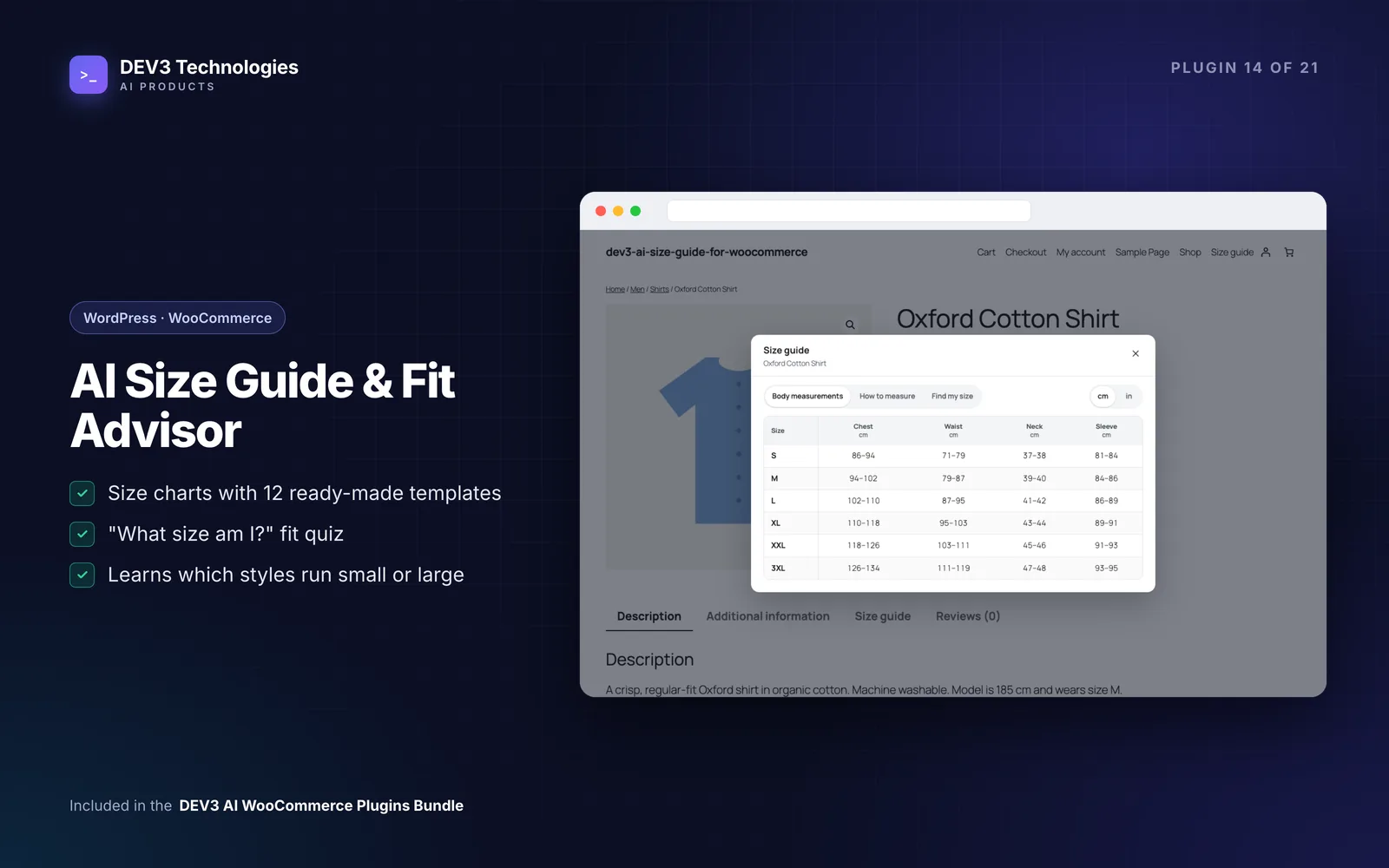
- Speaks both units: centimetres and inches, switchable by the shopper.
- Answers the real question with a recommended size, not just a table.
- Is assigned automatically by category, so new products aren't missed.
- Learns from returns, telling you when a style runs small or large.
Step-by-step setup
1. Install and start from a template
Upload the zip in Plugins → Add New → Upload Plugin and activate it (WordPress 6.0+, PHP 7.4+, WooCommerce 8.0+). Open DEV3 AI Size Guide in the admin menu. No licence key is needed.
Go to Templates. There are twelve: women's tops, dresses and bottoms, men's tops and shirts, men's bottoms and jeans, unisex T-shirts, women's and men's shoes, kids' clothing, bras, rings and hats. Pick the closest one; it's a starting point you adjust to your brand's measurements.
2. Edit the chart to match your sizes
In the chart editor:
- Tables: a chart can have up to six, such as Body measurements, Garment measurements and International sizes. Each becomes a tab for shoppers.
- Columns: set each column's type: a size label, another size system (US, UK, EU…), or a measurement such as chest, waist, hips, inseam or foot length.
- Values: one row per size, as numbers or ranges like
86-91. Switch the editor to in/lb to type imperial values; everything is stored in cm/kg. - Body or garment: mark measurements as body (used by the quiz) or garment (shown only).
The right column shows a live desktop and phone preview, plus a quiz simulator that runs on your unsaved changes.
3. Import a supplier's chart instead of retyping it
Got the chart in a spreadsheet or PDF from your supplier? In the editor's DEV3 AI card choose Paste a chart and click Read table (no AI). Tab, semicolon, comma, pipe or space-separated tables are read, column types are guessed from the headers, and inch values are detected and converted.
With a Google Gemini key under API Config, you can also draft a chart from the product's data, or upload a photo or screenshot of a supplier chart. These are drafts: choose Use these tables or Add as extra tables, then save.
4. Write the "How to measure" guide
Add one step per line (for example "Chest: measure around the fullest part…"), with an optional image from the media library. DEV3 AI can write this guide from the chart's measures if you'd rather start from a draft. Add a short fit note too, such as "This style is cut close to the body."
5. Assign the chart
Set Where it shows by category (sub-categories included), tag or product, with exclusions and a priority. Each product also has a Size guide box to choose Automatic, No size guide, or a specific chart. Set the chart to Live and click Save chart; drafts never appear on the store.
The Dashboard lists products without a size guide with a quick Assign button, so nothing slips through when you add new stock.
6. Choose how shoppers see it
In Settings, show the guide as a popup button plus a product tab (the default), popup only, or tab only, and choose the button position, such as after the add-to-cart button. The default unit is automatic (inches in the US, Liberia and Myanmar), and shoppers can switch; their choice is remembered on their device.
On phones the guide opens as a bottom sheet. Wide tables scroll inside it with a sticky header row and size column.
7. Turn on the fit quiz
The What size am I? quiz asks for the body measurements your chart uses, optional height and weight, the size usually worn in another system, and a fit preference (snug, regular or relaxed). It calculates the size with measurement maths, not AI. The result shows the recommended size, an alternative when between sizes, a confidence meter, per-measure verdicts and Select size, which picks that option in the variation dropdown.
With storefront AI allowed, DEV3 AI can rewrite the explanation in friendlier words, with the written version as a fallback.
8. Let returns tell you what runs small
Under Returns & learning, the plugin reads WooCommerce refund reasons per refunded line, a Fit feedback box on the order screen, manual records, and returns sent from RMA plugins. Notes are classified as too small, too large, fit OK, other or unclear.
When enough fit returns for a chart and size point the same way (by default at least 5 returns, 60% in one direction), you get a "Runs small / large" suggestion. Accepting it moves the quiz result by a size and can add a shopper fit note.
Tips and pitfalls
- Buttons not appearing? Check the chart is Live, assigned to the product's category, tag or product, and that the product override isn't "No size guide".
- "Select size" not picking the variation? Add your attribute name (for example
pa_shoe-size) under Settings → Size attribute names. Option names must match the chart's size labels. - Use real body measurements. Garment measurements are useful to show, but the quiz needs body measurements to recommend a size.
- Page builders are covered by shortcodes such as
[dev3sg_size_guide],[dev3sg_size_chart id="5"]and[dev3sg_fit_quiz], or the Size Chart block. - Privacy: shopper measurements are never stored on the server; the dashboard keeps anonymous counts only.
- Watch the dashboard: guide opens, completed quizzes, the quiz-to-cart rate and fit returns show whether shoppers are using it.
Who it's for
Fashion, footwear, lingerie, kidswear, jewellery and hat stores, and any WooCommerce shop where "which size?" is the question that decides the sale. For the maths behind the quiz, read the case study.
Wrapping up
Clear charts, a quiz that gives a straight answer, and return data that keeps both honest give shoppers the confidence to pick a size. DEV3 AI Size Guide & Fit Advisor ships in the DEV3 AI WooCommerce Plugins Bundle; if you need it set up across a large catalogue, contact us.