No licence key or activation is needed: install the zip and every feature works.
Requirements
- WordPress 6.0 or newer and PHP 7.4 or newer
- WooCommerce 8.0 or newer, active (block and classic themes, HPOS and the cart/checkout blocks are supported)
- Optional: a Google Gemini API key for the AI chart drafts, the how-to-measure writer, return-note classification and friendly quiz explanations. Charts, templates, paste import, the "What size am I?" quiz and returns learning all work without one
1. Install the plugin
- The plugin ships inside the DEV3 AI WooCommerce Plugins Bundle download. Unzip the bundle and find
dev3-ai-woocommerce-plugins-bundle/dev3-ai-size-guide-for-woocommerce/dev3-ai-size-guide-for-woocommerce.zip.
- In WordPress, go to Plugins → Add New → Upload Plugin, choose that zip and click Install Now.
- Click Activate. Its menu, DEV3 AI Size Guide, appears in the admin sidebar.
2. Connect Google Gemini (optional)
- Create a free API key in Google AI Studio (sign in with a Google account, then Create API key).
- Go to DEV3 AI Size Guide → API Config, paste the key and click Validate & save. The key is stored encrypted (AES-256-GCM) and never sent to the browser.
- Optional: pick the model (gemini-2.5-flash is the fast default) and set a budget on the same screen.
Prefer config files? Add define( 'DEV3SG_GEMINI_API_KEY', 'your-key' ); to wp-config.php instead.
3. First-time setup
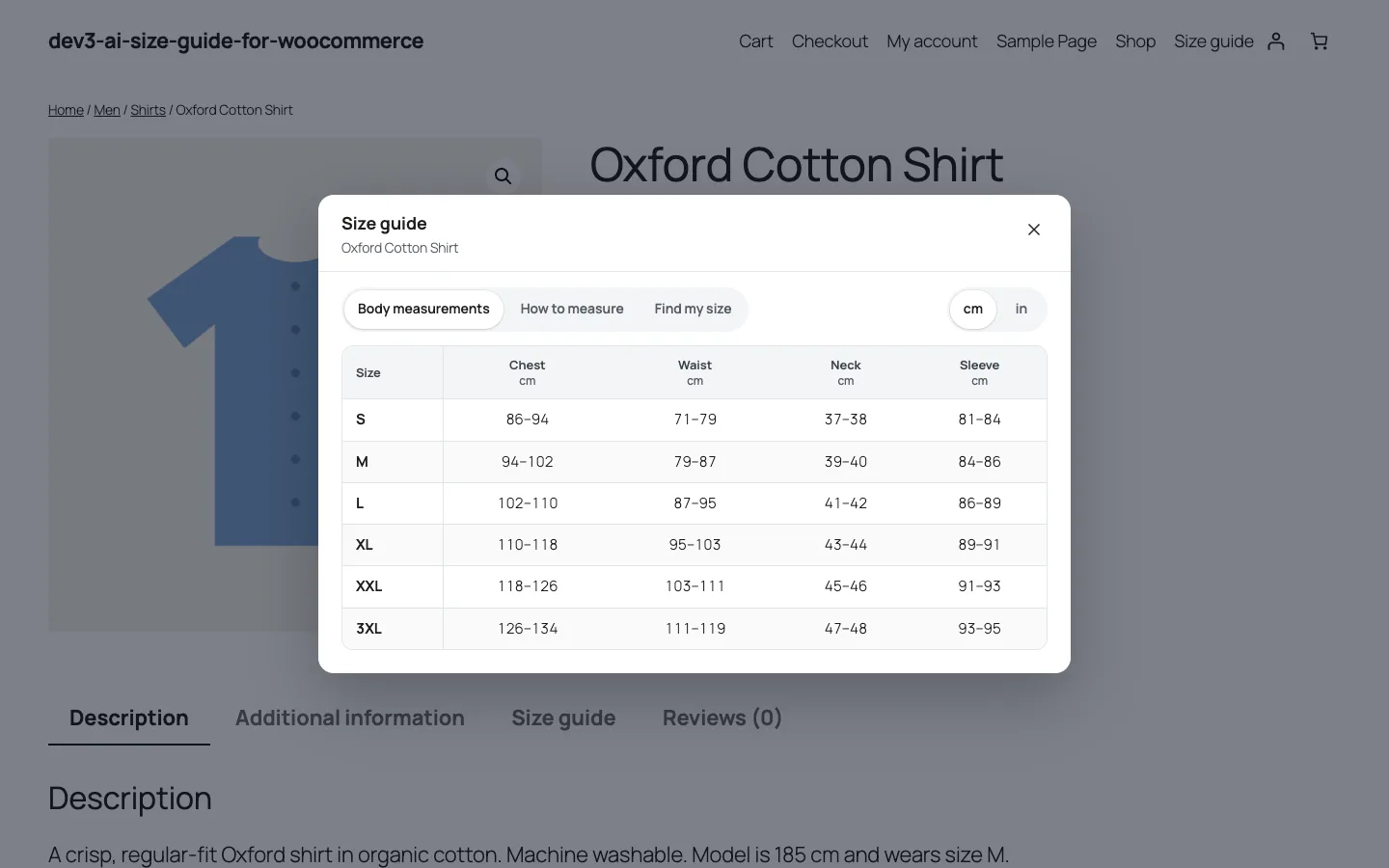
- Open Templates and click Use template on the chart closest to your products (12 are included: women's tops, dresses and bottoms, men's tops and jeans, unisex T-shirts, women's and men's shoes, kids, bras, rings and hats).
- In the chart editor, adjust the rows to your brand's measurements (ranges such as
86-91 are fine, and you can type in cm or inches), set the Body profile and add a how-to-measure guide.
- In the assignment card, pick the categories, tags or products the chart applies to, then turn on Live on the store and click Save chart. Drafts are never shown to shoppers.
- In Settings, choose where the guide appears (popup button and product tab, popup button only, or product tab only), the button position, the default unit for shoppers and your accent colour.
- In Fit quiz, choose which questions shoppers see (fit preference, usual size, height-and-weight estimates) and try the quiz against your chart.
- Check the Dashboard: the coverage card lists products that still have no size guide, with a one-click Assign.
Updating
Download the new bundle version, then upload the plugin zip in Plugins → Add New → Upload Plugin and choose Replace current with uploaded. Charts, settings and return records are kept.
Uninstalling
Deactivate and delete the plugin from Plugins. Charts, return records and settings are kept unless you turned on Delete all plugin data when the plugin is uninstalled in Settings first.