"Most orders are one item, and our 'related products' feel random"
Most WooCommerce stores already show recommendations: the "Related products" row under the product, maybe a few cross-sells in the cart. The trouble is that they're usually picked by category alone, so a shopper buying a camera sees five more cameras instead of the memory card and case people actually buy with it. And nobody can say whether those rows sell anything.
Raising average order value isn't about adding more widgets. It's about showing the right add-on at the right moment, making it one click to accept, and measuring what works.
This guide shows how to set that up with DEV3 AI Recommendations & Upsells for WooCommerce, using your own order history as the starting point.
What good looks like
A good upsell setup:
- Learns from your orders. "Frequently bought together" should mean exactly that, based on paid orders in your store.
- Shows up at each buying moment: the product page, the cart, the checkout, the thank-you page and order emails, without repeating what's already in the cart.
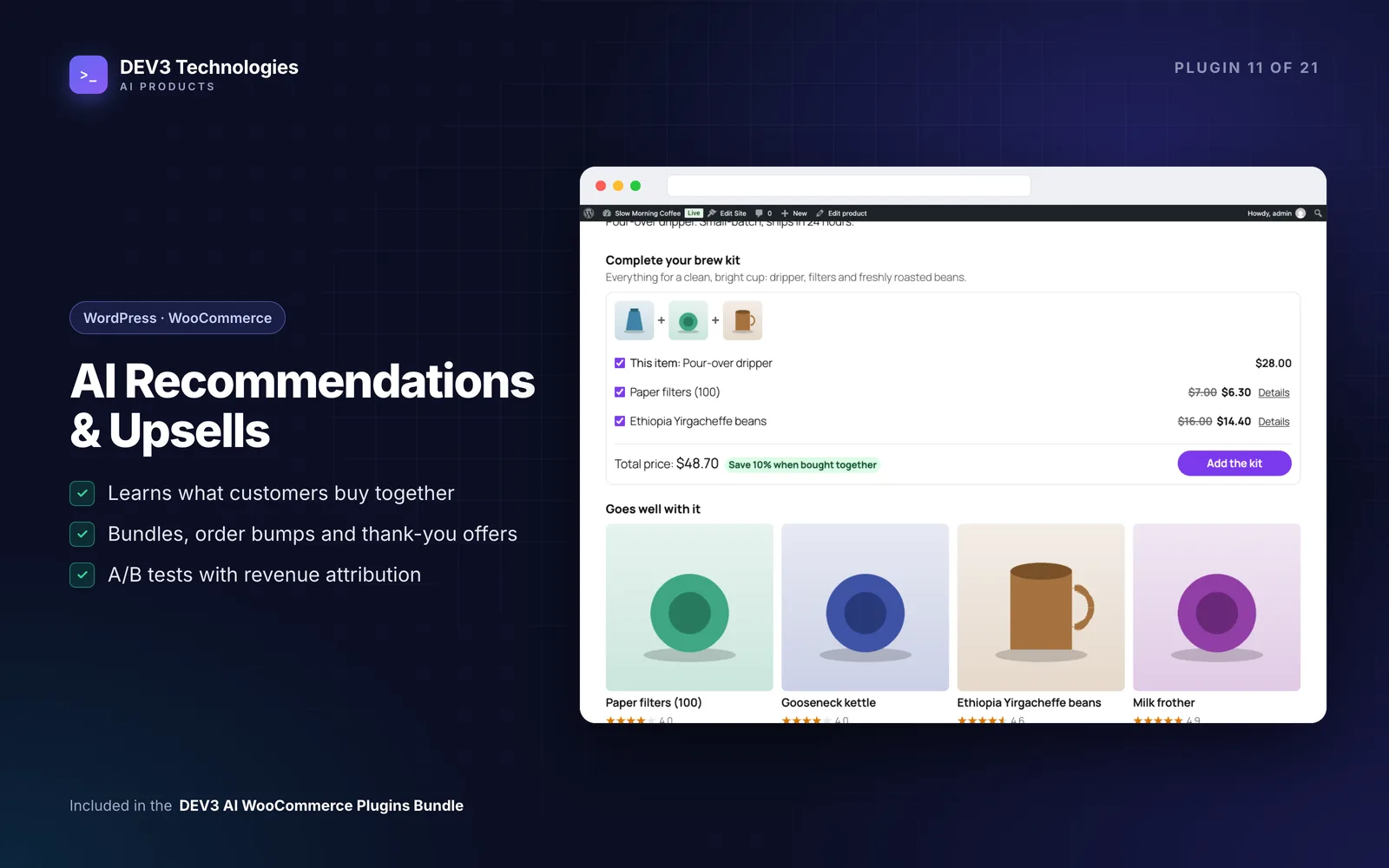
- Makes accepting easy: a bundle box with checkboxes, a single checkbox order bump, a post-purchase offer.
- Uses discounts carefully, applied only when they should be and never compounding.
- Is measured. You can see which widget sold what, and A/B test changes instead of guessing.
- Doesn't slow the store down.
Step-by-step setup
1. Install and build your stats
Upload the zip in Plugins › Add New › Upload Plugin and activate it (WordPress 6.0+, PHP 7.4+, WooCommerce 8.0+; HPOS and Cart/Checkout blocks are supported). Six starter widgets are created on activation, one per placement, which you can edit, pause or delete.
Go to Engine › Rebuild stats. This analyses your paid orders (the last 365 days by default) and precomputes every product's neighbour lists. After that, the stats update automatically when an order becomes paid, and are reversed when a paid order is cancelled, refunded or failed.
Open a product page: the Frequently bought together bundle appears after the summary. Check the cart and checkout too.
2. Choose a strategy per placement
Each widget has its own strategy. The ones that matter most for order value:
- Frequently bought together on the product page. When a product has little history, it's padded with the hybrid list.
- Goes well with (hybrid) mixes co-purchases, similar items from other categories, your WooCommerce cross-sells and popularity.
- Upsells shows your WooCommerce upsells first, then similar products between 1.05× and 3× the price (configurable).
- Cross-sells in the cart, with your own cross-sells first.
There are also best sellers, trending, new, on sale, top rated, recently viewed and pinned-only strategies. In cart, checkout, thank-you and email placements, the context is everything in the cart or order, and those items are never recommended again.
3. Set up the layouts that convert to adds
In the widget editor, pick a placement and position, then a layout:
- Bundle box with checkboxes and a live total on the product page. A bundle discount applies to companion items added through the bundle, and only while the main product stays in the cart.
- Order bump in the checkout. In the block checkout it appears inside the order summary, and totals update in place. A bump discount applies to the bump item only.
- Offer card on the thank-you page (see below).
- Email row for "You may also like" in the WooCommerce emails you choose.
- Grid, list or carousel elsewhere.
Use Conditions to target everyone, guests or logged-in customers, specific categories, or a minimum and maximum subtotal. The Live preview renders the real widget for any product, with "Why these products?" showing scores and reasons.
4. Add a post-purchase offer
The thank-you widget recommends products for what was just bought, with a discount and a countdown (30 minutes from the order by default). For offline payments such as bank transfer, cheque or cash on delivery, the item can be added to the same order with totals and stock updated. For card and other online payments, the item goes to the cart at the locked price and the shopper goes straight to an express second checkout.
5. Tune the engine
On the Engine screen you can adjust the blend weights and add filters: only in-stock products, never-recommend categories, hiding products the logged-in customer already bought, and the upsell price band. Pairs seen fewer times than Minimum support are ignored, which stops one odd order from driving recommendations.
For individual products, open the Product explorer (or Product data › DEV3 AI Recommendations in the product editor) to pin products that should always appear, block ones that never should, or hide widgets entirely.
6. Add DEV3 AI where order history is thin
New products have no co-purchase history. With a Google Gemini key under API Config, use Engine › Build index to add semantic similarity from product embeddings. In the Product explorer, DEV3 AI can suggest complementary picks for products with little history (only products from your catalogue are accepted, and you choose which to pin) and write a one-line bundle pitch. In any widget, the offer copy writer drafts a headline, subtitle and button label with alternative angles. The storefront itself never calls the AI.
7. Test and attribute
Open a widget, change something under Variant B (strategy, layout, copy, number of products or discount), save, and start the test under A/B tests. Results show views, click-through, adds, orders, conversion, revenue and revenue per 1,000 views per variant, with significance at 95% once each variant has at least 100 views. Declare winner ends the test.
Revenue attribution follows items added from a widget, plus clicks within a click-through window (7 days by default). Revenue is counted when the order is paid and reversed on cancellation or refund, and the order screen shows which widget sold each item.
Tips and pitfalls
- Rebuild after imports. If you import historic orders or change the history window, run Rebuild stats again.
- Don't over-discount. Start bundles and bumps without a discount or with a small one, and let an A/B test tell you whether it's worth it.
- One offer per moment. A bundle on the product page, a bump at checkout and one thank-you offer is plenty.
- Page caching is safe by default. If you run a full-page cache and want stock changes reflected immediately, set Rendering to "Always via cached AJAX".
- Privacy: tracking stores anonymous daily counters and uses two first-party cookies; only product data and aggregate stats are sent to Google Gemini.
- True one-click charges on the thank-you page for saved cards aren't in 1.0; paid orders use the express second checkout.
Who it's for
Stores with complementary products (electronics and accessories, beauty routines, kitchenware, hobby supplies), stores with enough order history to learn from, and owners who want proof of what each widget earns. For the maths behind the bundle rankings, see the case study.
Wrapping up
Upsells work when they're relevant, easy to accept and measured. DEV3 AI Recommendations & Upsells does all three from your own order data, and it ships in the DEV3 AI WooCommerce Plugins Bundle. If you'd like help planning offers for your store, talk to us.