"Request a quote" is the most valuable form on a service business website, and often the worst. Either it's a single message box that tells you nothing ("Hi, how much for a website?"), or it's a 25-field wall that visitors abandon halfway down. You end up emailing back and forth to get the basics, and you can't tell which enquiries are worth a call today.
This guide walks through building a quote request form in WordPress that asks the right questions in the right order, with DEV3 AI Form Builder: multi-step layout, questions that only appear when relevant, an instant estimate if you want one, and a scored entry waiting for you at the end.
What a good quote form looks like
- Short steps with clear names, like "Your project", "Budget & timing", "Your details", so visitors see progress.
- Only relevant questions. A shop project gets e-commerce questions; a brochure site doesn't.
- Structured answers (budget ranges, deadlines, project type) instead of free text you have to decode.
- A way to come back later for visitors who need to check something.
- Instant feedback where it helps, such as a ballpark estimate.
- A follow-up that starts warm: the lead lands in your inbox scored and summarised, and also in your CRM or mailing list.
- Evidence for improving it: which field makes people give up.
Step-by-step
1. Install and start from a sentence
- Upload
dev3-ai-form-builder.zipin Plugins → Add New → Upload Plugin and activate it. A DEV3 AI Forms menu appears. - Optional but useful: add a Google Gemini key in DEV3 AI Forms → API Config. You can set a monthly budget; AI pauses when it's reached and forms keep working.
- Click New form. Pick a template, a blank form, or Describe a form.
With a key, Describe a form is the fastest start. Type one sentence, for example "Website quote request in three steps: project type, budget and deadline, contact details; ask about the number of products only for online shops". Choose the number of steps and the language. DEV3 AI returns fields, options, steps, logic and formulas, validates the draft, and lists every repair it made (for example logic pointing to a later field). Nothing is saved until you click Use this form, and it's created as a draft.
No key? Build it by hand. Everything below except the AI features works without one.
2. Lay out the steps
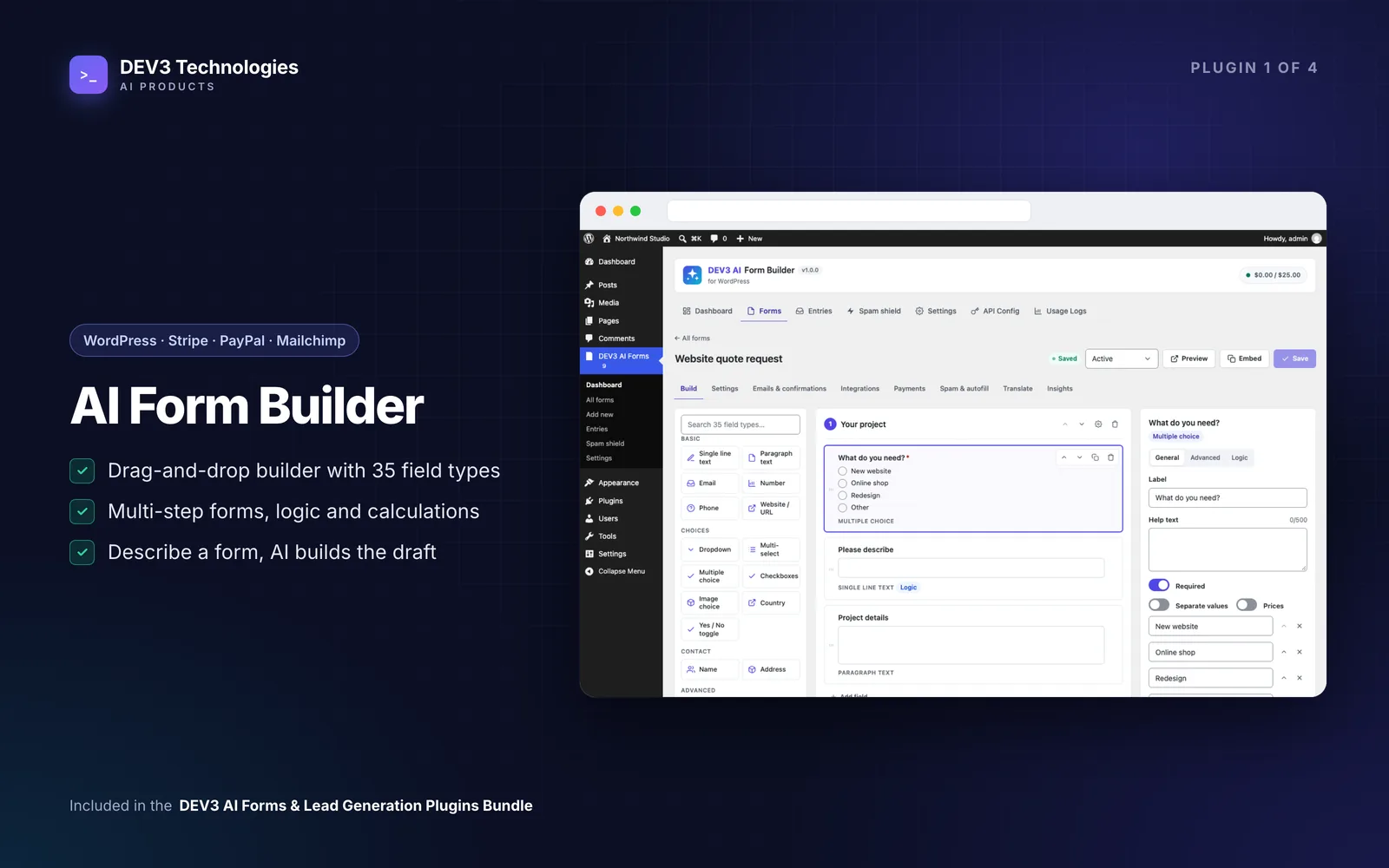
In Build, drag fields from the list into the form, or click them. Make it multi-step adds a step; each step has its own title, description and logic. Under the form's Settings, choose how progress is shown (bar, step names or none) and turn on save-and-continue so visitors get a link to finish later.
A sensible structure:
- Your project: Multiple choice or Image choice for project type, Paragraph for a short description, File upload for a brief.
- Budget & timing: Dropdown with budget ranges, Date for the deadline, Yes/No toggle for "Is this urgent?".
- Your details: Name (first + last), Email, Phone, Website/URL, Consent/GDPR.
There are 35 field types in total, including Slider, Opinion scale, NPS and Signature. Field widths can be full, half or third, and they stack on phones.
3. Show questions only when they matter
Every field and step can be shown when all or any rules match, using operators such as is, contains, greater than or is filled in. For the shop example, add a Number field "How many products?" and set it to show only when project type is "Online shop".
A field can only depend on earlier fields, and hidden fields aren't validated and their values are discarded on the server. That means an irrelevant branch never blocks submission or leaks stale answers into the entry.
The same logic works on confirmations, notifications and webhooks, so you can send shop enquiries to a different person or show a different thank-you page.
4. Optional: give an instant estimate
If you price by formula, add Calculation fields. Formulas use field IDs in braces and functions such as min, max, round, if:
round({area} * {quality}, 2)
if({rush} == 1, {_subtotal} * 0.2, 0)
Choice options can carry a price or numeric value, toggles count as 1 or 0, and the visitor sees the result update live. The server always recalculates. If you want a deposit or a paid consultation, the form's Payments tab connects Stripe Checkout or PayPal; entries wait under Awaiting payment until the payment is confirmed.
5. Route the lead
- Notifications: conditional logic, Reply-To, Cc/Bcc and merge tags such as
{all_fields}and{entry_url}. Use an SMTP plugin and a From address on your domain so emails actually arrive. - Confirmations: a message, a page or a redirect. The first matching confirmation wins.
- Integrations: Mailchimp, Brevo, HubSpot (contacts created or updated by email), Google Sheets, Zapier and signed webhooks. With a marketing consent field, contacts are only sent to Mailchimp, Brevo or HubSpot when it's checked.
6. Embed it
Use the DEV3 AI Form block, or the shortcode in Elementor, WPBakery, Divi, widgets or the classic editor:
[dev3fb_form id="12"]
Forms inherit your theme's fonts and colours. You can adjust CSS variables such as --dev3fb-accent and --dev3fb-radius.
After launch: work the leads and fix the leaks
Entries has Inbox, Unread, Starred, Awaiting payment, Spam and Trash, with search across all answers and CSV export. With a key, entry intelligence adds a summary, sentiment, intent, urgency and a 0–100 lead score; without one, a rule-based score is used. Entry → Reply drafts an answer in the sender's language with the facts you add (a price, a start date). You edit it and send it yourself.
Then open the form's Insights tab. It shows views, starts, submissions, steps reached and the field where visitors give up, using anonymous data with no answers stored. Get advice with DEV3 AI explains the drop-off and suggests fixes, each previewed as a draft and applied only when you accept and save.
Tips and pitfalls
- Ask for contact details last, so the first step is about the visitor's project, not their phone number.
- Use ranges, not open numbers, for budget. They're easier to answer and to score.
- Set a field ID you understand before writing formulas. Renaming a field ID updates logic, formulas and merge tags for you.
- Test logged out, on a phone. Check every branch of your logic and the save-and-continue link.
- Keep spam out without a CAPTCHA. A hidden honeypot, a minimum fill time and a per-visitor rate limit work without AI; the per-form DEV3 AI Spam Shield adds screening on top.
- Selling abroad? Form → Translate translates labels, options, buttons and messages with merge tags protected; visitors see the right language via the site locale, WPML or Polylang, or
lang="de"on the shortcode. - Moving between sites? Embed → Download JSON, then New form → Import JSON.
Who it's for
Agencies and studios, trades offering estimates, consultants and any service business whose leads arrive through a form. If you'd like the form wired into a bespoke CRM or sales process, our web development team can help. The engineering behind the live totals and payments is in the case study.
Get started
DEV3 AI Form Builder is included in the DEV3 AI Forms & Lead Generation Plugins Bundle, with the Popup Builder, Entry Insights and Form Autofill & Spam Shield. Describe your quote form in one sentence and get a working draft to refine.