All case studies

DEV3 Technologies · own product

DEV3 AI Form Builder: multi-step forms with live totals that the server recomputes before Stripe or PayPal

Our own WordPress form builder: 35 field types, conditional logic, a safe formula engine shared by browser and server, Stripe and PayPal checkout, an entries inbox, and DEV3 AI that drafts forms, scores leads and suggests fixes.

Industry
WordPress forms & payments

Live project preview

Client systems are private — screenshots shown where permitted.

DEV3 Technologies · own product — screenshots
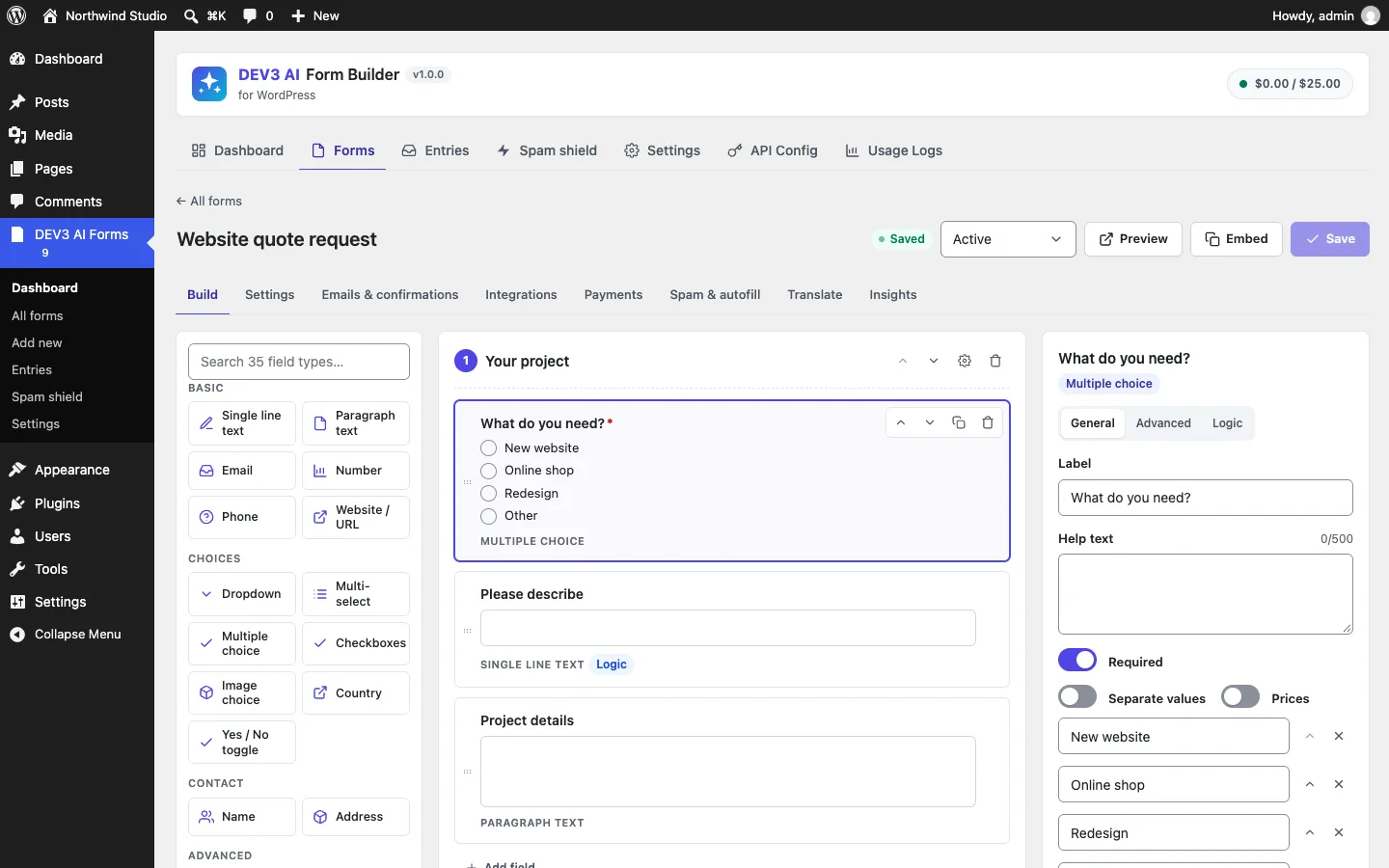
The builder: 35 searchable field types on the left, steps on the canvas and the selected field's General, Advanced and Logic settings on the right.

The builder: 35 searchable field types on the left, steps on the canvas and the selected field's General, Advanced and Logic settings on the right.

The challenge

A WordPress form that takes money has two jobs that pull against each other. The visitor expects the total to update as they pick a ticket, change a quantity or tick an extra, so the arithmetic has to run in the browser. But anything computed in the browser can be edited before it is posted, and a calculated field hidden by conditional logic must not quietly add to the charge. We needed one set of rules for logic, formulas and totals that behaves identically in JavaScript and PHP, a server that ignores every computed value the browser sends, and a payment flow where the return from Stripe or PayPal cannot be forged into a paid entry. On top of that, the builder had to be fully usable without an API key, with AI added as drafts the site owner reviews.

Our solution

We built DEV3 AI Form Builder as a WordPress plugin in PHP with a React admin and a small vanilla-JS front end. Forms are stored as a normalised JSON definition (steps, fields, logic, payments, integrations) that both runtimes read.

Key design decisions

  • One engine, two runtimes. Conditional logic (12 operators, all/any, step and field level), the formula language and the totals calculator exist twice: src/shared/*.js for the live form and includes/Engine/*.php for the server. Both run the same 97 JSON fixture cases in Jest and PHPUnit, so a change that makes them disagree fails the build.
  • No eval anywhere. Calculation fields use a recursive-descent parser with numbers, {field_id} references, arithmetic, comparisons and nine functions (min, max, round, floor, ceil, abs, sqrt, pow, if). Division by zero gives 0, unknown references are 0, malformed formulas are rejected.
  • Hidden means zero. Logic is evaluated first and blanks every hidden field and every field of a hidden step, so a product or extra the visitor cannot see never reaches the total.
  • The server recomputes the charge. Values the browser posts for calculation and total fields are discarded. Calculator::run() rebuilds them from the raw inputs, and that result becomes payment_total, converted to minor units with a zero-decimal currency list for Stripe.
  • Hosted checkout only. Stripe Checkout Sessions and PayPal Orders v2, both as redirects, so no card data touches the site. The entry waits as pending, with notifications held, until the provider confirms.
  • Returns that can't be forged. Return URLs carry an HMAC of the entry id. The Stripe session that gets verified is the one stored on the entry, never one from the URL; PayPal's token must match the stored order id. Completion is idempotent, and the Stripe webhook checks the signature with a five-minute replay window.

Architecture

The builder offers 35 field types, multi-step layouts, 8 templates and JSON import/export. Submissions pass a signed per-form token (so forms work behind full-page caches), honeypot, time trap and rate limit, validation against the same visibility map, the totals calculator and an optional AI spam check, then become entries with files stored privately. Entries live in their own tables with an inbox, notes, an activity log and CSV export, and are delivered by email, Mailchimp, Brevo, HubSpot, Google Sheets (through an Apps Script web app), Zapier or signed webhooks. DEV3 AI, on the Google Gemini API with the site's own key, drafts forms from one sentence, scores and summarises entries, drafts replies for approval, reads the conversion funnel and translates forms. The API client, encrypted key storage and usage budget come from a shared core used across DEV3's plugins.
Results

The plugin is complete. It ships in the DEV3 AI Forms & Lead Generation Plugins Bundle on the DEV3 marketplace, alongside three other forms and lead-generation plugins, and is being prepared for CodeCanyon. What was built and verified:

  • 71 PHPUnit tests, run in wp-env, covering the submission pipeline, payments, the engine, the REST API, integrations, the renderer and the AI features
  • 53 Jest test calls, five of them table-driven over the shared fixtures
  • 97 shared fixture cases (52 logic, 41 formula, 4 totals) that must pass identically in PHP and JavaScript
  • A test that posts a total of 0.01 for an order worth 270.90 and checks the stored entry and the payment amount are 270.90
  • Stripe tested with real signature checks against mocked APIs; PayPal, Mailchimp and Brevo with mocks only. Live payment accounts are the next step
  • AI paths tested with mocked responses; no run with a live key yet
  • Known gaps: Google Sheets connects through Apps Script, not OAuth, and preview submissions are stored as entries

Setup guide

No licence key or activation is needed: install the zip and every feature works.

Requirements

  • WordPress 6.0 or newer and PHP 7.4 or newer
  • The block editor for the native DEV3 AI Form block, or any builder that accepts shortcodes (Elementor, WPBakery, Divi, the classic editor, widgets)
  • Optional, for payments: a Stripe account (secret key, plus a webhook signing secret if you want payments confirmed even when the visitor closes the tab) and/or a PayPal REST app (client ID and secret)
  • Optional: a Google Gemini API key. Without one, the builder, logic, calculations, payments, entries, integrations and the honeypot/time-trap spam protection all work; only the DEV3 AI features need it

1. Install the plugin

  1. The plugin ships inside the bundle download. Unzip the bundle and find dev3-ai-forms-lead-generation-plugins-bundle/dev3-ai-form-builder/dev3-ai-form-builder.zip.
  2. In WordPress, go to Plugins → Add New → Upload Plugin, choose that zip and click Install Now.
  3. Click Activate. DEV3 AI Form Builder for WordPress appears in the plugin list and its menu, DEV3 AI Forms, appears in the admin sidebar.

2. Connect Google Gemini (optional)

  1. Create a free API key in Google AI Studio (sign in with a Google account, then Create API key).
  2. Go to DEV3 AI Forms → API Config, paste the key and click Validate & save. The key is stored encrypted and never sent to the browser.
  3. Optional: pick the model (gemini-2.5-flash is the fast default; gemini-2.5-pro for the highest quality) and set a monthly AI budget.

Prefer config files? Add define( 'DEV3FB_GEMINI_API_KEY', 'your-key' ); to wp-config.php instead. Payment and integration secrets can be set the same way, for example DEV3FB_STRIPE_SECRET.

3. Set it up

  1. Go to Settings → Emails and set the From name and From address (an address on your own domain delivers best).
  2. To take payments, open Settings → Payments. For Stripe, paste a Secret key (sk_test_… to test, sk_live_… for real payments). Optionally add the Webhook signing secret and point a Stripe webhook for checkout.session.completed at the endpoint shown under the field. For PayPal, add the Client ID and Secret from PayPal Developer → Apps & Credentials and leave Sandbox (test) mode on until you go live. Click Save settings.
  3. Optional: in Settings → Integrations, add Mailchimp, Brevo or HubSpot keys and click Test. Google Sheets and Zapier need no keys; you paste their URLs in each form.
  4. In Settings → Entries & privacy, choose how long entries are kept and whether to store the visitor's IP (off by default). Conversion analytics counts anonymous views and drop-off only.
  5. Create your first form under DEV3 AI Forms → Add new, then add the DEV3 AI Form block to a page or paste the shortcode from the Embed button, e.g. [dev3fb_form id="123"].

Updating

Download the new bundle version, then upload the plugin zip in Plugins → Add New → Upload Plugin and choose Replace current with uploaded. Forms, entries and settings are kept.

Uninstalling

Deactivate and delete the plugin from Plugins. By default your forms, entries and settings are kept, so reinstalling picks up where you left off. To remove everything, including uploaded files, turn on Delete all data when the plugin is uninstalled in Settings → Entries & privacy first.

How to use

Build a form with DEV3 AI

  1. Go to DEV3 AI Forms → Add new.
  2. Under Describe your form, write one sentence in What should the form do?, for example "A 3-step wedding photography inquiry with date, venue, package choice with prices and a budget question". You can also click one of the example chips.
  3. Leave Steps on Let DEV3 AI decide, or choose One page or Multi-step. Pick the form's Language.
  4. Click Generate with DEV3 AI. You get a draft showing every step and field, the options, the fields with logic (Shown when / Hidden when) and any automatic fixes. Nothing is saved yet.
  5. Click Use this form to keep it, Regenerate to try again or Reject. The form is created as a draft: check it in the builder, set the status to Active and click Save.

No API key? Pick a template under Start from a template (contact, quote request, event registration, feedback, job application, price calculator, newsletter, appointment), start a Blank form or Import JSON.

Add steps, logic and a live calculation

  1. Open a form and stay on the Build tab. Drag field types from the left palette (search the 35 types at the top) onto a step, or click Add field.
  2. Click a field to edit it on the right: General for the label, help text, options and prices, Advanced for widths and defaults, Logic for conditions.
  3. On the Logic tab, turn on Use conditional logic, choose Show or Hide, choose whether all or any rules must match, then click Add rule and pick a field, an operator (12 are available, from is to is filled in) and a value. Steps have the same logic in their settings.
  4. For a price estimate, add a Calculation field and write a formula such as {area} * {finish} or round({_subtotal} * 0.05, 2). Formulas accept + - * / ( ), min, max, round, floor, ceil, abs, sqrt, pow and if(condition, a, b). The result updates as visitors type.
  5. Click Preview to try the form, then Save. Note that preview submissions are stored as entries.

Take a payment with Stripe or PayPal

  1. Add Product fields (a single price, or choices with prices), an optional Quantity linked to a product, an optional Custom amount, and an Order total field to show the sum.
  2. Open the form's Payments tab and turn on Take payment for this form. Choose the Currency and the Amount to charge (normally Order total (automatic)), and optionally a Description on the checkout page.
  3. Tick Offer card payment (Stripe Checkout) and/or Offer PayPal. If a provider shows Not set up, add its keys in Settings → Payments first.
  4. Save. After submitting, visitors are sent to Stripe's or PayPal's hosted checkout. The entry waits under Entries → Awaiting payment and moves to the inbox, with notifications sent, once the payment is confirmed.

Work through entries with DEV3 AI

  1. Go to DEV3 AI Forms → Entries. Filter by form, search any answer, and switch between Inbox, Unread, Starred, Awaiting payment, Spam and Trash. The list shows lead score, sentiment and payment status.
  2. Click Analyze new entries, or open an entry and click Analyze with DEV3 AI, for a summary, sentiment, intent, category, urgency and a 0–100 lead score. Quick score (no AI) gives a rule-based score without a key.
  3. On the entry's Reply tab, choose a Tone, add any Facts to include (DEV3 AI never invents prices or promises), click Draft a reply with DEV3 AI, edit the draft and click Send reply. Nothing is sent without your click.
  4. Use Export CSV for spreadsheets, or Resend emails / Resend to integrations on a single entry.

Find and fix drop-off

  1. Open a form and click the Insights tab. The Conversion funnel shows views, starts, submissions and conversion for the last 7, 30 or 90 days, from anonymous counts only.
  2. Where visitors give up lists the last field touched before leaving, and Quick wins gives rule-based suggestions.
  3. Click Get advice with DEV3 AI. For each suggestion, click Preview fix (for example Make optional or Move to a later step) and then Apply fix, and save the form.

Translate a form

  1. Save the form, open the Translate tab, choose a Language and click Translate with DEV3 AI. Labels, help texts, options, buttons and messages are translated in one go.
  2. Review the draft, click Use this translation and save. Visitors see their language automatically (site language, WPML or Polylang), or you can force one with [dev3fb_form id="…" lang="de"].

Related case studies