Most clinics do not lose money in the consulting room. They lose it in the gaps between departments: a blood test that was run but never billed, a prescription dispensed from the wrong batch, a patient who left before the pharmacy charge reached the front desk, or an invoice retyped from three different paper slips. Each gap is small; together they explain why takings rarely match the work done.
This guide follows one patient visit through ClinicPro, our source-code clinic platform, from the moment the doctor opens the consultation to the moment the invoice is paid. It shows which records each step creates, who touches them and where the charge lands. Use it as a model for the hand-offs in any system you evaluate.
The principle: every department adds to one visit invoice
The design rule behind the workflow is simple. A visit has one draft invoice, and each department adds its own lines to it as the work happens:
| Step | Who | What gets created | What reaches the invoice |
|---|---|---|---|
| Lab order | Doctor | Lab order with a reference number | One line per test |
| Finalise consultation | Doctor | Signed record, issued prescription | Consultation or procedure fee |
| Sample and results | Lab technician | Results with flags, then verification | Nothing new (already billed) |
| Dispensing | Pharmacist | Stock movements per batch | One line per dispensed item, with its cost |
| Payment | Receptionist or accountant | Payment and ledger entries | Balance reduced to zero |
Nobody types a charge twice: the invoice is created the first time a department needs it, and every later step finds the same open invoice.
Step 1: the consultation and the lab order
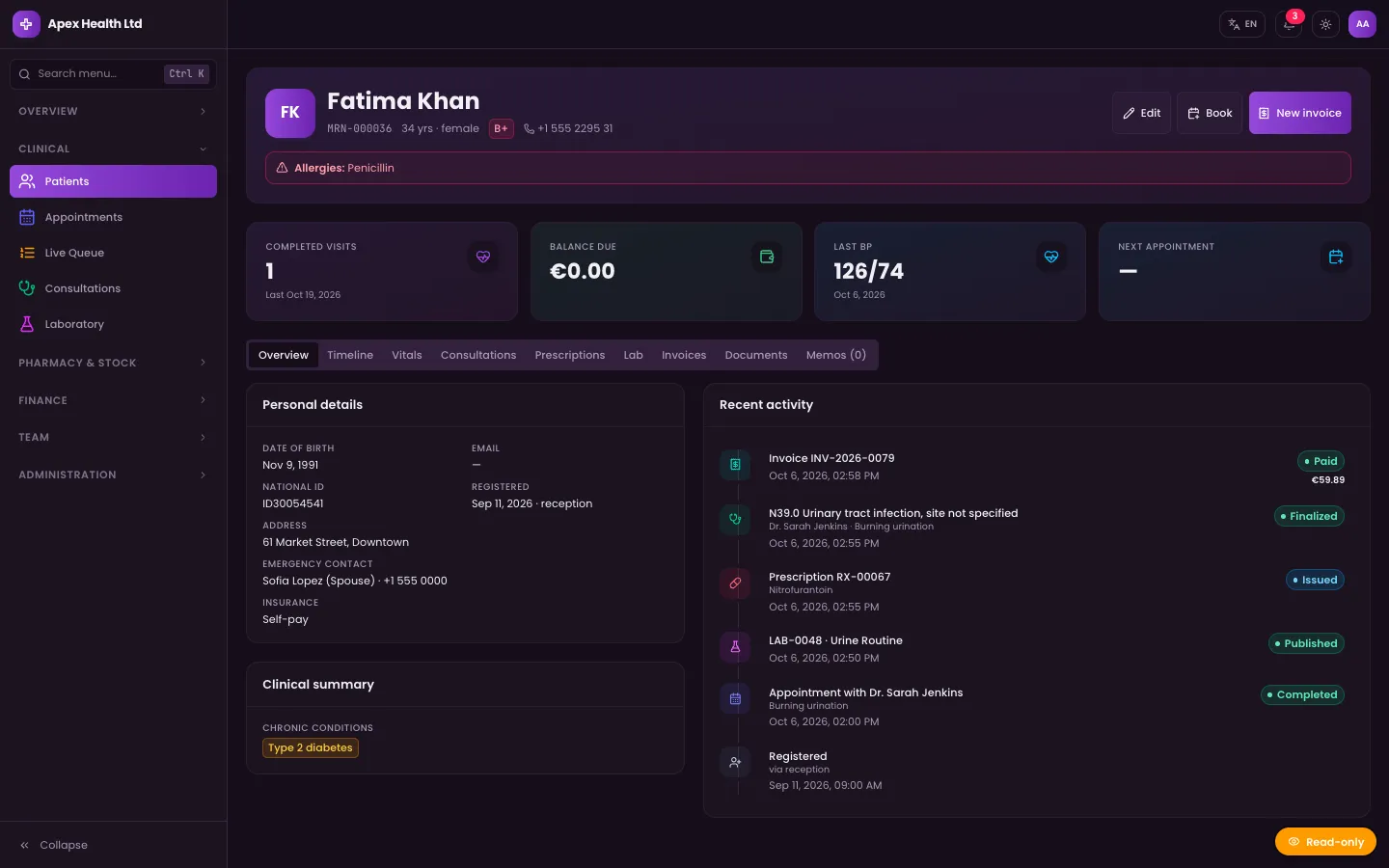
The EMR consultation workspace shows the patient's allergies, chronic conditions, vitals and last five finalised visits, and autosaves as the doctor types.
When a test is needed, the doctor picks it from the clinic's lab catalogue, sets a priority (routine, urgent or STAT) and adds clinical information for the lab. One action then does three things:
- Creates the lab order with its own reference number, linked to the consultation.
- Creates the visit's draft invoice if it does not exist yet.
- Adds one invoice line per test at the catalogue price, using the clinic's default tax rate.
That is the key moment for revenue. The test is billable the instant it is ordered, not when someone remembers to tell reception.
If the doctor changes their mind, the order can be cancelled while the sample is still pending. Cancelling removes the test lines from the invoice as long as the invoice is still a draft. Once the sample is collected, the order can no longer be cancelled, which stops a test from being quietly un-billed after the lab has done the work.
Walk-in lab patients. Not every test comes from a consultation. Lab staff or reception can also create a direct order for a registered patient, which gets its own draft invoice in the same way.
Step 2: finalising the consultation
When the doctor is done, they finalise the note. ClinicPro will not finalise without at least one diagnosis. Finalising then:
- marks the medical record as finalised and signed, so later changes can only be added as dated addenda;
- issues the prescription, if it has any items (an empty draft prescription is discarded);
- completes the appointment and moves the patient to the Billing stage on the patient-flow board;
- adds the consultation fee to the visit invoice.
The fee comes from the booked service if there is one (and is labelled as a procedure if that service is a procedure), otherwise from the doctor's consultation fee. A service can carry its own tax rate; otherwise the clinic default applies.
Step 3: in the laboratory
The lab works from its own queue. Each order moves through two tracks, the sample and the result:
- Collect the sample. The technician marks it collected, and the system records who did it and when. A sample can also be rejected with a reason, which sends it back to be collected again.
- Enter results. Results are typed into a template built for that test, with reference ranges that can differ by sex and age. Each numeric value is flagged automatically as normal, high, low, critical high or critical low against those ranges. Partial entry is allowed; the order stays pending until the technician marks it complete.
- Verify. A completed result must be verified before it goes anywhere. Verified results are locked; to change them, someone has to reopen them, which clears the verification.
- Publish. Only verified results can be published. Publishing makes the report visible in the patient portal, with a PDF download.
Nothing here touches the invoice, because the tests were billed when they were ordered. The lab focuses on accuracy; billing does not wait for results.
Set up first: templates for your most common tests, with reference ranges your pathologist signs off. Tests without a template accept free-form values but are not flagged.
Step 4: dispensing in the pharmacy
The issued prescription appears in the pharmacy queue (the dashboard shows how many are waiting). The pharmacist matches each prescribed line to a stock item and enters the quantity to dispense.
Before any stock moves, ClinicPro checks that every line can be filled from non-expired stock. If one item is short, the whole dispense stops with a clear message, so you never end up with half a prescription deducted and half not.
When the check passes:
- Stock is taken first-expiry-first-out: the batch closest to expiry goes first, and expired batches are skipped. A batch expiring today is still usable.
- One stock movement is written per batch touched, linked to the prescription, the patient and the invoice.
- One invoice line is added per dispensed item at the item's selling price, and the line also stores the cost of the batches used. That cost feeds the drug-margin and net-margin reports later.
- The prescription becomes partially dispensed or dispensed. A patient can collect part now and the rest later; the system will not let you dispense more than was prescribed.
If two pharmacists dispense the same item at once, the stock update retries on conflict instead of overwriting the other sale.
Over-the-counter sales follow a shorter path. A counter sale deducts stock the same way, but creates and issues its own invoice, for a registered patient or a walk-in customer.
Step 5: the invoice and payment
By the time the patient reaches the desk, the invoice already holds the consultation fee, the tests and the medicines. Staff can still review and edit the lines while nothing has been paid; auto-added lines keep their link back to the order or prescription that created them.
| Status | Meaning |
|---|---|
| Draft | Lines are still being added by departments |
| Issued | Sent to the patient; the exchange rate printed on it is fixed |
| Partially paid | Some money received, balance outstanding |
| Paid | Balance is zero; the patient leaves the Billing stage |
| Void | Cancelled with a reason, only after any payments are refunded |
Taking payment works like this:
- Payments can be split: part cash, part card, part insurance, or any of the five methods (cash, card, insurance, bank transfer, online).
- Staff can record an amount in the base currency or the clinic's display currency. Display-currency payments are converted at the rate saved on that invoice, and the system refuses any payment larger than the balance.
- Each payment is posted to the revenue ledger and split across consultation, laboratory, pharmacy and procedure revenue in proportion to the invoice's lines. That is how reports show what the lab earned without anyone tagging payments by hand.
- Refunds are recorded as negative payments with a note, and reverse the ledger in the same proportions.
- Patients can also pay outstanding invoices online from the patient portal.
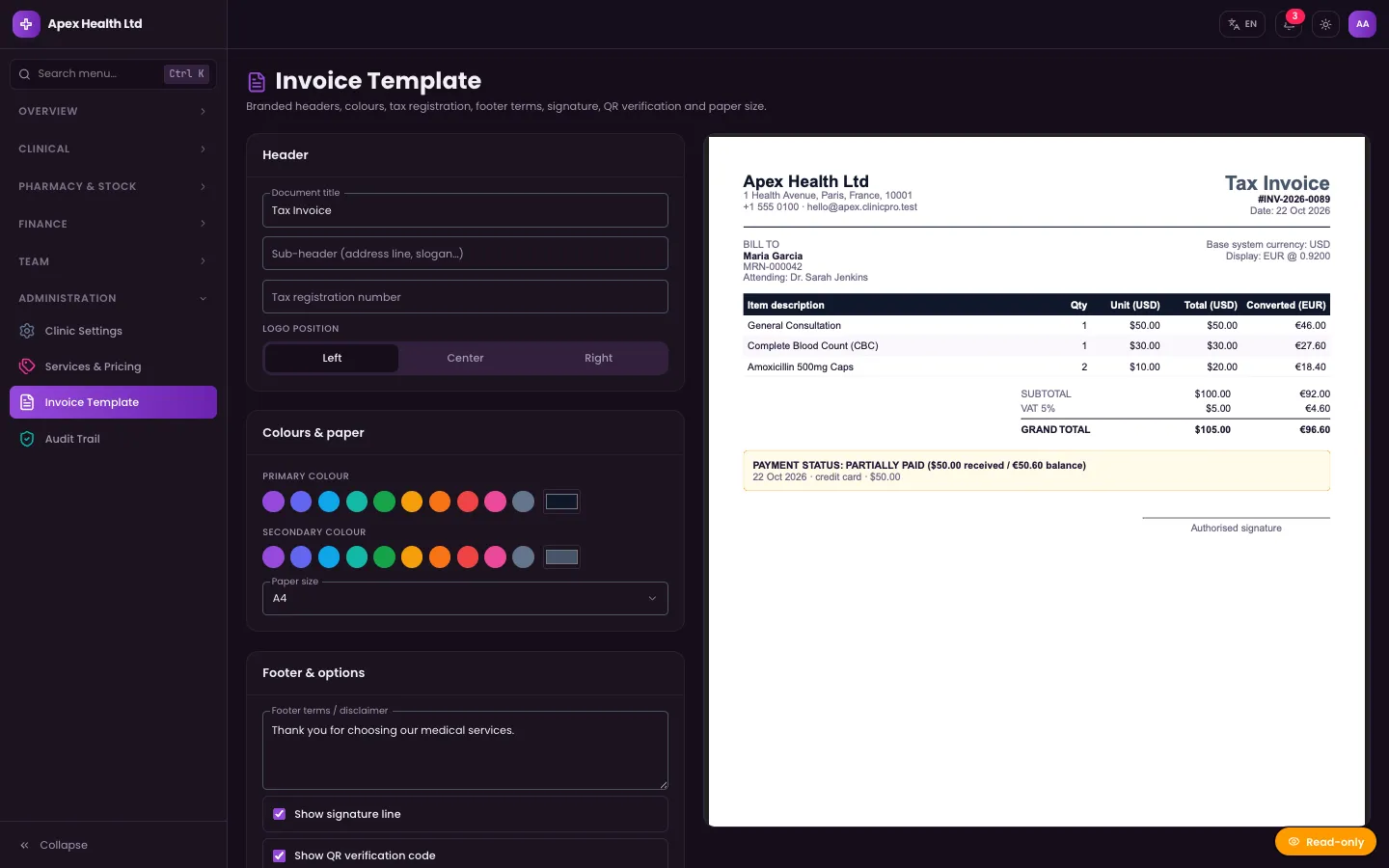
The invoice prints from a template the clinic designs itself (A4, Letter or 80 mm thermal), and can carry a QR code for public verification.
One edge case worth knowing. If the visit invoice is already fully paid and the pharmacy dispenses something afterwards, ClinicPro does not reopen the paid invoice. It starts a new draft for that visit, so a settled bill never changes under the accountant's feet.
Roles: who can do what
The workflow only holds if each person can do their part and nothing else. ClinicPro checks permissions on the server for every action:
| Role | Lab | Pharmacy | Billing |
|---|---|---|---|
| Doctor | Order tests, manage results | No | No |
| Lab Technician | Collect, enter, verify, publish | No | No |
| Pharmacist | No | Dispense, manage stock | No |
| Receptionist | Walk-in lab orders | No | Create invoices, take payments |
| Accountant | Walk-in lab orders | No | Billing plus reports and expenses |
| Clinic Admin | All | All | All |
One point to plan for: verification is a permission, not a separate person. A lab technician who enters results can also verify them. If your lab rules require a second person to verify, that is a policy to enforce in your procedures, or a small customisation we can add.
What this gives you at the end of the day
Because each charge was created by the department that did the work, the reports reconcile against reality:
- Daily cash shows what was collected and how.
- Receivables ageing shows which patients still owe money and for how long.
- Drug margins compare what medicines sold for with the cost of the batches actually used.
- Net margin includes that cost of goods, not just takings.
- Revenue by category comes straight from the ledger split above.
Every table can be filtered and exported to CSV, XLSX or PDF.
A go-live checklist
- Enter your lab catalogue with prices, sample types and departments.
- Build result templates and reference ranges for your common tests.
- Load pharmacy stock as batches with expiry dates and cost prices.
- Set doctor consultation fees and any service prices and tax rates.
- Design the invoice template and choose the paper size for your printer.
- Create staff accounts with the right role for each person.
- Run one test patient through the full journey and check the invoice before you open.
For a broader comparison of clinic systems, see how to choose clinic management software, and for the money handling behind these invoices, getting the money right in clinic billing.
Closing
When the lab, pharmacy and front desk all write into the same visit, billing stops being a chase and becomes a check. You can try the role logins in the read-only demo and get the full source from ClinicPro; DEV3 can install it for you or adapt the workflow, for example to add second-person lab verification. The architecture decisions behind it are in the case study.