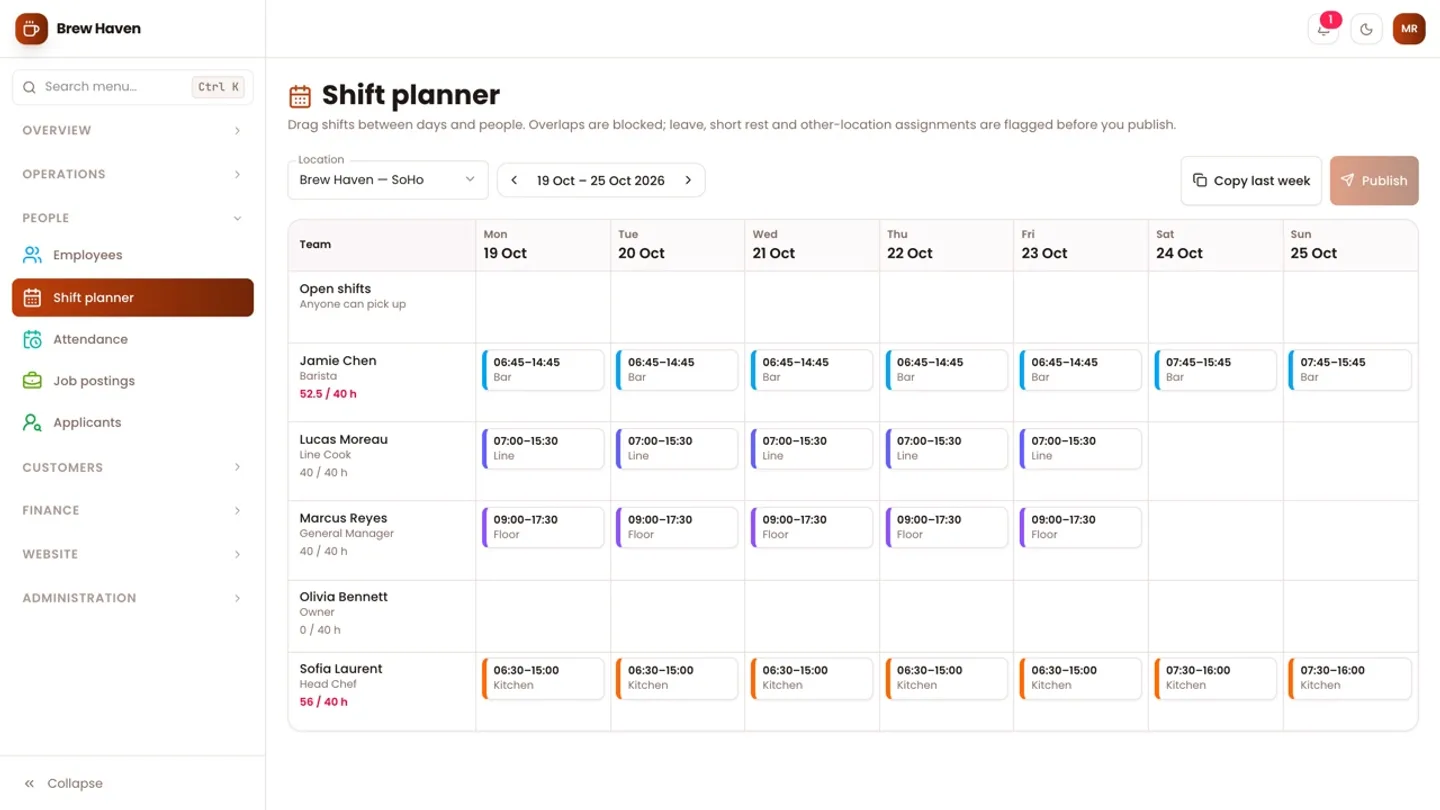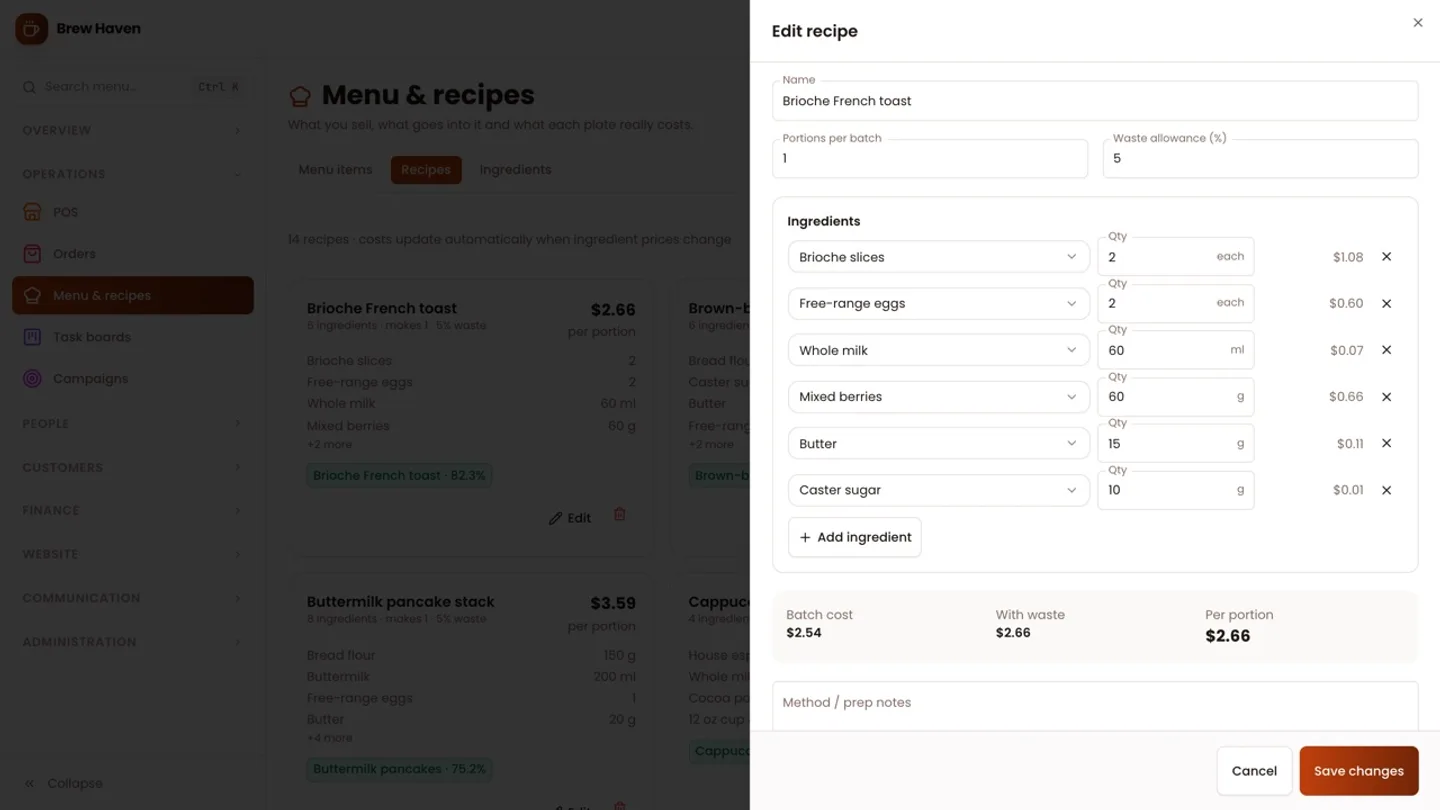
Most café front-of-house problems come down to three moments. A table orders and nobody is sure which ticket is theirs. The kitchen makes the oat-milk flat white with dairy because the note never left the counter. And at the end, the bill turns into a negotiation: half on card, the rest in cash, a loyalty balance someone wants to spend, and a discount that may or may not be allowed.
This guide walks through setting up the front of house in CafePro, our self-hosted café and restaurant platform, from the table floor through to the printed receipt and the end-of-day cash check. It is for owners and the managers who train staff on the till, and it is clear about what the software does not do, so you can plan service around it.
What CafePro's front of house covers (and what it doesn't)
| Area | In CafePro today |
|---|---|
| Order taking | Staff ring orders up on a touch POS in the browser (tablet, laptop or counter screen) |
| Tables | A floor per outlet, grouped by area, with seats and live open tickets |
| Order types | Dine in, takeaway and delivery |
| Kitchen communication | A free-text kitchen/bar note on each line, shown on the ticket and the receipt |
| Taking payment | Card, cash with change, loyalty points and "other", combined on one bill |
| Receipts | A printable 80 mm-style receipt from the payment screen |
| Corrections | Voids of open tickets with a reason; manager-only refunds of paid orders |
| End of day | Orders list with filters and export, sales reports and a cash reconciliation |
The gaps to know about:
- No guest QR self-ordering. The business website shows the live menu, but staff take orders on the POS.
- No separate kitchen display screen. Kitchen and bar instructions travel as line notes on the ticket.
- No modifier groups. Milk type or an extra shot is a line note or a separate menu item, not a priced option.
- One bill per ticket. You can split the payment across several methods, but not split a ticket into per-guest bills or merge two tables.
If any of these are essential, they can be added as a customisation. The rest of this guide covers the workflow as it ships.
Step 1: Get the menu POS-ready
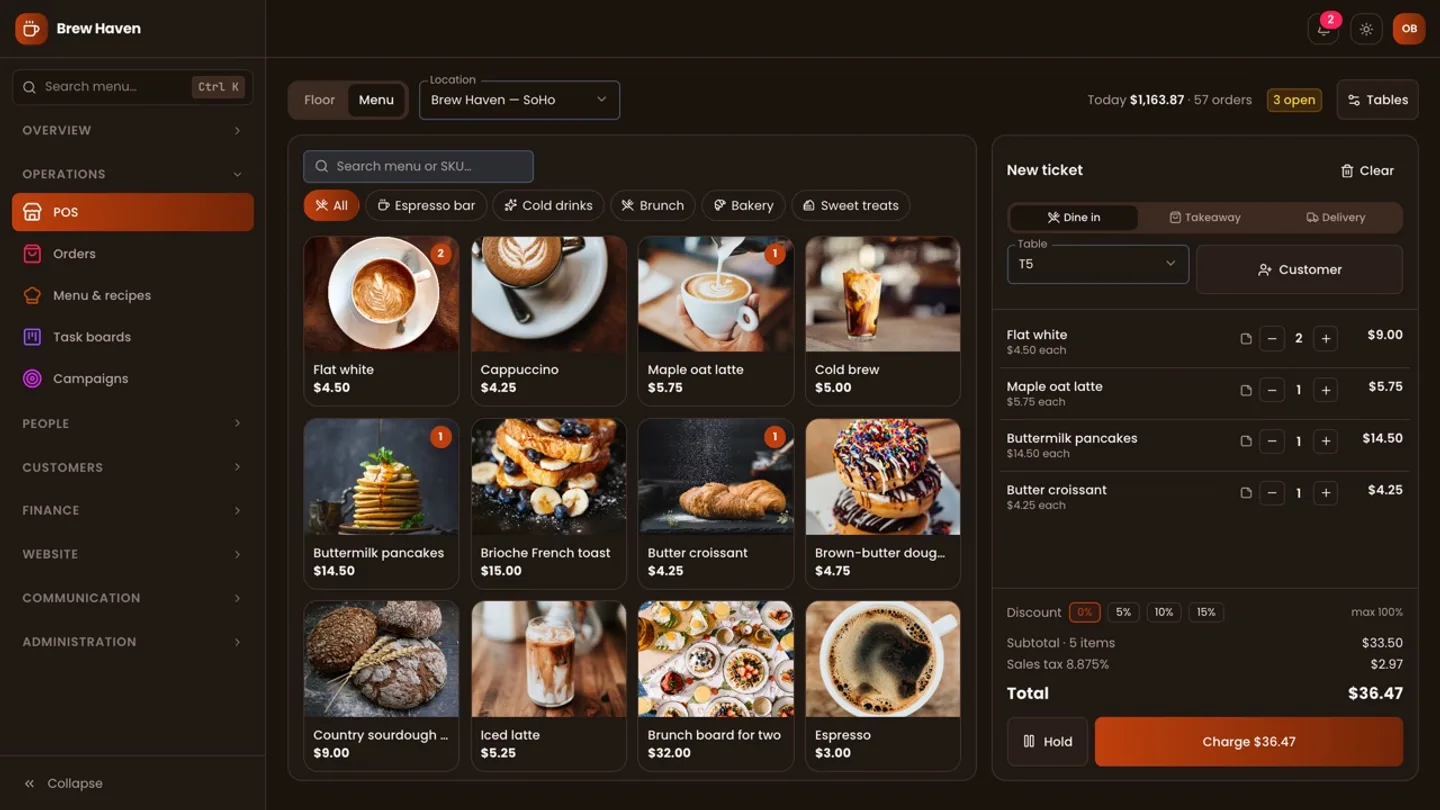
The POS reads directly from the menu, so a tidy menu makes a fast till.
- Categories with icons. The POS shows category chips across the top, so keep them few and obvious: Coffee, Tea, Bakery, Brunch, and so on.
- A photo per item. Each item appears as a tile with its image, name and price.
- SKUs for searching. The menu search on the POS matches both the item name and its SKU.
- Outlet availability. An item can be limited to certain outlets. The POS only shows items sold at the outlet you are working in.
- Sold-out switch. Mark an item unavailable and it drops off the till. If a held ticket still contains it, the server refuses to charge it with a clear "sold out" message.
Prices are never trusted from the screen. When a ticket is held or charged, CafePro rebuilds it on the server from the current menu: price, recipe cost and totals. A stale tablet cannot undercharge.
Step 2: Lay out the floor
Open the POS and use the Tables button (it needs permission to manage locations) to add your tables for the current outlet:
- Give each table a short name:
T1,Window 2,Patio A. Names must be unique within an outlet. - Set the area (Main, Terrace, Bar) so the floor groups tables the way your room is laid out.
- Set the number of seats.
The Floor view then shows each table as a card. A free table is marked "Free". A table with an open ticket is highlighted with its running total, the ticket number and how long it has been open. Takeaway and delivery tickets sit in their own row below the tables.
Two safeguards keep the floor honest:
- One open ticket per table. If a table already has an open ticket, the POS marks it "(busy)" and the server refuses a second one. The rule is covered by an integration test in the source (
tests/integration/pos.test.ts). - You cannot delete a table with an open ticket. Settle or void it first.
Step 3: Take the order
A typical dine-in order on the POS:
- Tap the table on the floor. Its open ticket loads, or a new one starts on that table.
- Switch to the Menu view and tap items. Each tap adds one; the plus and minus buttons adjust quantities.
- Tap the note icon on a line to add a kitchen/bar note of up to 140 characters: "oat milk, extra hot", "no onions", "bring with mains".
- Optionally set covers and attach the customer (search by name, phone or email, or add them on the spot) so they earn loyalty points.
- Press Hold. The ticket is saved on the table without taking payment.
Held tickets are shared. Every terminal at the outlet refreshes the floor every 15 seconds, so a second tablet at the bar sees what the counter rang up and can add a round of drinks to the same table.
Making line notes work as kitchen tickets
Because there is no kitchen screen, agree a simple routine with your team:
- Keep notes short and consistent. Use the same words every time ("oat", "decaf", "GF bun") so the kitchen reads them at a glance.
- Read the ticket back. The notes appear in amber under each line on the ticket panel.
- One line per variation. Once a line has a note, tapping the same item again starts a new line, so two plain flat whites and one with oat milk stay separate on the ticket.
- Print when you need paper. Notes are also printed under each line on the receipt, so a printed copy can travel to the pass if your kitchen prefers paper.
Step 4: Present the bill
The ticket panel always shows the running bill:
- Subtotal and item count
- Discount, chosen from quick buttons (5%, 10%, 15%) that only appear up to the staff member's role limit, which is shown as "max n%"
- Tax using the business's tax label and rate, either added on top or backed out of inclusive prices, depending on your business settings
- Total
The discount limit is enforced on the server too, so a discount above the role's limit is rejected with "Discounts above n% need a manager". Set these limits per role in Settings → Roles. A typical set-up gives baristas a small limit and managers a larger one.
Step 5: Take payment, including split payments
Press Charge to open the payment screen. It shows the total due and, once part is paid, what remains. Up to five payments can go on one bill:
| Method | How it behaves |
|---|---|
| Card | Pays the remaining balance; you can record the last four digits or an auth code as a reference |
| Cash | Quick buttons for exact cash and rounded notes, or type the amount received; change due is shown and recorded |
| Loyalty points | Available only when a customer is attached; redeems up to their balance |
| Other | For vouchers or bank transfers, with an optional reference |
Typical splits are part cash then the rest on card, or points first and the balance by cash or card.
The server checks that the payments add up to the total exactly (cash may be over-tendered and the difference is recorded as change). Points earned are calculated on the amount not paid with points, using the points-per-unit rate in your business settings. The customer's spend, order count and loyalty balance are updated in the same database transaction as the payment, so they cannot drift apart.
Step 6: Print the receipt
After payment, the receipt dialog offers Print receipt and Next order. The receipt carries the business and outlet name, order number and time, order type, table and customer, each line with its note, subtotal, discount, tax and total, each payment with change, and any loyalty points earned. It is laid out for a narrow receipt printer and prints from the browser's print dialog, so any printer the terminal can reach will work.
Step 7: Handle mistakes properly
- Void an open ticket when a guest leaves or an order was entered twice. A reason is required. The ticket is kept for the audit trail but no longer counts as a sale.
- Refund a paid order from POS → Orders. Only roles with the approve permission can do this. A refund needs a reason, marks the order refunded, takes it out of sales figures, and reverses the loyalty points and the customer's spend. Points the customer has already spent elsewhere are not clawed back below zero. You then return the money through the original payment method.
- Every charge, void and refund is audited, with the payment methods used or the reason given.
Step 8: Close the day
At the end of service:
- Open POS → Orders and filter by status, order type, payment method and (with several sites) outlet. Check that no tickets are still open.
- Export the list to CSV, Excel or PDF if your accountant wants it.
- Open Reports for sales by day, hour, category, order type and payment method.
- Use the cash reconciliation: day by day, it sets POS takings and invoice payments against expenses paid out, giving a net figure per day.
The POS header also shows today's sales and order count for the outlet, which is a quick sense check before you count the drawer.
A front-of-house set-up checklist
- Business settings: tax label and rate, inclusive or exclusive prices, loyalty points per unit
- Menu categories with icons; one photo and an SKU per item
- Outlet availability set on items that are not sold everywhere
- Tables added per outlet, with areas and seats
- Discount limits set per role; refunds restricted to managers
- A shared vocabulary for kitchen notes
- Receipt printer tested from the terminal's browser
- A closing routine: no open tickets, orders reviewed, cash reconciliation checked
Try it, then make it yours
The demo café that ships with the source includes two outlets, a costed menu, a few tickets left open on the floor and a barista login with POS access, which makes it a good place to rehearse a service before going live. You can get the source on the CafePro marketplace page, and if your service needs QR ordering, a kitchen display or modifiers, DEV3 can install and customise it for you. The case study explains how the menu, the till and the books fit together.