"The first café ran on my memory. The second one exposed everything I hadn't written down." Owners who open a second location often say something like this. Suddenly there are two tills, two rotas, staff who work at both, a menu where one item is only available at one site, and nobody is sure whether the 7 a.m. barista actually arrived at 7.
This guide walks through setting up a multi-location café or restaurant in one system, using CafePro, our self-hosted café and restaurant platform. It is for owners and operations managers, and for agencies setting up hospitality software for clients.
What good looks like with two or more outlets
Whatever tool you use, these are the things that tend to matter once you have more than one site:
- One menu, outlet-aware. The same recipes and prices everywhere, but the option to mark an item unavailable or sold out at one outlet.
- A floor plan per outlet. Each till knows its own tables and which tickets are open on them.
- One roster, no clashes. A person who works at both sites cannot be booked into overlapping shifts.
- Hours you can trust. Clock-ins happen at the outlet, not from the bus.
- One set of books. Sales, labour and expenses roll into one profit and loss report.
- Staff see only what they need. A barista at one outlet should not be browsing the other site's orders or the HR files.
Step 1: Provision the business and its outlets
1. Create the business
As the Super Admin, open /admin/tenants and create the business: name, slug, currency, time zone, plan and its first Admin. CafePro creates the first outlet, the default roles and a ready-made website automatically. One installation can host many businesses, which suits groups and agencies.
2. Configure business settings
Sign in as the business Admin and complete Business settings: tax label and rate, inclusive or exclusive prices, loyalty points, and the invoice prefix and terms.
3. Add each outlet
In Settings → Locations, add each site with its address and opening hours, plus the timeclock rules: a geofence radius and allowed IP addresses (single addresses or CIDR ranges). These rules are what make clock-ins trustworthy, so set them carefully.
Step 2: Build one menu for every outlet
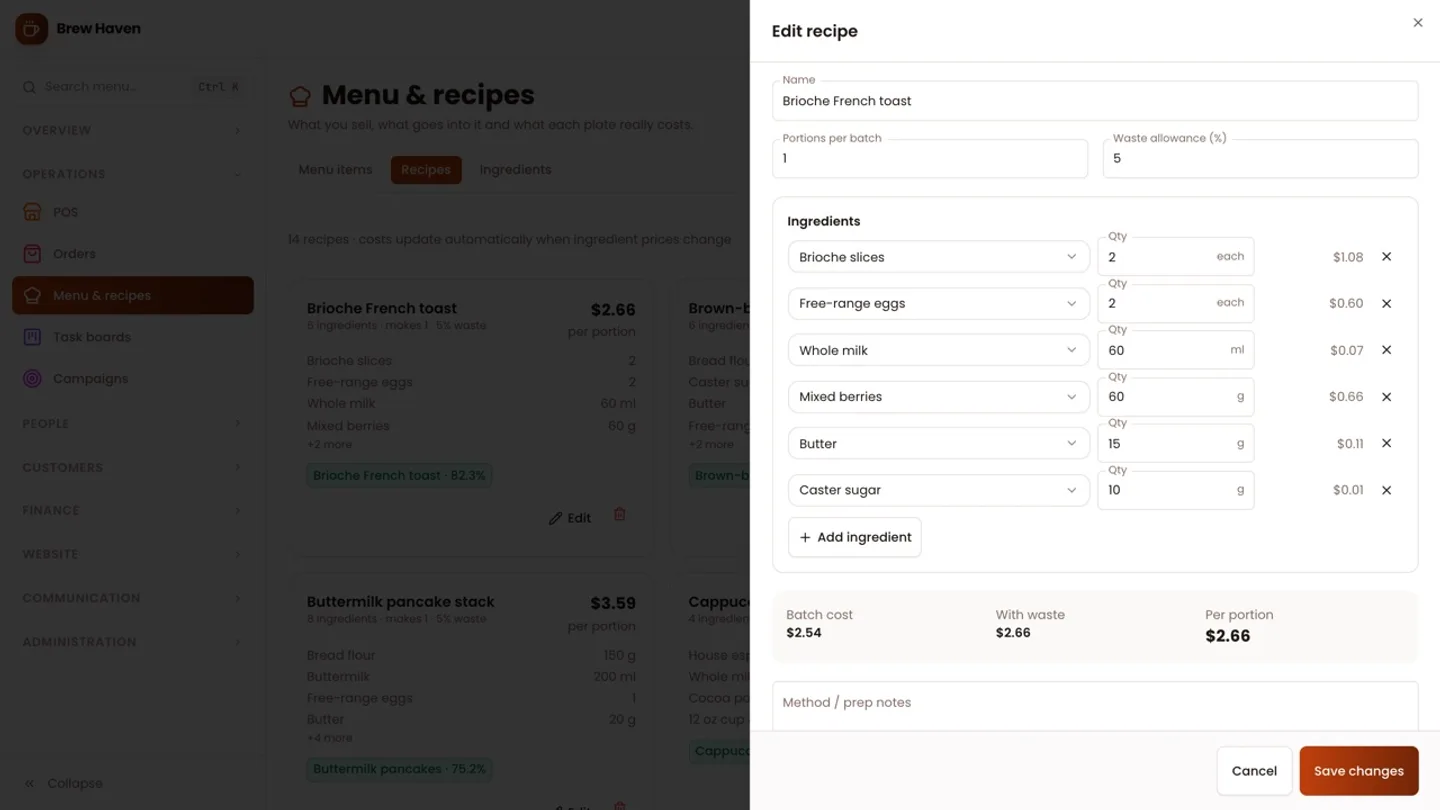
Add ingredients with their pack prices, build recipes from them (portions per batch and a waste allowance give the cost per portion), then create menu items linked to those recipes. Each item shows its cost and gross margin, and a supplier price change re-costs every recipe that uses it.
For multiple sites, the important settings are on the menu item: availability per outlet and a sold-out switch. Menu changes show on the business's website straight away, so the public menu does not drift from what the tills sell.
Step 3: Set up the floor at each till
Open the POS and use the Tables button to add tables for each outlet, grouped by area. The floor view shows each table's open ticket with its total and age, with takeaway and delivery tickets alongside.
A ticket can be held on a table and resumed from any terminal, and the floor refreshes every 15 seconds. That means a second tablet at the bar sees what the counter rang up. A typical sale is short:
- Pick a table or start a takeaway.
- Add items and kitchen notes, and attach the customer for loyalty.
- Charge, take a split payment if needed (card, cash with change, loyalty points or other) and print the 80 mm receipt.
Discount buttons are capped by each role's discount limit, and refunds of paid orders are manager-only. Refunds reverse the loyalty points and the customer's spend.
Step 4: Roster across outlets
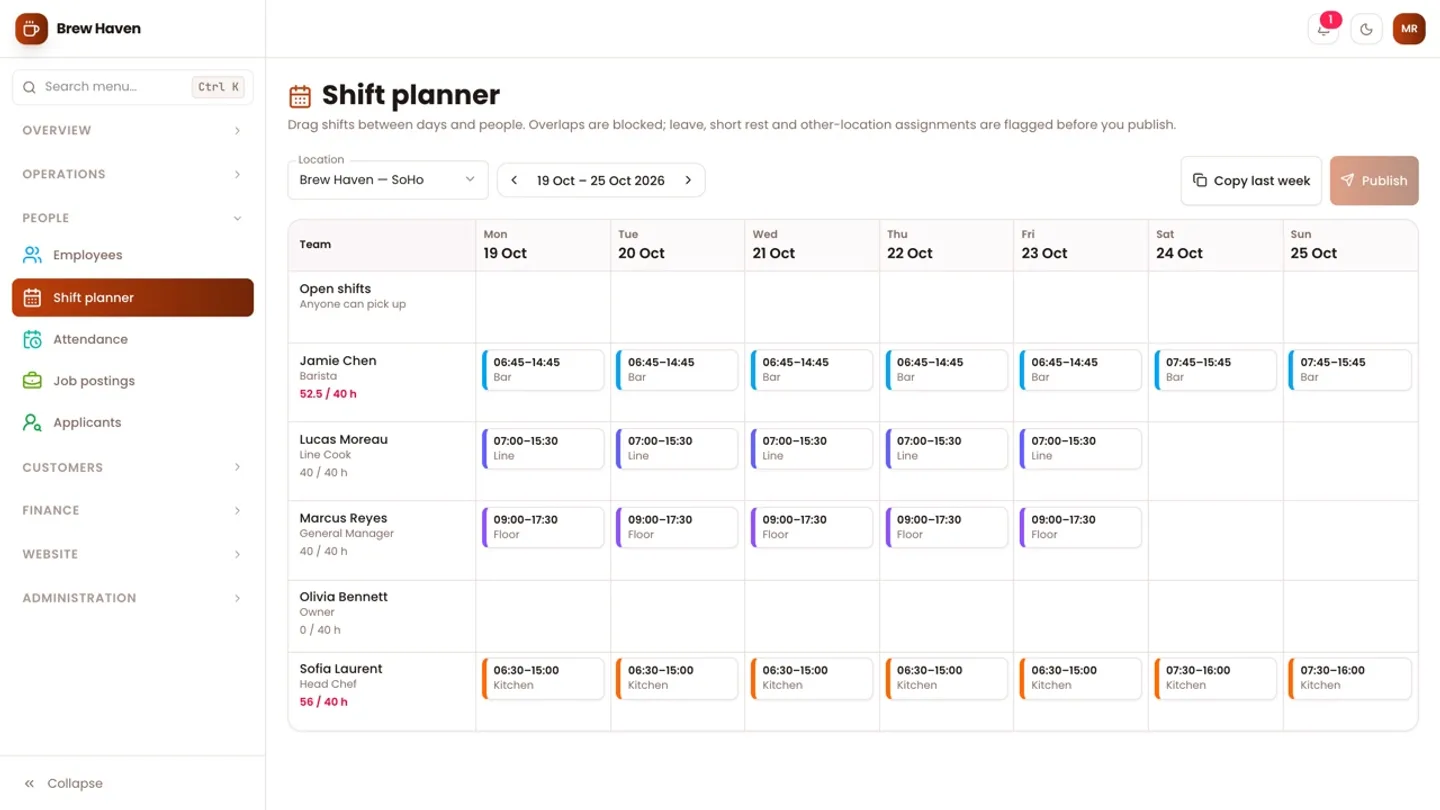
The Shift planner is a week grid per outlet where you drag shifts between days and people. This is where a second outlet stops being chaos:
- Overlapping shifts are blocked, so one person cannot be in two places at once.
- Warnings you can confirm flag less than 10 hours' rest, leave on that day, or a shift at another outlet.
- Open shifts can be left unassigned, and copy last week saves rebuilding a stable roster.
- Publishing a week notifies and emails everyone affected. Unpublished shifts are visible only to managers.
- Shift swaps go from the requester to a colleague, then to a manager for approval.
Step 5: Verify hours at the outlet
Staff clock in and out from a phone or a terminal, with paid and unpaid breaks. The per-outlet IP allow-list and GPS geofence are checked, and the evidence is stored with each entry. Lateness is measured against the published roster. Managers correct missed punches with a reason (kept in the audit trail) and approve timesheets weekly.
Step 6: Give each person the right view
CafePro starts every business with three system roles (Admin, Manager and POS) and lets you build custom roles from a module × action matrix with monetary limits for expense approval and discounts. The demo includes a "Head Chef" custom role with menu, recipes, costing and the kitchen roster.
Roles can also be limited to specific outlets per user, so a manager at one site approves only that site's work. Every staff member can always clock in and out, request leave, and see the published roster and their own tasks.
Step 7: Read the numbers
The Reports area gives a P&L with period comparison, based on recipe COGS by default or on purchases, with the variance between the two. There are also sales by day, hour, category, type and payment, menu engineering (Stars, Plowhorses, Puzzles and Dogs), cash reconciliation and the HR audit trail, all exportable to CSV, Excel or PDF. The orders list filters by outlet when you need to look at one site.
Tips and pitfalls
- Use HTTPS. Browsers only share a phone's location over HTTPS, so the geofenced timeclock will not work on a plain HTTP site.
- Keep the forwarded IP header. If you run behind Nginx, pass
X-Forwarded-For, or every clock-in appears to come from the server and the IP allow-list fails. - Check outlet coordinates. If staff see "You are about … m from the outlet", the outlet's coordinates or radius in Settings → Locations are wrong.
- Schedule the two cron jobs. The mail job runs every minute and the daily job sends reminders, document-expiry alerts and overdue-invoice notices.
- Practise on the demo café. The seed creates "Brew Haven" with two outlets, a costed menu and 60 days of orders, rosters and attendance, which is ideal for training new managers.
Who it's for
CafePro suits independent cafés growing to a second or third site, small restaurant groups, coffee chains and catering businesses, plus agencies and SaaS operators who want to offer café software to many businesses from one installation. Each business also gets its own website at /cafe/<slug> with a live menu, careers page and contact forms.
The CafePro case study explains how the menu, the till and the books are tied together. If you would like it installed or customised, our web development team can help.
Next step
Running several outlets is mostly about one menu, one roster and hours you can trust, and CafePro puts all three next to the POS and the P&L. Try the role logins in the live demo, then get the source on the CafePro marketplace page.