All case studies

DEV3 Technologies · own product

DEV3 AI Multi Currency & Geo Pricing: local prices for WooCommerce with totals that match from cart to refund

Our own WooCommerce plugin: unlimited currencies, geo detection, live exchange rates, fixed prices and local price points, with every amount in the checkout converted once and the rate saved on the order.

Industry
E-commerce (WooCommerce)

Live project preview

Client systems are private — screenshots shown where permitted.

DEV3 Technologies · own product — screenshots
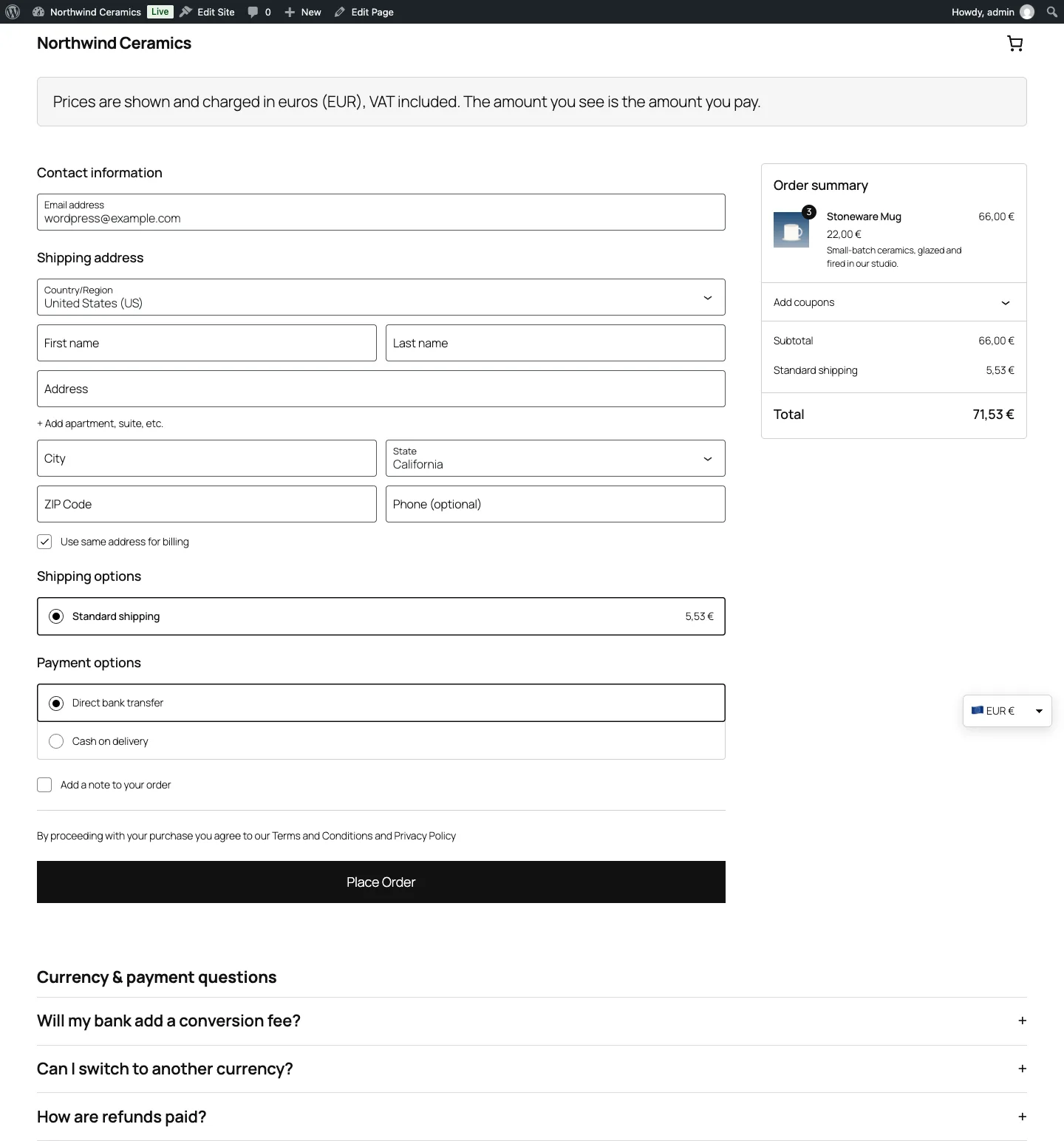
The block checkout in euros: product prices on .99 price points, shipping converted, a currency notice and a payment FAQ.

The block checkout in euros: product prices on .99 price points, shipping converted, a currency notice and a payment FAQ.

The challenge

Showing a converted price on a product page is easy. Getting the whole checkout right is not: shipping rates, fixed coupon amounts, minimum spends, free-shipping thresholds and subscription sign-up fees all carry base-currency amounts, and each one has to be converted exactly once. A converted €23.47 also looks foreign next to local shops that charge €22.99, page caches happily serve one visitor's euros to the next visitor in yen, and an order paid in yen must still read correctly in the admin, the email and the refund screen months later, after the exchange rate has moved.

Our solution

We built DEV3 AI Multi Currency & Geo Pricing as a WooCommerce plugin in PHP with a React admin and a small storefront script. The core rule: every amount that reaches a shopper is either a product price or a plain amount, and each is converted once, in a request that is known to be shopper-facing.

Key design decisions

  • Two kinds of conversion. Product prices get the exchange rate, the currency's exchange fee, any regional adjustment and a price-point rounding rule. Shipping, coupon amounts, minimum spends and fees are "plain": converted and rounded to the currency's decimals, never pushed to .99.
  • Price-point rounding as a candidate search. A rule is a step and an ending (1 and 0.99 gives 22.99, 23.99; 100 and 80 gives ¥2,380). Round up, down or to the nearest candidate, with a small epsilon so 23.99 stays 23.99.
  • Only convert where shoppers are. wp-admin, cron, WP-CLI, admin-side AJAX and non-store REST routes always see base prices, so orders, reports and product edits are never converted by accident.
  • Convert once, cache per currency. Converted shipping rates are marked, packages and variation price hashes include the currency, and the cart hash varies by currency.
  • The order keeps its currency. Orders are created in the shopper's currency, with the base currency and the exact effective rate saved as order meta for reports and audits.
  • Page-cache safe. Price HTML is wrapped with the product ID; when a cached page was rendered for another currency, the browser fetches fresh prices from a same-origin, rate-limited, no-store endpoint. WP Rocket, LiteSpeed and WP Super Cache vary by the currency cookie.

Architecture

Rates come from Frankfurter (ECB data, free), the European Central Bank, Open Exchange Rates, ExchangeRate-API or Fixer on an hourly to weekly schedule, with manual overrides, a rate history and alerts when a rate moves more than a threshold. Geo detection uses CDN country headers or WooCommerce's MaxMind geolocation and/or the browser language, and each currency can own a list of countries. Merchants can set fixed prices per currency for any product or variation, limit payment gateways per currency, or let shoppers browse in their currency and pay in the store currency. The optional DEV3 AI tools draft rounding rules from real catalogue prices, regional price adjustments, plain-language rate explanations and checkout notices; nothing changes prices until the merchant clicks Apply. The API client, encrypted key storage and usage logs come from a shared core used across DEV3's plugins.
Results

The plugin is complete. It ships in the DEV3 AI WooCommerce Plugins Bundle on the DEV3 marketplace, alongside 20 other WooCommerce plugins, and is being prepared for CodeCanyon. What was built and verified:

  • Totals acceptance test in 5 currencies (USD, EUR, GBP, JPY, INR): the same cart with a fixed coupon and flat-rate shipping must match across cart, order, admin, customer email and a full refund
  • 66 PHPUnit tests, including 21 price-point rounding fixtures, page-cache isolation, gateway rules per currency, charging in the store currency, geo detection and rate providers
  • 41 Jest tests for the admin screens, the rounding preview and the storefront switcher and price refresh
  • Rate providers tested against stubbed responses, including ECB XML rebasing, failed updates that keep the last good rates, and alert thresholds
  • AI drafts (smart rounding, market advice, alert explanations, checkout notices) tested with mocked API responses; a run with a live key is still to come. The WooCommerce Subscriptions sign-up fee hook was built against its documented API and not yet tested with the real extension
  • Known gaps before launch: percentage-based shipping costs are converted twice, and orders created by hand in wp-admin use base prices

Setup guide

No licence key or activation is needed: install the zip and every feature works.

Requirements

  • WordPress 6.0 or newer and PHP 7.4 or newer
  • WooCommerce 8.0 or newer, active (classic and block cart/checkout and HPOS are supported)
  • Optional: an API key for Open Exchange Rates, ExchangeRate-API or Fixer. Frankfurter (ECB data) and the European Central Bank feed need no key
  • Optional: a Google Gemini API key for the DEV3 AI drafts. Currencies, rates, geo detection, fixed prices and the switcher work without one

1. Install the plugin

  1. The plugin ships inside the DEV3 AI WooCommerce Plugins Bundle download. Unzip the bundle and find dev3-ai-woocommerce-plugins-bundle/dev3-ai-multi-currency-for-woocommerce/dev3-ai-multi-currency-for-woocommerce.zip.
  2. In WordPress, go to Plugins → Add New → Upload Plugin, choose that zip and click Install Now.
  3. Click Activate. Its menu, DEV3 AI Multi Currency & Geo Pricing for WooCommerce, appears in the admin sidebar. Your WooCommerce store currency becomes the base currency.

2. Connect Google Gemini (optional)

  1. Create a free API key in Google AI Studio (sign in with a Google account, then Create API key).
  2. Go to DEV3 AI Multi Currency & Geo Pricing for WooCommerce → API Config, paste the key and click Validate & save. The key is stored encrypted (AES-256-GCM) and never sent to the browser.
  3. Optional: pick the model (gemini-2.5-flash is the fast default; gemini-2.5-pro for the highest quality).

Prefer config files? Add define( 'DEV3MC_GEMINI_API_KEY', 'your-key' ); to wp-config.php instead.

3. First-time setup

  1. In Currencies, click Add currency for each currency you sell in. Check the symbol, position, decimals and separators, and pick a rounding rule (for example round up to 1 with ending 0.99).
  2. In Exchange rates, choose the provider and update schedule, set the alert threshold, and click Update rates now.
  3. In Geo & switcher, choose the detection mode (geo IP, browser language or both) and check it with Test detection. Choose how the switcher looks and where it appears (block, shortcode, widget, menu or floating switcher).
  4. Still in Geo & switcher, choose under Checkout currency whether customers pay in the currency they chose or in the store currency, and set Cache compatibility under Page caching. If you use WP Rocket, LiteSpeed Cache or WP Super Cache, clear the cache once after setup.
  5. Place a test order in another currency and check the order, email and totals.

Updating

Download the latest bundle, find the new plugin zip at the same path, then upload it in Plugins → Add New → Upload Plugin and choose Replace current with uploaded. Currencies, rates and fixed prices are kept.

Uninstalling

Deactivate and delete the plugin from Plugins. Data is removed only if "Delete all plugin data on uninstall" is turned on in Settings. Orders keep the currency they were paid in.

How to use

Set local price points

  1. Go to DEV3 AI Multi Currency & Geo Pricing for WooCommerce → Currencies and click Edit on a currency.
  2. Choose the rounding mode (round up, down or nearest), the step and the ending, for example step 1 with ending 0.99, or step 100 with ending 0 for yen. The table shows what a sample item becomes.
  3. For a whole-catalogue suggestion, open DEV3 AI → Smart rounding, tick the currencies and click Generate with DEV3 AI, or click Use recommended presets (no AI). Review the before-and-after prices, untick anything you don't want and click Apply selected, or Reject.

Set a fixed price in one currency

  1. Open Fixed prices and search by product name or SKU.
  2. Click Edit on the product and type the regular and sale price for the currencies you want to pin. Leave a field empty to keep converting it.
  3. Fixed prices are marked Fixed in the table. You can also set them on the product edit screen, including for each variation.

Keep an eye on exchange rates

  1. Open Exchange rates to see the provider, the last and next update, and the rate history chart per currency.
  2. Rate alerts appear when a rate moves more than your threshold. Click Explain with DEV3 AI for a plain-language explanation, or Mark read.
  3. To set a rate by hand, edit the currency in Currencies and switch it to a manual rate. Alerts tell you when the market moves away from it.

Adjust prices for a market

  1. Open DEV3 AI → Market price advisor to get regional adjustment suggestions with reasons and a confidence level.
  2. Apply the ones you agree with. Each adjustment is a percentage on top of the converted price for that currency.

Write checkout notices and FAQ

  1. Open DEV3 AI → Checkout notices & FAQ and generate a draft, or write your own in Geo & switcher under Notice and FAQ.
  2. Turn on Show currency notice and FAQ on cart and checkout, or place the Currency FAQ block on any page.

Review sales by currency

  1. The Dashboard shows revenue for the last 30 days by currency, converted to the store currency with the rate saved on each order, plus live rates and recent alerts.
  2. Click Update rates to refresh rates immediately.

Related case studies