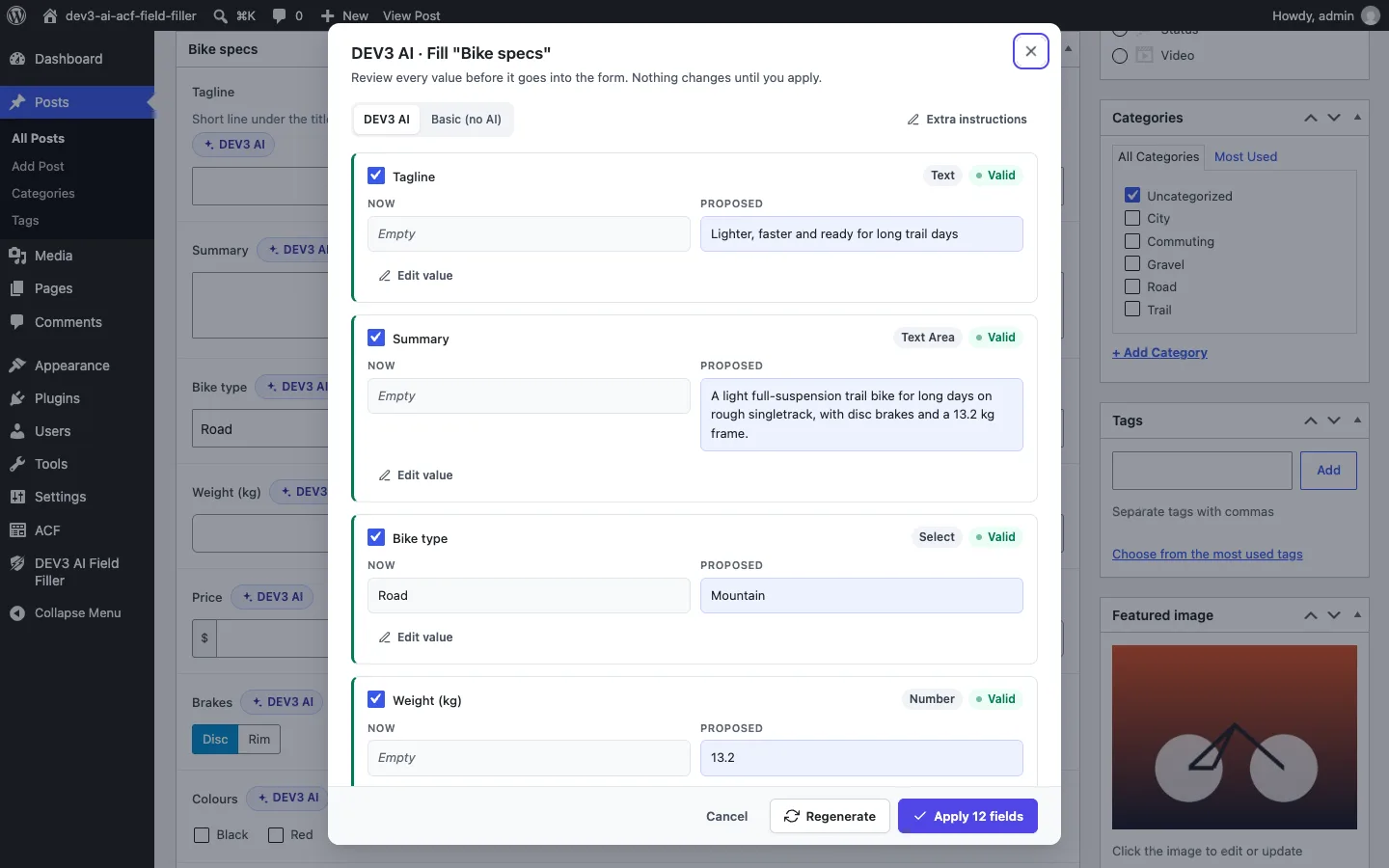
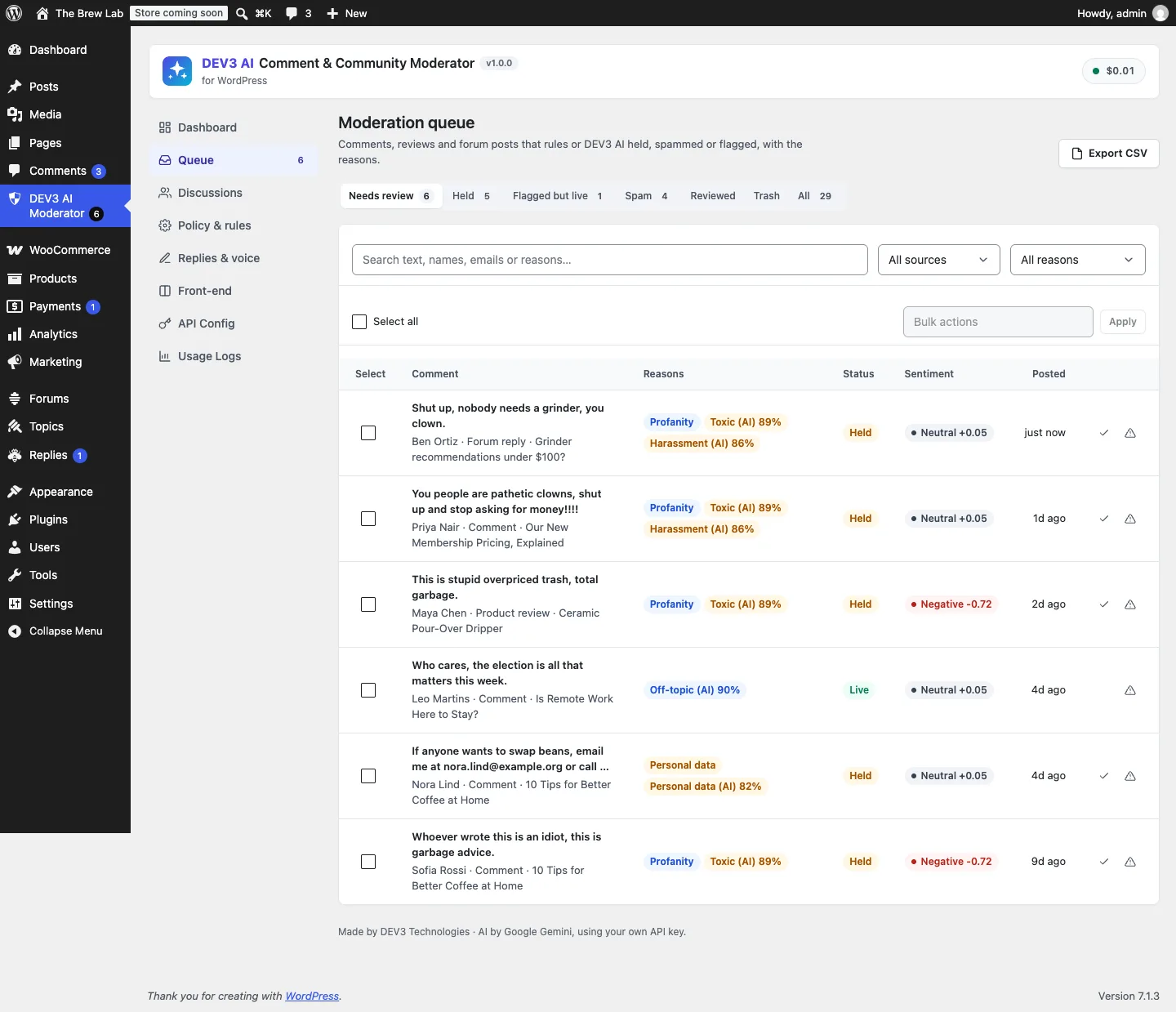
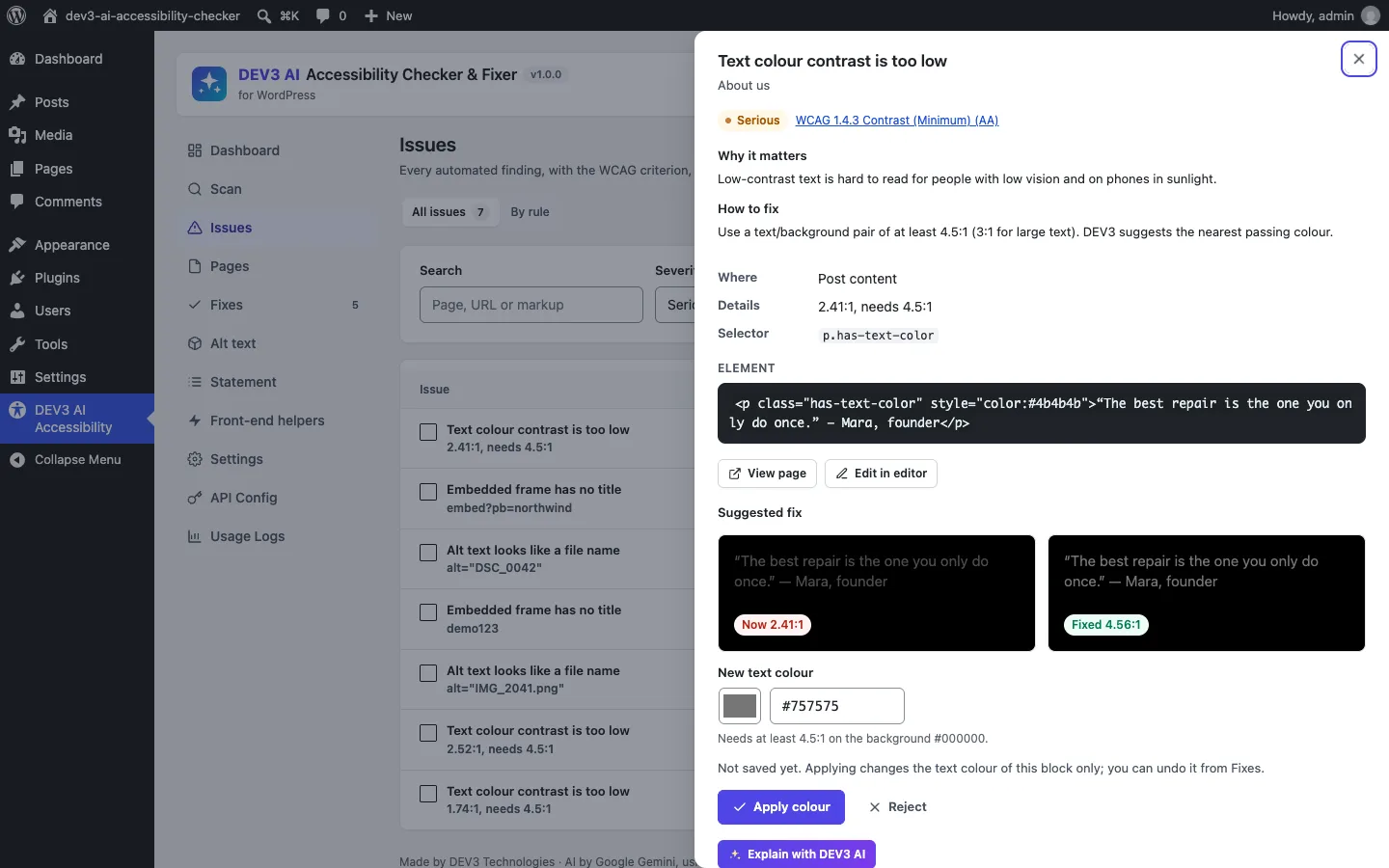
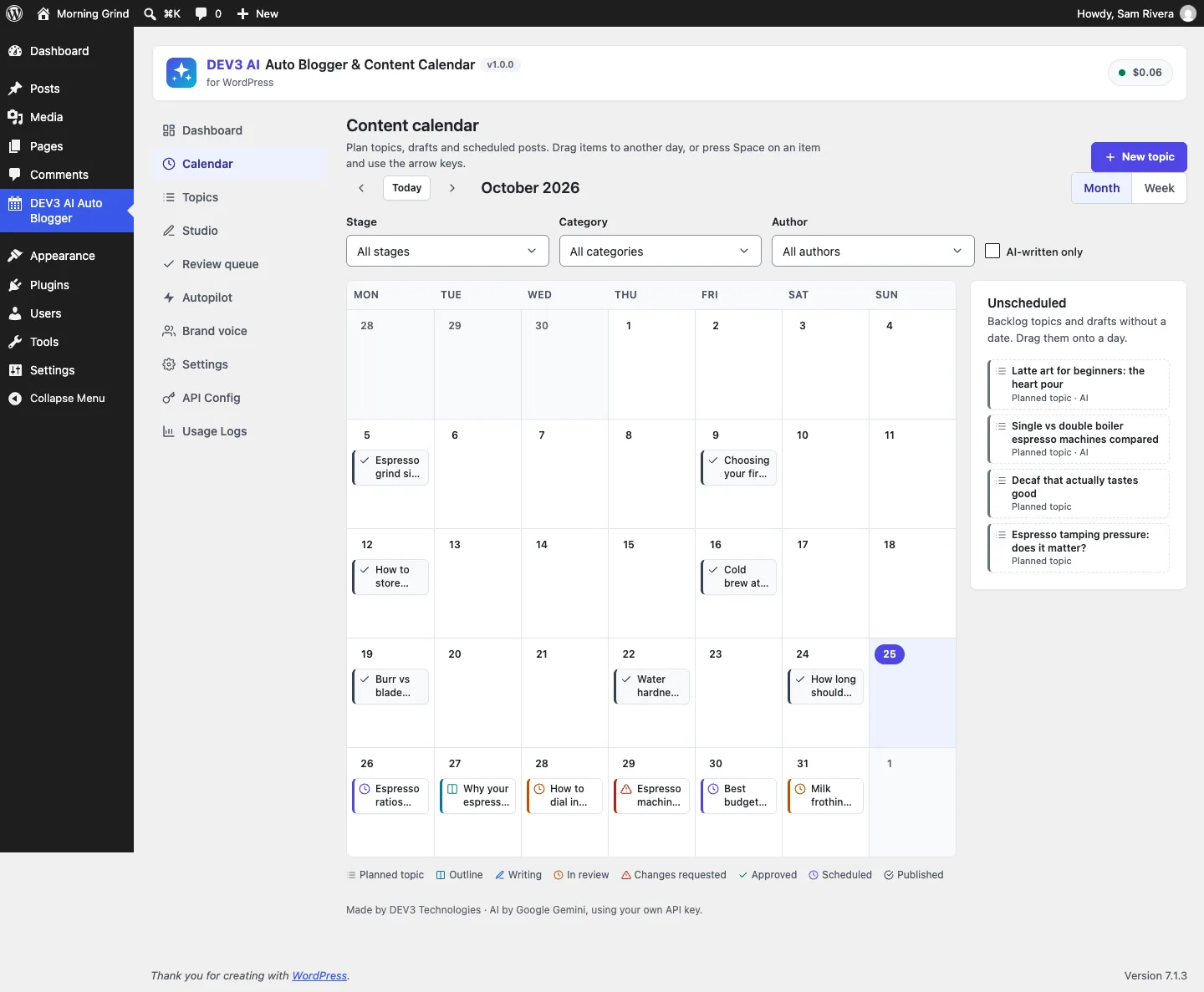
No licence key or activation is needed: install the zip and every feature works.
Requirements
- WordPress 6.0 or newer and PHP 7.4 or newer
- Advanced Custom Fields 6.0 or newer (free or Pro) or Secure Custom Fields, active
- Repeater, flexible content and gallery fields need ACF Pro or Secure Custom Fields
- Optional: a Google Gemini API key. Without one, basic fill, field-group templates, the review queue, history and undo still work
1. Install the plugin
- Unzip the bundle download and find
dev3-ai-content-seo-site-tools-plugins-bundle/dev3-ai-acf-field-filler/dev3-ai-acf-field-filler.zip.
- In WordPress, go to Plugins → Add New → Upload Plugin, choose the zip and click Install Now.
- Click Activate. DEV3 AI Field Filler for ACF appears in the plugin list and its menu, DEV3 AI Field Filler, appears in the admin sidebar.
2. Connect Google Gemini (optional)
- Create a free API key in Google AI Studio (sign in with a Google account, then Create API key).
- Go to DEV3 AI Field Filler → API Config, paste the key and click Validate & save. The key is stored encrypted and never sent to the browser.
- Optional: pick the model (gemini-2.5-flash is the fast default; gemini-2.5-pro for the highest quality) and set a monthly budget.
Prefer config files? Add define( 'DEV3AF_GEMINI_API_KEY', 'your-key' ); to wp-config.php instead.
3. Set it up
- Open DEV3 AI Field Filler → Dashboard to check that ACF or Secure Custom Fields is detected, whether the local JSON folder is writable, and how many fields can be filled.
- In Field groups, see every group and which fields are fillable. Fields such as passwords, maps and layout fields are skipped.
- Optional: in ACF → Field Groups, open a field and use its DEV3 AI tab to add Instructions for DEV3 AI (for example "Upbeat, under 60 characters") or switch on Skip in DEV3 AI.
- In Settings, choose the post types, language and tone, the image policy (media library, generated, or library then generated), whether new taxonomy terms are allowed, and whether bulk fill only touches empty fields by default.
Updating
Download the new bundle version, then upload the plugin zip in Plugins → Add New → Upload Plugin and choose Replace current with uploaded. Settings, drafts and history are kept.
Uninstalling
Deactivate and delete the plugin from Plugins. Drafts and history are kept unless you turn on the delete-data-on-uninstall option first. Field values and field groups you created stay in ACF.