Look at your shop page with fresh eyes. One product sits on a white sweep, the next on a kitchen table, the third on a grey carpet with a shadow from the phone. Some images are square, some are tall, one has a price sticker on it. None of them have alt text. It's not that the products are bad. It's that the grid looks like a car boot sale, and shoppers notice.
A product photographer would fix it, but not for a catalogue of hundreds of items shot over three years. Hand-editing in a photo app works for ten products, not 500. This guide shows a practical way to get consistent, white-background product photos in WooCommerce, plus lifestyle shots and alt text, using DEV3 AI Product Image Studio. Best of all, your original photos are never touched.
What a consistent product image set looks like
Before editing anything, decide on your house style:
- One background. Usually pure white, sometimes a brand colour.
- One shape. Square works well for grids and most marketplaces.
- The same product size in frame. A mug shouldn't fill the square while a teapot floats in the middle.
- Enough resolution for zoom on product pages.
- Alt text on every image, for accessibility and image search.
- A lifestyle shot or two in the gallery, after the clean main image.
Step 1: Set your defaults once
Install the plugin and open DEV3 AI Image Studio → Settings. Choose:
- Default background colour. White for most stores.
- Product fill percentage. How much of the square the product should take up (the range is 40–100%). Pick one value and keep it.
- Soft shadow on or off. A contact shadow stops products looking pasted on.
- Output format: auto, PNG, JPEG or WebP.
- Maximum image side.
- An optional brand style that's added to every lifestyle scene.
For AI edits, paste a Google Gemini key in API Config. Without one, the local tools (square canvas, resize, flatten, format conversion), alt text templates, the image audit and the review queue still work.
Step 2: Find the problem images
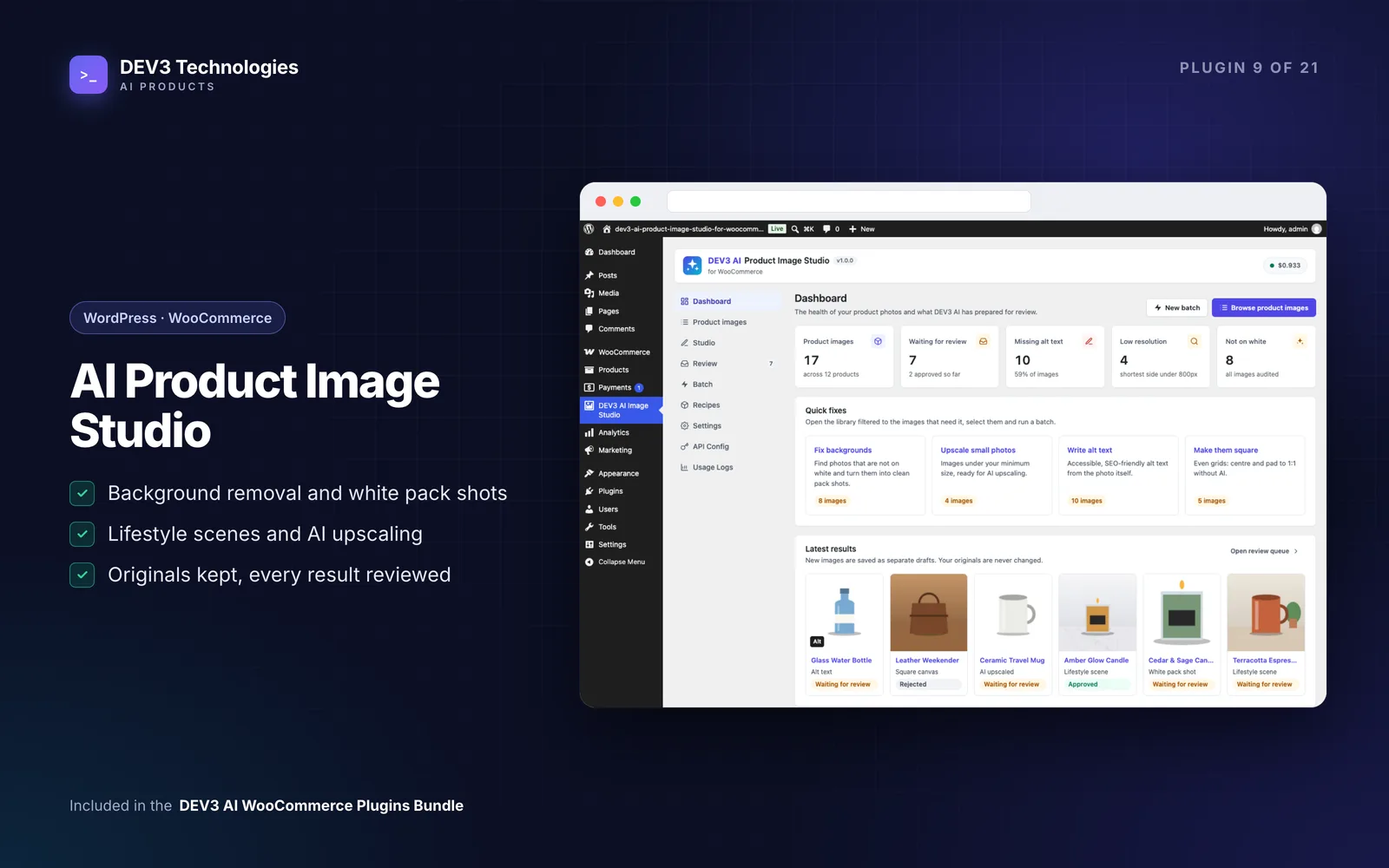
Open Product images. Every featured, gallery and variation image is listed with health flags. Use the filters to build your to-do list:
- Not on white: busy or grey backgrounds.
- Not square: odd aspect ratios that make the grid jagged.
- Low-res: images that will look soft when zoomed.
- Missing alt: images with no alt text.
Step 3: Perfect one image before batching
Pick a typical product and click Open in studio.
- Under Choose an edit, pick White pack shot, or use Start from a recipe… and choose Marketplace white 1:1.
- Adjust Background colour, Product fill (%) and Soft contact shadow if needed.
- Click Generate with DEV3 AI. Drag the slider under Results to compare before and after.
- Leave the action on Replace in product and click Approve. The new image takes the same slot (featured, gallery position or variation).
Changed your mind? Revert puts the original back. Every result is saved as a new image, so your original file is never overwritten.
If something specific spoils a photo, try Custom edit with an instruction like "remove the price sticker" or "straighten the label".
Step 4: Batch a whole category
Once one image looks right, apply the same edit to many:
- Open Batch. Under Which images, choose a product category, or go back to Product images, select images and click Batch selected. You can limit the batch to images that need it.
- Under What to do, pick the same edit or recipe. The panel shows how many images and AI requests the batch will use.
- Click Start batch with DEV3 AI (or Start batch for edits that need no AI). You can leave the page while it runs.
- Open Review, tick the results you like and click Approve selected. Use Reject selected for the rest.
You can also start from Products → All Products with the bulk action Edit images in DEV3 AI Image Studio.
Step 5: Add lifestyle scenes to the gallery
A clean pack shot sells the product. A lifestyle shot sells the feeling. In the Studio, pick Lifestyle scene:
- Choose a preset such as Kitchen counter or Marble slab, describe your own setting, or click Suggest scenes with DEV3 AI for four ideas based on the product.
- Pick an aspect ratio and 1–4 Variants. Each variant is one AI image.
- Generate, compare and approve the ones you like. Scenes default to Add to gallery, so your clean main photo stays first.
Save presets you use often, or add your own with Add scene, on the Recipes screen.
Step 6: Transparent PNGs for banners
For homepage sliders and promo banners, pick Remove background with a Transparent background, or the Transparent PNG recipe. The result shows on a checkerboard so you can check the edges. Approve it with Keep in library, since you want it in banners rather than the product page. Transparent results are always saved as PNG or WebP, never JPEG.
Step 7: Write the alt text
Click the Missing alt filter. For one image, click Write with DEV3 AI under Alt text in the Studio, edit the draft and click Save alt text. For many images, run Alt text with DEV3 AI as a batch, and the drafts land in Review. Without AI, set an Alt text template (no AI) such as {product} - {category} in Settings and run Alt text from a template.
Tips and pitfalls
- Selling green products? Check transparent cut-outs closely, or use a white or coloured background instead.
- Use AI upscale for small originals. It restores detail at the size the model can produce, then enlarges 2x, 4x or to a target edge, capped at 4,096 px.
- Set a monthly budget in API Config before your first big batch. AI pauses when it's reached.
- Check labels and logos. Image models can occasionally redraw fine print, which is exactly why every result waits for review.
- Show your work. The Before & After Image block or
[dev3is_compare before="ID" after="ID"]adds a draggable comparison to any page.
Who it's for
Small brands shooting on phones, resellers with supplier photos in every style, stores preparing listings for marketplaces that want white square images, and agencies tidying a client's catalogue. Only the image being edited (downscaled to 1,536 px) and the product name are sent to Google, plus category and attributes for alt text. The case study explains how transparency, framing and the review queue work.
Get started
DEV3 AI Product Image Studio is part of the DEV3 AI WooCommerce Plugins Bundle. Set your defaults, perfect one image, then batch a category and review the results. If you're planning a wider AI rollout across your store, our AI implementation team can help.