All case studies

DEV3 Technologies · own product

DEV3 AI Product Image Studio: AI pack shots, scenes and transparent PNGs that never overwrite the original

Our own WooCommerce plugin for product photos: background removal, white pack shots, lifestyle scenes, upscaling and alt text with the Google Gemini API, finished locally with GD and saved as drafts that a person approves before they reach a product.

Industry
E-commerce (WooCommerce)

Live project preview

Client systems are private — screenshots shown where permitted.

DEV3 Technologies · own product — screenshots
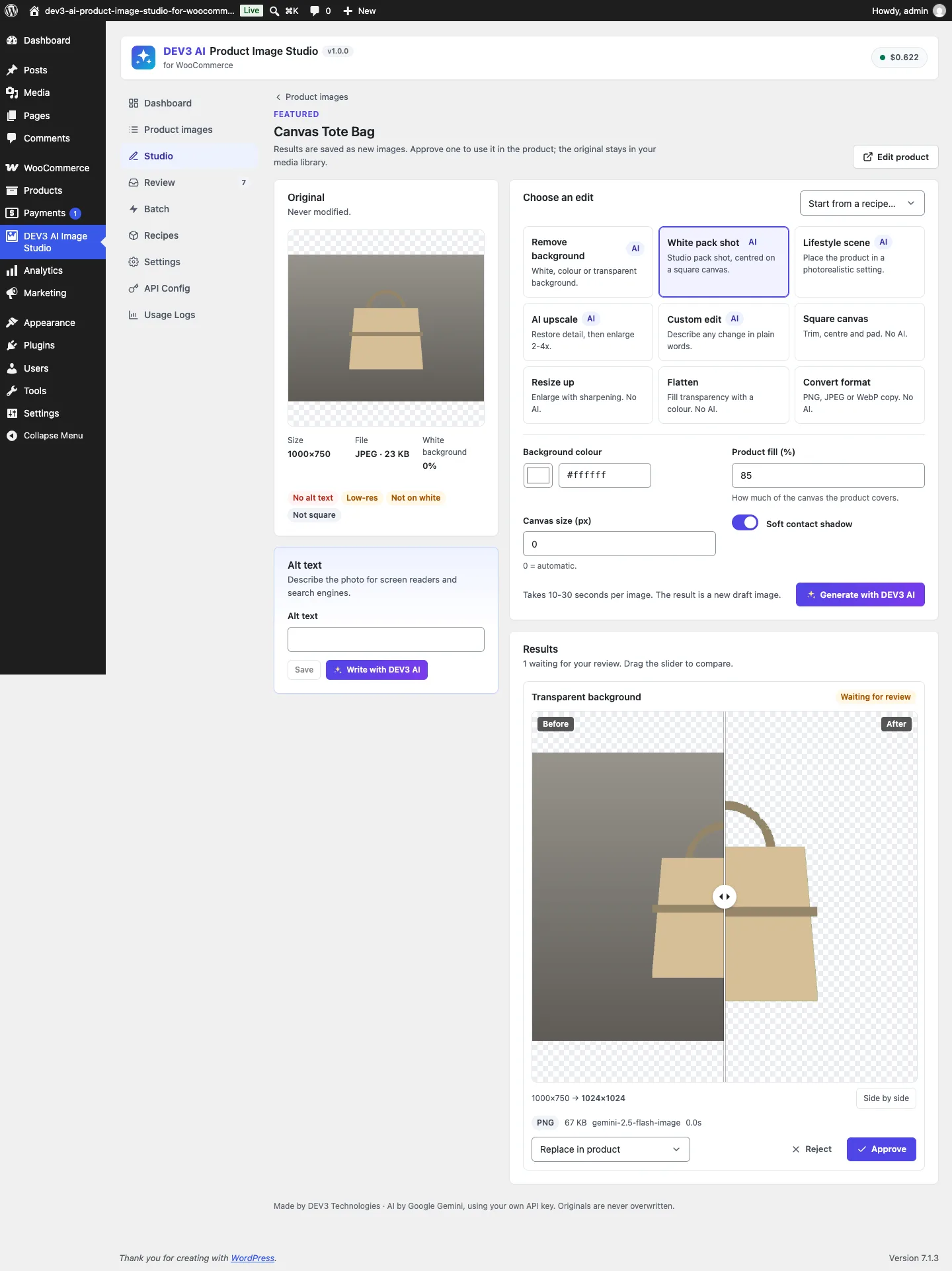
The Studio: pick an edit, generate it, and compare the original with the draft result. Here a transparent-background PNG keyed out from the model's green backdrop.

The Studio: pick an edit, generate it, and compare the original with the draft result. Here a transparent-background PNG keyed out from the model's green backdrop.

The challenge

Most WooCommerce stores have product photos taken on kitchen tables and phone cameras: grey backgrounds, odd aspect ratios, no alt text. Image AI can fix a lot of that, but it brings its own problems. Image models return a flat picture of about one megapixel with no transparency, they occasionally redraw a label or a logo, and a tool that writes the result straight over the merchant's original file makes every mistake permanent. We needed real transparent PNGs from a model that cannot output alpha, marketplace-ready square pack shots at a predictable fill, output larger than the model can produce, and a workflow where nothing touches a live product until someone has compared before and after.

Our solution

We built DEV3 AI Product Image Studio as a WooCommerce plugin in PHP with a React admin. The model does the creative part of each edit; everything that has to be exact (transparency, framing, size, file format, where the image goes) is done afterwards on the server with the PHP GD extension.

Key design decisions

  • Transparency by chroma key, not by asking. For a transparent background the prompt asks for the product on pure #00FF00. Image_Tools::chroma_key() then keys that colour out locally with a soft edge ramp and green despill, and the result is saved as a PNG with alpha.
  • Framing is arithmetic. Pack shots go through Image_Tools::square(): find the content box, scale the product's longest side to the chosen fill percentage (40–100%), centre it on a square canvas of the chosen colour. The same function is the AI-free Square canvas tool.
  • Honest upscaling. The model restores detail and removes noise at the size it can produce (about 1 MP); the plugin then resamples to 2x, 4x or a target long edge, capped by a setting and a hard 4,096 px limit.
  • Originals are never written to. Every result, AI or local, becomes a new attachment flagged _dev3is_draft, hidden from the media library and listed in a review queue with a before/after slider. Approve replaces the image in the same slot (featured, gallery position or variation), adds it to the gallery, or keeps it in the library. Revert puts the original back.
  • Stale approvals are refused. If the original is no longer in the product when someone approves a replacement, the API returns a 409 and offers Add to gallery or Keep in library instead of guessing.
  • Useful without AI. Square canvas, resize with sharpening, flatten, format conversion, alt text templates, the image audit and the review queue all work with no API key.

Architecture

A product image library lists every featured, gallery and variation image with health flags from a local audit: border whiteness on a 64 px sample, squareness, resolution and missing alt text, cached per attachment by file time and size. The Studio runs one operation on one image; Batch runs an operation or a saved recipe over a selection, a category or a filtered catalogue on background jobs (Action Scheduler when WooCommerce provides it, WP-Cron otherwise) with progress, cancel and retry. Images are downscaled to 1,536 px before they are sent to the model. Alt text, titles and captions come from a vision call with a length-capped JSON schema and are never saved without a click. A [dev3is_compare] shortcode and a Before & After block show transformations on the storefront. The API client, settings, usage logs, jobs and the admin UI kit come from a shared core used across DEV3's plugins.
Results

The plugin is complete. It ships in the DEV3 AI WooCommerce Plugins Bundle on the DEV3 marketplace, alongside 20 other WooCommerce plugins, and is being prepared for CodeCanyon. What was built and verified:

  • 41 PHPUnit tests (21 for the studio and its REST API, 20 for the shared core), run in wp-env against real WooCommerce, covering the chroma key, fill ratio, upscale caps, replace and revert for featured, gallery and variation images, stale approvals, batches and REST permissions
  • 36 Jest tests for the compare slider, review queue, studio, batch screen and UI kit
  • Pixel-level checks: the keyed backdrop comes out fully transparent while the product pixel keeps its exact colour, and a pack shot at 80% fill lands within 40 px of 800 px on a 1,000 px canvas, centred
  • Running an edit leaves the original file's MD5 hash and the product's image unchanged until approval, and revert puts the original back in the same slot
  • AI paths were tested with mocked API responses, including a safety-blocked image; no live-key run has been done yet, so we make no claims about output quality or speed
  • Every gate passes: build, Jest, PHP_CodeSniffer at 0 errors and 0 warnings, PHPUnit, translation template and packaging

Setup guide

No licence key or activation is needed: install the zip and every feature works.

Requirements

  • WordPress 6.0 or newer and PHP 7.4 or newer with the GD extension (WebP output needs GD built with WebP support)
  • WooCommerce 8.0 or newer, active
  • Optional: a Google Gemini API key. Without one, the local tools (square canvas, resize, flatten, format conversion), alt text templates, the image audit and the review queue still work

1. Install the plugin

  1. The plugin ships inside the bundle download as dev3-ai-woocommerce-plugins-bundle/dev3-ai-product-image-studio-for-woocommerce/dev3-ai-product-image-studio-for-woocommerce.zip.
  2. In WordPress, go to Plugins → Add New → Upload Plugin, choose that zip and click Install Now.
  3. Click Activate. DEV3 AI Product Image Studio for WooCommerce appears in the plugin list and its menu, DEV3 AI Image Studio, appears in the admin sidebar.

2. Connect Google Gemini (optional)

  1. Create a free API key in Google AI Studio (sign in with a Google account, then Create API key).
  2. Go to DEV3 AI Image Studio → API Config, paste the key and click Validate & save. The key is stored encrypted and never sent to the browser.
  3. Optional: set a monthly budget. AI features pause when it is reached; the local tools keep working.

Prefer config files? Add define( 'DEV3IS_GEMINI_API_KEY', 'your-key' ); to wp-config.php instead.

3. Set it up

  1. In Settings, choose the default background colour, product fill percentage, soft shadow, output format (auto, PNG, JPEG or WebP), the maximum image side and an optional brand style for lifestyle scenes.
  2. Open Product images. Every featured, gallery and variation image is listed with health flags: missing alt text, low resolution, not on white, not square.
  3. Click Open in studio on an image, pick an edit (Remove background, White pack shot, Lifestyle scene, AI upscale, Custom edit, or one of the local tools) and click Generate with DEV3 AI. The result is saved as a new draft image; your original is not changed.
  4. Compare before and after with the slider, choose Replace in product, Add to gallery or Keep in library, and click Approve. Approved replacements can be reverted later.
  5. To fix many images at once, open Batch, pick a selection, a category or a filter, then an edit or a saved recipe from Recipes. Results wait in Review, where you can approve or reject them in bulk.
  6. Optional: add the Before & After Image block or the [dev3is_compare before="ID" after="ID"] shortcode to show a transformation on your storefront.

Updating

Download the new version of the bundle, then upload the plugin zip in Plugins → Add New → Upload Plugin and choose Replace current with uploaded. Settings, results and history are kept.

Uninstalling

Deactivate and delete the plugin from Plugins. Your settings, recipes and result history are kept unless you turned on deleting data on uninstall. Either way, result images stay in your media library, because products may be using them.

How to use

Everything below happens under DEV3 AI Image Studio in the WordPress admin. Every edit creates a new draft image: your original photo and your products stay exactly as they are until you approve a result.

Turn a phone photo into a white pack shot

  1. Open Product images and click the Not on white filter to find photos with busy backgrounds.
  2. Click Open in studio on an image. The left panel shows the original with its size, file type and health flags.
  3. Under Choose an edit, pick White pack shot. Adjust Background colour, Product fill (%) and Soft contact shadow if you want, or use Start from a recipe… and choose Marketplace white 1:1.
  4. Click Generate with DEV3 AI. After a short wait the result appears under Results; drag the slider to compare before and after.
  5. Leave the action on Replace in product and click Approve. The new image takes the same slot (featured, gallery position or variation). If you change your mind, click Revert to put the original back.

Make a transparent PNG

  1. In the Studio, pick Remove background and set the background to Transparent, or start from the Transparent PNG recipe.
  2. Click Generate with DEV3 AI. The result shows on a checkerboard so you can check the edges.
  3. Approve it with Keep in library if you need it for banners or sliders rather than the product page. Transparent results are always saved as PNG or WebP, never JPEG.

Selling green products? Check the cut-out carefully, or choose a white or coloured background instead of transparent.

Add lifestyle scenes to a product gallery

  1. In the Studio, pick Lifestyle scene. Choose a preset such as Kitchen counter or Marble slab, describe your own setting, or click Suggest scenes with DEV3 AI for four ideas based on the product.
  2. Pick an aspect ratio and the number of Variants (1–4). Each variant is one AI image.
  3. Click Generate with DEV3 AI, compare the variants, and approve the ones you like. Scenes default to Add to gallery, so your main product photo stays first.
  4. Edit the presets, or add your own with Add scene, on the Recipes screen. Your brand style from Settings is added to every scene.

Fix a whole category in one batch

  1. Open Batch. Under Which images, choose a product category (or your selection from Product images via Batch selected), which images to include, and optionally only images that need it.
  2. Under What to do, pick an edit or a recipe. The panel shows how many images and AI requests the batch will use.
  3. Click Start batch with DEV3 AI (or Start batch for edits that need no AI). You can leave the page; progress, cancel and retry are shown under Recent batches.
  4. Open Review, tick the results you like and click Approve selected, or Reject selected to discard the rest.

You can also start a batch from Products → All Products: select products and choose the bulk action Edit images in DEV3 AI Image Studio.

Write alt text for every product image

  1. Click the Missing alt filter in Product images.
  2. For one image, open it in the Studio and click Write with DEV3 AI under Alt text. Edit the draft and click Save alt text. Nothing is saved until you click.
  3. For many images at once, open Batch and pick Alt text with DEV3 AI; each draft lands in Review for approval. Without AI, set an Alt text template (no AI) such as {product} - {category} in Settings, then run Alt text from a template as a batch.

Show a before and after on your store

  1. Edit any page and add the Before & After Image block, then pick the original and the result.
  2. Or paste the shortcode [dev3is_compare before="ID" after="ID"] with the two attachment ids. Shoppers can drag the handle with a mouse, a finger or the arrow keys.

Related case studies