Ask an image model to "remove the background and make it transparent" and you will usually get one of two things back: the product on white, or the product on a grey-and-white checkerboard that the model has painted into the pixels. Image models return a flat RGB picture. There is no alpha channel to fill in, however the prompt is worded. Merchants still need real transparent PNGs for theme sliders, marketplace listings and colour-swapped banners. This article starts with what DEV3 AI Product Image Studio, our WooCommerce plugin for product photos, does and how to use it. The deep dive then explains how it gets transparency anyway: the model paints the product on a colour that never occurs naturally, and PHP's GD extension keys that colour out on the server.
 Illustration: an everyday product photo becomes a clean white pack shot, with the original left untouched.
What it does and who it's for
The plugin edits the product images already in a WooCommerce store, inside the WordPress admin, using the store's own Google Gemini API key. It is built for:
- Small shops with phone photos that want clean white pack shots without a studio or an editing subscription.
- Marketplace sellers who need square, evenly framed images at a fixed fill, or transparent PNGs for listings and banners.
- Catalogue managers who want to fix a whole category at once: backgrounds, low-resolution images, missing alt text.
- Brands that want lifestyle shots (a mug on a kitchen counter, a candle on marble) without a photo shoot.
- Stores that care about accessibility and SEO, with vision-written alt text, titles and captions, or template alt text with no AI at all.
Every result is a new draft image. Nothing replaces a product photo until someone approves it.
How to set it up
- Install the plugin zip from the bundle in Plugins → Add New → Upload Plugin and activate it. WooCommerce 8.0+ and PHP's GD extension are required.
- Open DEV3 AI Image Studio → API Config, paste a Google Gemini API key and click Validate & save. You can skip this: the local tools work without a key.
- In Settings, choose the default background colour, pack-shot fill, file format, maximum image size and an optional brand style for scenes.
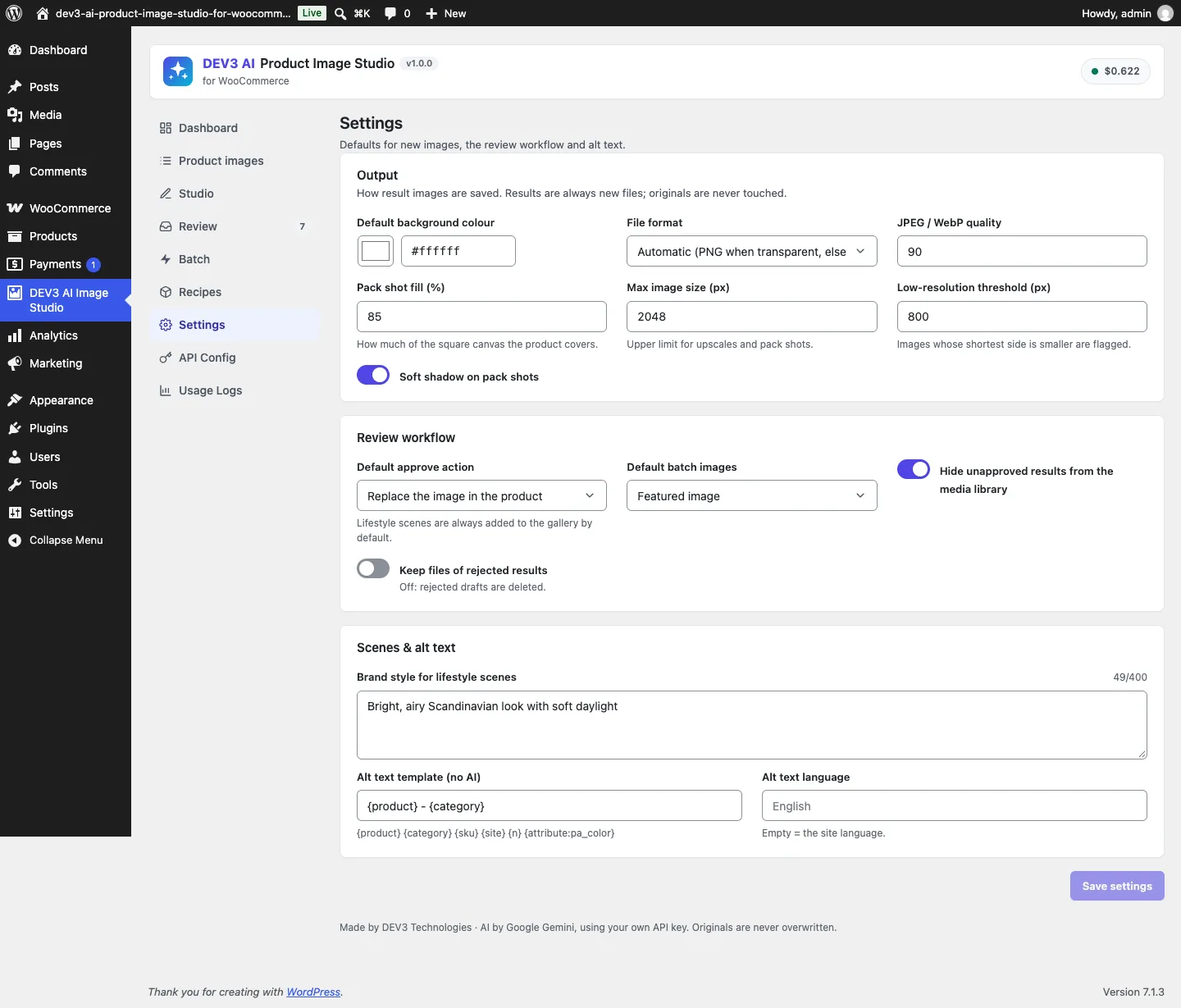 Settings: output defaults, review behaviour, brand style and the alt text template.
How to use it
Fix one photo. Open Product images, click Open in studio on an image, choose an edit such as White pack shot, and click Generate with DEV3 AI. Drag the slider to compare, then Approve with Replace in product, Add to gallery or Keep in library. Revert puts the original back later.
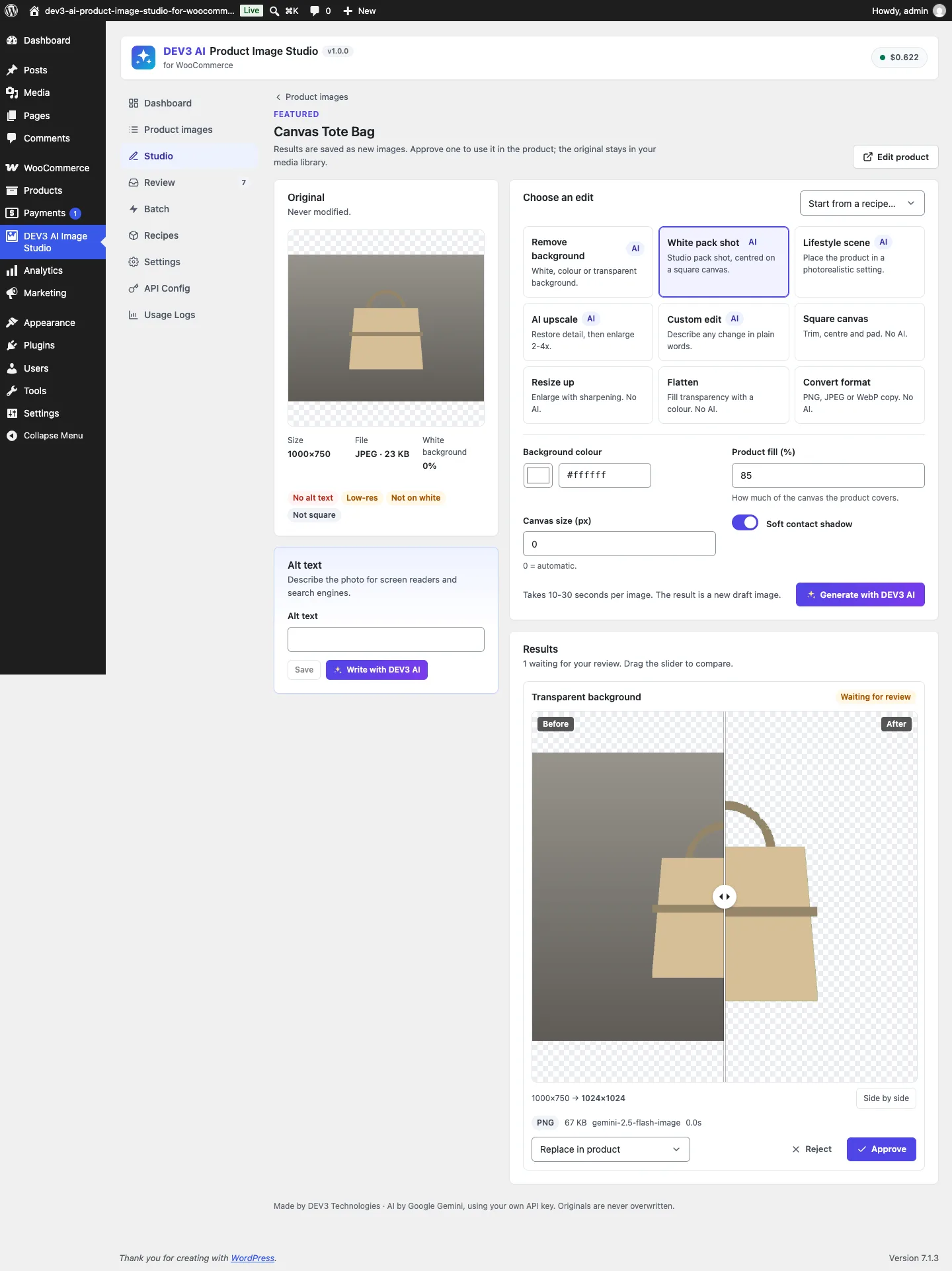 The Studio: the original on the left, a draft transparent-background result with a before/after slider on the right.
Fix a category. Open Batch, pick a category or selection and an edit or recipe (for example Marketplace white 1:1), and click Start batch with DEV3 AI. It runs in the background; results wait in Review, where you can approve or reject them in bulk.
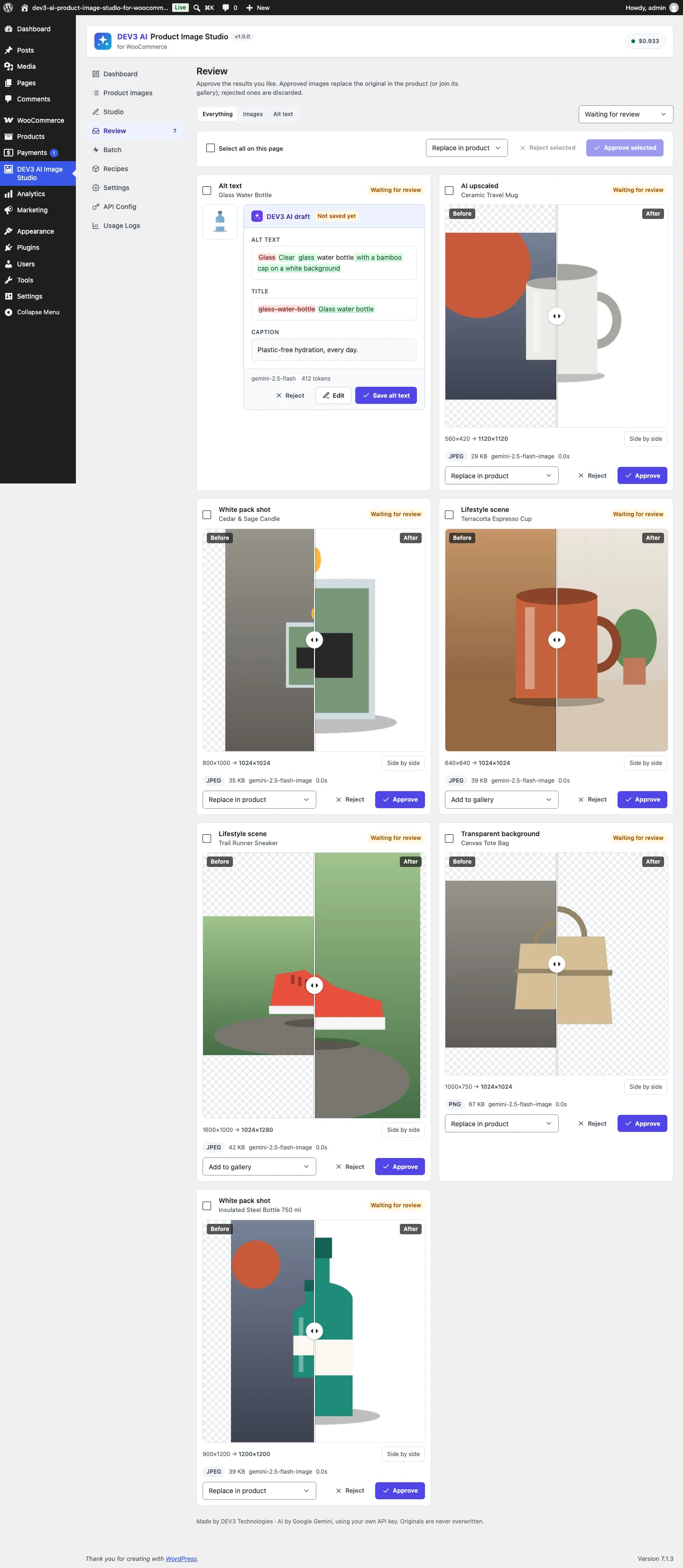 The review queue: every result waits for approval, with its own slider and apply mode.
Write alt text. Filter Product images by Missing alt and use Write with DEV3 AI per image, or run alt text as a batch. Drafts are never saved without a click.
The model draws, PHP measures
Every AI operation in the plugin (remove background, white pack shot, lifestyle scene, AI upscale and custom edit) follows the same pattern in Operations::run_ai():
- Read the original attachment from disk, downscale it to at most 1,536 px on the long side, and send it to the image model with a prompt.
- Decode the returned image into a GD resource.
- Run a local finishing step that depends on the operation.
- Save the output as a new attachment marked as a draft, and add a pending row to the review queue.
Step 3 is where the exact work happens. The model handles what only a generative model can do: separate a product from a cluttered kitchen table, relight it, invent a marble countertop. Anything with a precise specification is done in PHP afterwards, because a prompt cannot guarantee it:
public static function finish( $op, array $o, $img, $src_w, $src_h ) {
	switch ( $op ) {
		case 'remove_bg':
			return 'transparent' === $o['background'] ? Image_Tools::chroma_key( $img ) : $img;
		case 'packshot':
			return Image_Tools::square( $img, $o['size'] ? $o['size'] : max( 1024, min( (int) Settings::get( 'max_side', 2048 ), max( $src_w, $src_h ) ) ), $o['fill'], Image_Tools::rgb( $o['color'] ) );
		case 'upscale':
			list( $w, $h ) = Image_Tools::upscale_size( $src_w, $src_h, $o['factor'], $o['long'], (int) Settings::get( 'max_side', 2048 ) );
			$k = max( $w, $h ) / max( imagesx( $img ), imagesy( $img ) );
			return Image_Tools::resample( $img, (int) round( imagesx( $img ) * $k ), (int) round( imagesy( $img ) * $k ) );
	}
	return $img;
}
(condensed from Operations::finish)
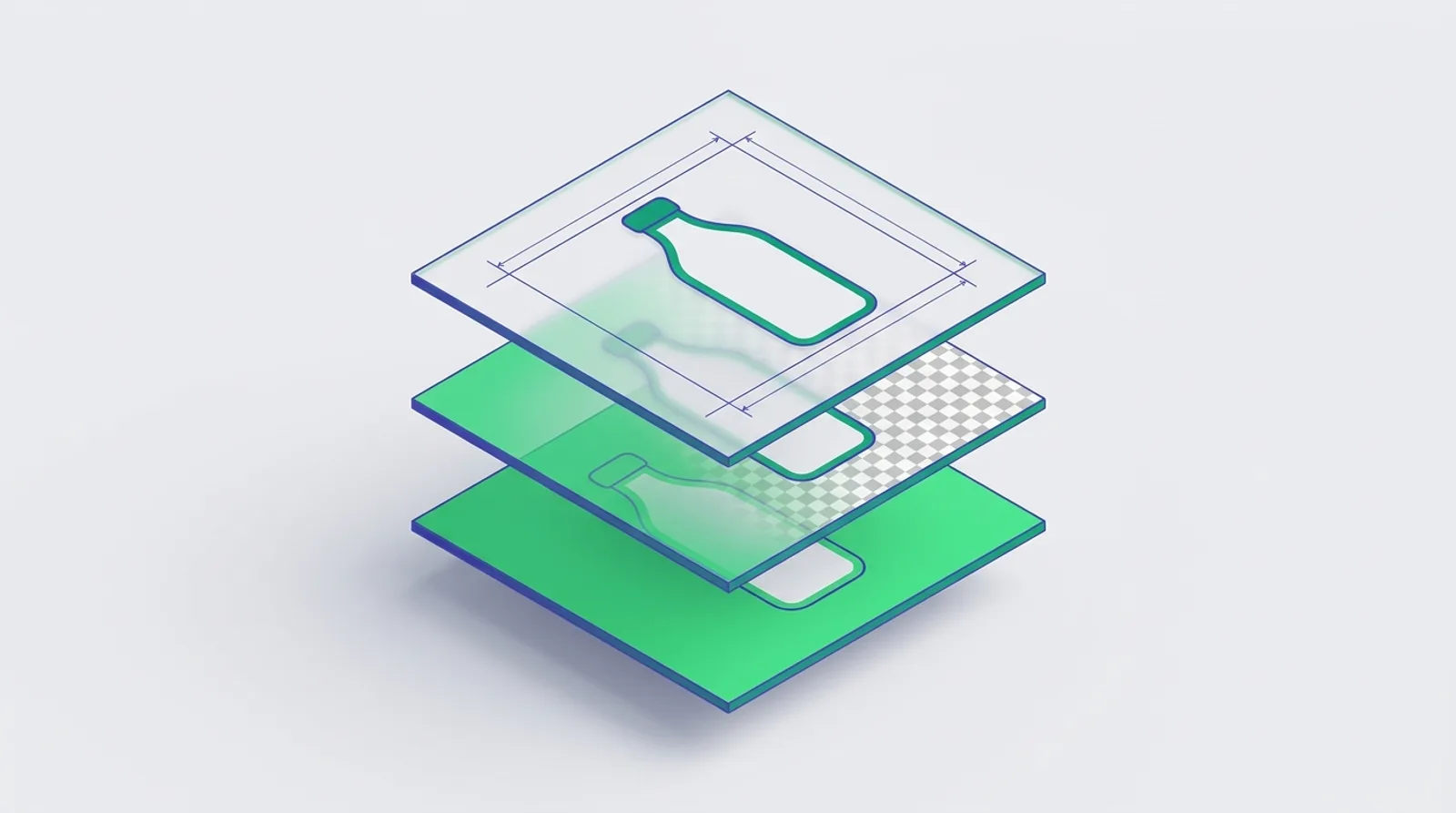 Illustration: the model paints the product on a key colour; the server keys it out and frames it exactly.
Step one: ask for a backdrop you can key
The prompt for a transparent result does not mention transparency at all. It asks for a flat key colour and lists the things that would make keying hard:
$bg = 'Place it on a perfectly flat, uniform pure chroma-key green background (#00FF00) that will be keyed out. No shadow, no gradient, no floor line, no green reflections or green tint on the product. ';
$prompt = 'Remove the background from this product photo. ' . $about . $keep . $bg . 'Return only the edited image.';
(condensed from Operations::prompt)
Each clause is there for a reason:
- Shadows and floor lines turn into dark-green pixels that are too far from
#00FF00to key out. They'd stay behind as a grimy halo. - Gradients make the backdrop vary across the frame, so one tolerance can't fit it all.
- Green reflections on glossy products are the classic chroma-key failure. The product picks up the backdrop colour and partly disappears with it.
$keep, shared by every operation, tells the model to keep the product's shape, colours, label text and logos and redraw nothing. Nothing after the model can check that the label still says what it said, so this line matters most.
A PHPUnit test captures the outgoing request and asserts that the prompt contains #00FF00.
Step two: keying with a soft edge
Image_Tools::chroma_key() walks every pixel and measures its Euclidean distance in RGB space from the key colour. The distance runs from 0 (exactly the key) to about 441 (the opposite corner of the colour cube). Two thresholds split that range into three zones:
$inner = (int) apply_filters( 'dev3is_chroma_tolerance', $tolerance > 0 ? (int) $tolerance : 110 );
$outer = $inner + 70;
// …
$d = sqrt( ( $r - $key[0] ) ** 2 + ( $g - $key[1] ) ** 2 + ( $b - $key[2] ) ** 2 );
if ( $d <= $inner ) {
	$alpha = 127;                       // backdrop: fully transparent
} elseif ( $d >= $outer ) {
	$alpha = $a;                        // product: keep whatever alpha it had
} else {
	$alpha = max( $a, (int) round( 127 * ( 1 - ( $d - $inner ) / ( $outer - $inner ) ) ) );
}
(condensed from Image_Tools::chroma_key)
GD stores alpha upside down compared with most tools: 0 is opaque and 127 is fully transparent. Inside the inner radius (110 by default) a pixel is backdrop. Outside the outer radius (180) it is product and keeps its existing alpha. Between the two, transparency falls off linearly.
The ramp matters because the model anti-aliases the product's edges, so the edge pixels are part product, part green. A binary key turns them into a jagged, green-fringed outline; the 70-unit ramp makes them semi-transparent, so the edge stays smooth on a dark banner.
Step three: despill the fringe
The ramp fixes the alpha of edge pixels but not their colour. A half-green edge pixel still reads as a faint green outline on a white page. Compositing software handles this with despill, and the plugin has a minimal version:
// Despill: edge pixels tinted by the green backdrop lose the excess green.
if ( $green && $alpha < 127 && $g > max( $r, $b ) && $d < $outer + 60 ) {
	$g = max( $r, $b );
}
imagesetpixel( $out, $x, $y, imagecolorallocatealpha( $out, $r, $g, $b, $alpha ) );
(from Image_Tools::chroma_key)
The rule clamps the green channel down to the larger of red and blue. It only applies to pixels that are still visible, are green-dominant, and lie within 240 units of the key, so the edge band plus a little more. A neutral grey edge contaminated by green (say 120, 170, 115) becomes 120, 120, 115, which is grey again. Red and blue products are unaffected, because their green is never the largest channel.
Where it breaks: green products
We'll be plain about the trade-off. A chroma key removes whatever looks like the key, and some products do. A bright green bottle at (60, 200, 60) is about 101 units from #00FF00, inside the default inner radius, so it would be keyed out along with the backdrop. Darker greens land in the ramp and come out partly transparent, and despill pulls the green out of any green-dominant pixel near the key, so even the parts that survive come out duller.
The plugin gives merchants three ways out:
- The tolerance is a filter (
dev3is_chroma_tolerance), so a store that sells green products can tighten it. - Every result is a draft. A keyed-out product is obvious in the before/after slider on a checkerboard, so it gets rejected rather than published.
- Remove background also offers white and custom-colour output, which needs no keying at all. For most WooCommerce themes a white pack shot is what the product page wants anyway.
Choosing the key colour per image (magenta for green products) would fix this properly; it isn't built yet.
Testing it at the pixel level
Keying is deterministic, so it can be tested exactly. One PHPUnit test draws a red rectangle (200, 30, 30) on a pure-green canvas, keys it, and asserts that a backdrop pixel has alpha 127 while the product pixel comes back as exactly (200, 30, 30) and fully opaque. A second test runs the whole operation with a mocked model reply, reads the saved file back from disk and checks the corner and centre pixels the same way.
The format has to follow the pixels
Merchants can set the output format to JPEG to keep files small. JPEG has no alpha, so a transparent result saved as JPEG would quietly flatten back onto black or white, and the transparency work would be lost. Image_Tools::pick_mime() checks the image before encoding. WebP holds alpha, so it is used when the server's GD supports it. A JPEG request falls back to PNG when the image has transparency, and auto picks PNG for transparent results and JPEG for the rest. has_alpha() is cheap: it samples about a 64 × 64 grid of pixels, not every pixel, which is enough to find a keyed backdrop that covers most of the frame.
Pack shots: framing as arithmetic
Marketplaces and tidy category grids want the same thing: a square image with the product centred and filling a consistent share of the frame. Ask a model for "85% fill" and you will get something between 60% and 95%. So the pack-shot prompt asks only for the look (a seamless background, soft studio lighting, an optional contact shadow, no hands or props), and Image_Tools::square() does the framing:
$fill = min( 100, max( 40, (int) $fill ) ) / 100;
$box  = self::content_box( $img, null );
$long = max( $box['w'], $box['h'] );
$size = (int) $size > 0 ? (int) $size : (int) round( $long / $fill );
$size = min( self::HARD_MAX, max( 64, $size ) );
$out  = self::canvas( $size, $size, $bg );
$k    = ( $size * $fill ) / $long;
// … copy the content box, scaled by $k, to the centre of the canvas
(condensed from Image_Tools::square)
content_box() finds the product by downsampling the image to 256 px on its longest side and scanning for pixels that differ from the background by more than 40 RGB units. It works out the background from the average of the four corners, or, if the corners are transparent, it lets alpha alone decide what is product. That last rule lets the same function frame a keyed PNG on a transparent square. Working on a thumbnail keeps the scan to about 65,000 pixel reads at most.
The test for this draws a 100 × 50 black rectangle off-centre on a 400 × 300 white canvas, squares it to 1,000 px at 80% fill, and asserts that the product's width is within 40 px of 800, that it is centred within 20 px on both axes, and that the border is 100% white. The same function also runs with no AI as the Square canvas tool, so stores without an API key still get consistent grids.
Upscaling: say what the model can do
Image models output roughly one megapixel whatever the input size, so "upscale 4x" can't come back at 4x from the model itself.
So AI upscale is two steps, and the UI and docs say so. The prompt asks the model to restore fine detail and texture, remove noise, blur and compression artefacts, and change nothing else. The plugin then resamples the result to the target size in PHP: upscale_size() works out the target from the original's dimensions (2x, 4x or a long edge in pixels), caps it at the store's maximum side setting and a hard 4,096 px limit, and never shrinks. The model's own aspect ratio is kept, in case it framed the image a pixel or two differently.
A test makes the behaviour explicit. A 400 px original goes in, the mocked model returns a 200 × 150 image, and the saved result is 800 px wide. The extra pixels come from resampling, while the cleaner edges and texture come from the model. That is a real improvement on a noisy phone photo, but it isn't the detail of a camera with four times the resolution, and we don't present it as that.
The AI-free Resize up tool resamples the same way and adds a light 3 × 3 sharpening pass, skipped on transparent images where it would create fringes.
Nothing reaches the product unreviewed
The keying, framing and resampling are deterministic, but the model's part is not, so no operation writes to the original file or the product. Each result is a new attachment with an SEO-friendly file name (blue-mug-square.png), flagged as a draft and hidden from the media library. A test hashes the original file before and after an edit and asserts that the hash and the product's image id are unchanged. Approving Replace in product swaps the attachment in the exact slot it came from, and if the original is no longer in the product, the approval is refused with a 409 rather than guessing.
What we verified, and what we didn't
The plugin has 41 PHPUnit tests (21 for the studio and its REST API, 20 for the shared core) running in wp-env against real WooCommerce, and 36 Jest tests for the admin, including the compare slider. The chroma key, square framing and upscale maths are tested at the pixel level. The AI paths were tested with mocked API responses, including a reply blocked by the image safety filter. No live-key run has been done yet, so this post makes no claims about how good the model's cut-outs or scenes look. The local half of the pipeline exists so that the parts we can guarantee don't depend on that.
DEV3 AI Product Image Studio ships in the DEV3 AI WooCommerce Plugins Bundle on the DEV3 marketplace and is being prepared for CodeCanyon. The full build, including batch mode, recipes and vision alt text, is in the case study.