If you run a WordPress site with a contact form, you know the routine. The inbox fills with link-building pitches, "guest post" offers and the occasional abusive message, while real enquiries arrive with typos in the email address and phone numbers in five different formats. CAPTCHAs and keyword filters only partly help.
This guide shows how to fix both sides of the problem on Contact Form 7, WPForms or Gravity Forms with DEV3 AI Form Autofill & Spam Shield: screen every submission with AI before the notification email goes out, and make the form easier for genuine visitors to fill in.
What a good contact form setup looks like
Agree on the goal first:
- Spam never reaches your inbox, but a genuine complaint, even an angry one, still does.
- You decide what happens to a suspicious message: block it, mark it as spam or deliver it with a warning.
- Real visitors type less. Someone on a phone who already has their details in an email signature shouldn't have to retype them.
- Small mistakes get caught politely, like
gmial.comor a phone number without a country code. - You can review mistakes and undo a false positive.
- Your API budget and your visitors' privacy are protected.
Step-by-step setup
1. Install the plugin and add your API key
- In your download, find
dev3-ai-form-autofill-spam-shield.zipand upload that zip in Plugins → Add New → Upload Plugin, then activate it. - Create a key in Google AI Studio under API keys.
- Open DEV3 AI Form Autofill → API Config, paste the key and click Validate & save. The key is encrypted in your database and never sent to the browser. If you manage sites for clients, you can define it in
wp-config.phpinstead.
2. Check the defaults on the Overview screen
Open Overview. You'll see the form builders the plugin detected (Contact Form 7, WPForms Lite or Pro, Gravity Forms) and every form on the site. Each one already uses the defaults:
- paste-to-fill on, using the first paragraph or textarea field as the source;
- smart corrections on;
- the spam shield on, set to Block with a message at an 80% spam probability;
- abusive messages acted on as well.
Quick switches on each row let you turn features on or off per form. A form changes from Defaults to Custom as soon as you edit it, and Reset puts it back.
3. Choose what happens to spam, per form
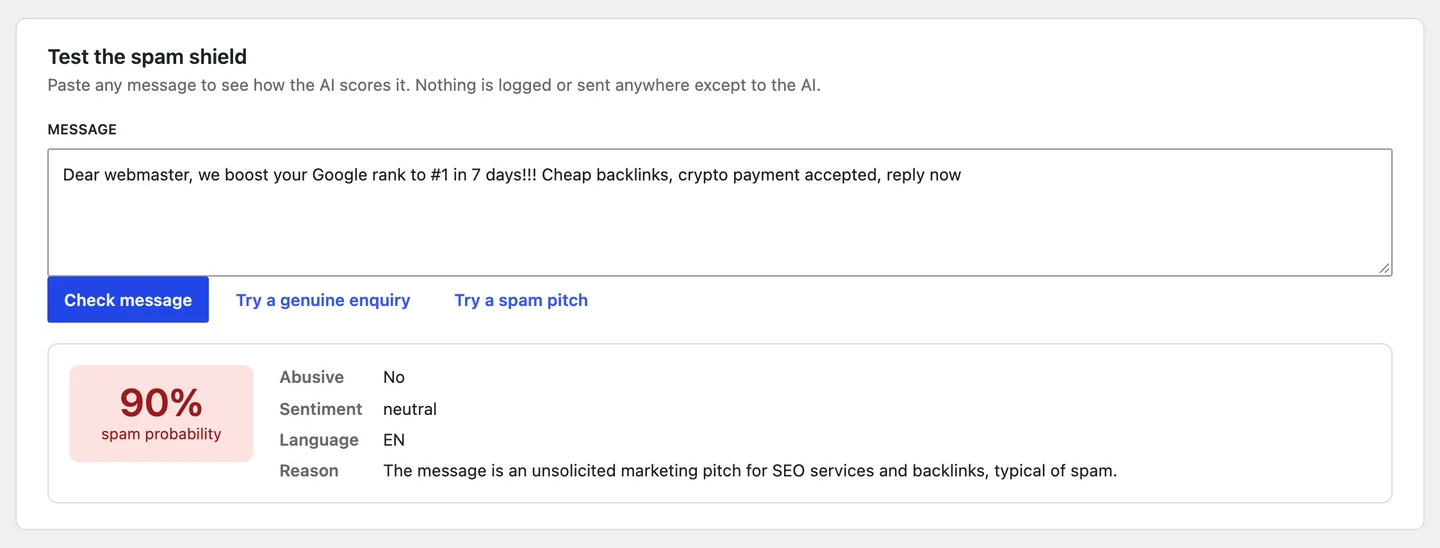
Each submission gets a spam probability, an abusive flag, a sentiment and a language. When the probability reaches the form's threshold (anywhere from 50 to 99%), the form's action runs:
- Block with a message: the visitor sees your message and can rephrase.
- Mark as spam: the builder's own spam handling takes over. In Gravity Forms the entry goes to the Spam folder; in Contact Form 7 no mail is sent and Flamingo stores it as spam.
- Flag only: the message is delivered, the email subject gets a
[Flagged]prefix and it's logged. Useful while you tune the settings.
You can set these from Overview, or inside each builder:
- Contact Form 7: the form's AI Autofill & Spam Shield tab.
- WPForms: builder Settings → AI Autofill & Spam Shield.
- Gravity Forms: Settings → Form Settings → AI Autofill & Spam Shield.
4. Pick the field visitors paste into
Paste-to-fill starts when a visitor pastes at least 40 characters (you can change that) into the source field. The AI fills only the fields that are still empty, highlights them and shows an Undo button. The form is never submitted for them.
If you don't want the first textarea as the source, choose another field:
- Contact Form 7: Source field in the plugin's editor tab.
- WPForms: a Paragraph Text or Single Line Text field → Advanced → Smart paste source (AI autofill).
- Gravity Forms: a Paragraph Text field → Advanced → Smart paste source (AI autofill).
Dropdowns, radios and checkboxes only accept one of their real options, so the AI can pick a department from your list but can't invent a new one. Hidden fields, file uploads, captchas, consent checkboxes and payment fields are never touched.
5. Test it like a visitor
- Open your contact page logged out and paste an email signature into the message box. The empty fields should fill in a couple of seconds.
- Submit something spammy, such as an SEO pitch full of links. You should see your block message.
- Open DEV3 AI Form Autofill → Spam Log to see what was caught, with the score, sentiment, language and the AI's reason.
To tune the threshold without sending real submissions, go to Defaults and use Test the spam shield at the bottom. It scores any message you paste and logs nothing.
Tips and pitfalls
Keep your existing spam protection. Run the plugin next to Akismet, reCAPTCHA or Turnstile. Submissions already caught by honeypots, the CF7 nonce or WPForms anti-spam aren't re-checked, so they never cost you an AI call.
Label your fields clearly. "Company", "City" and "Enquiry type" work much better than "Field 3". Paste-to-fill only sees labels, types and options.
Use the Spam Log as your feedback loop. If a real message gets caught, click Not spam. The sender is trusted from then on, and in Gravity Forms and WPForms Pro the entry is restored. Confirm keeps it as spam.
Decide on fail-open or fail-closed. If the AI can't be reached, or the daily cap is used up, the default is to deliver the submission and log the outage. Turn fail-open off if you'd rather block with a message until the AI is back.
Protect your API budget. The Defaults tab sets autofill requests per visitor per minute (10), submissions per IP per minute (12) and a daily AI call cap (2,000, or 0 for unlimited). Submissions above the per-IP limit are treated as triggered without an AI call.
Corrections don't need AI. Email typo suggestions ("Did you mean …?"), E.164 phone formatting for 70+ countries and name casing all run in the visitor's browser. They keep working even without an API key. Set Default phone country to your main market.
Mind your page cache. Each form carries a signed token valid for 12 hours, and an expired token is refreshed automatically once. Keeping the page cache lifetime under 12 hours avoids that extra step.
Privacy is narrow by design. The spam check sends "Label: value" lines for text fields. Email addresses are reduced to their domain, and phone numbers, IP addresses and cookies are never sent. The Spam Log stores a redacted 140-character excerpt and hashes, and rows are deleted after 90 days by default. The full text is stored only if you turn on Store full text of flagged submissions. If you do, mention it in your privacy policy.
Who this is for
- Small businesses and agencies drowning in pitches that can't afford to lose a real lead.
- Sites mixing form builders, managed from one Overview.
- Mobile-heavy audiences, where paste-to-fill saves retyping.
- Teams that want control: per-form actions, a review log and clear limits.
If you want this set up across a larger site, or connected to your CRM, our web development and AI implementation teams can help. You can read how the plugin was engineered in the case study.
Get started
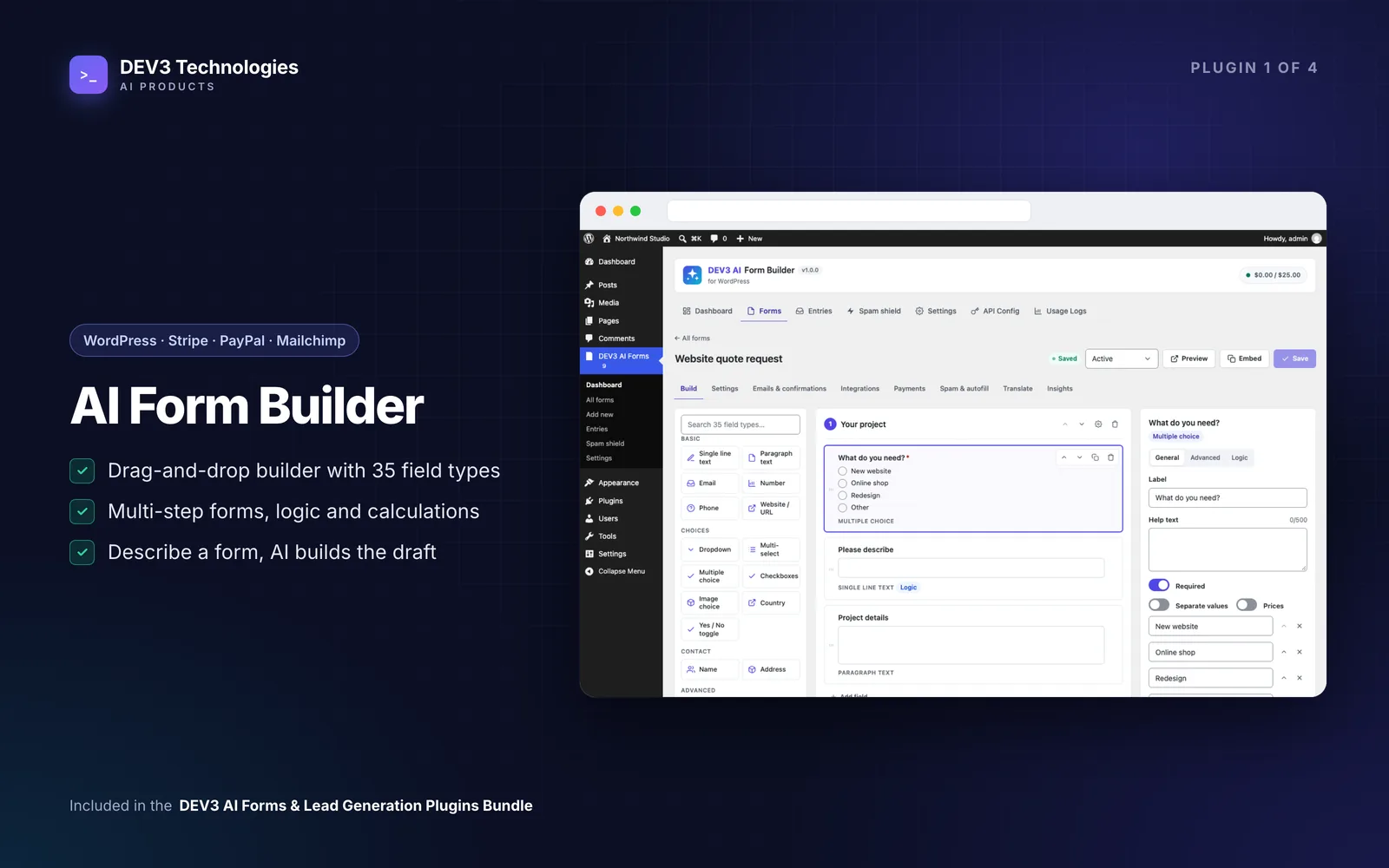
DEV3 AI Form Autofill & Spam Shield ships in the DEV3 AI Forms & Lead Generation Plugins Bundle, together with the Form Builder, Popup Builder and Entry Insights plugins. Add your Gemini key and your existing forms start screening spam with sensible defaults straight away.