"We translated the site, but it still doesn't sell in Germany"
It is a common story. A shop or service business adds WPML, Polylang or TranslatePress, runs everything through a machine translator, and goes live in a new language. The words are technically correct, but the pages still read like they were written somewhere else. Product specs are in inches for a metric market. Prices are written the wrong way round. The tone switches between formal and casual from one paragraph to the next. The brand name has been translated into a common noun. And every time someone fixes a typo in the English page, the whole page goes back through translation and the corrections someone made by hand are gone.
Translation is one job. Localisation, writing for the market you are selling to, is a different one. This guide walks through how to do both on a WordPress site without rebuilding your multilingual setup, using DEV3 AI Translator & Cultural Localizer.
What good localisation looks like
Before touching any settings, it helps to agree on what "done" means for each new market:
- Consistent address. German readers get either Sie or du across the whole site, never both. The same goes for vous/tu in French and usted/tú in Spanish.
- Local units and formats. Measurements, dates and numbers appear the way that market writes them, for example 14.03.2026 and 1.234,56 for German.
- Protected names. Your brand, product lines and trademarks are never translated, and key terms (like "checkout") always use the same agreed word.
- Natural phrasing. Idioms and puns are replaced with local equivalents instead of being translated literally.
- Edits that stick. When a native speaker corrects a sentence, that correction survives every later update.
- Cheap updates. Changing one paragraph in the source should not mean paying to translate the whole page again.
Step by step: localising a site with DEV3 AI Translator
The plugin works on top of the multilingual plugin you already use. It needs exactly one of WPML, Polylang or TranslatePress, with at least two languages set up. Polylang and TranslatePress cannot be active at the same time, so pick one.
1. Connect the engine and check what was detected
Translation runs through Google Gemini, so this plugin needs a key (it is the one plugin in the bundle that does). Create one in Google AI Studio, then paste it in DEV3 AI Translator → API Config and click Validate & save. You can also define it in wp-config.php:
define( 'DEV3TL_GEMINI_API_KEY', 'your-key' );
Open the Dashboard and confirm the plugin has found your multilingual plugin and your languages. If you use Polylang, make sure the post types and taxonomies you want translated are enabled under Languages → Settings first.
2. Build the glossary before you translate anything
This step saves the most clean-up later. Open Glossary and add:
- Brand names, product names and model numbers as Do not translate.
- Forced translations per language for words you have already decided on, such as checkout → Kasse.
The glossary is added to the instructions for every request, and every answer is checked against it. If a protected term was translated or a forced term is missing, that segment is retried once with a correction. If it still fails, it is saved and flagged Needs review so a person can fix it. For a long list, use Import CSV / Export CSV.
3. Set the cultural profile for each market
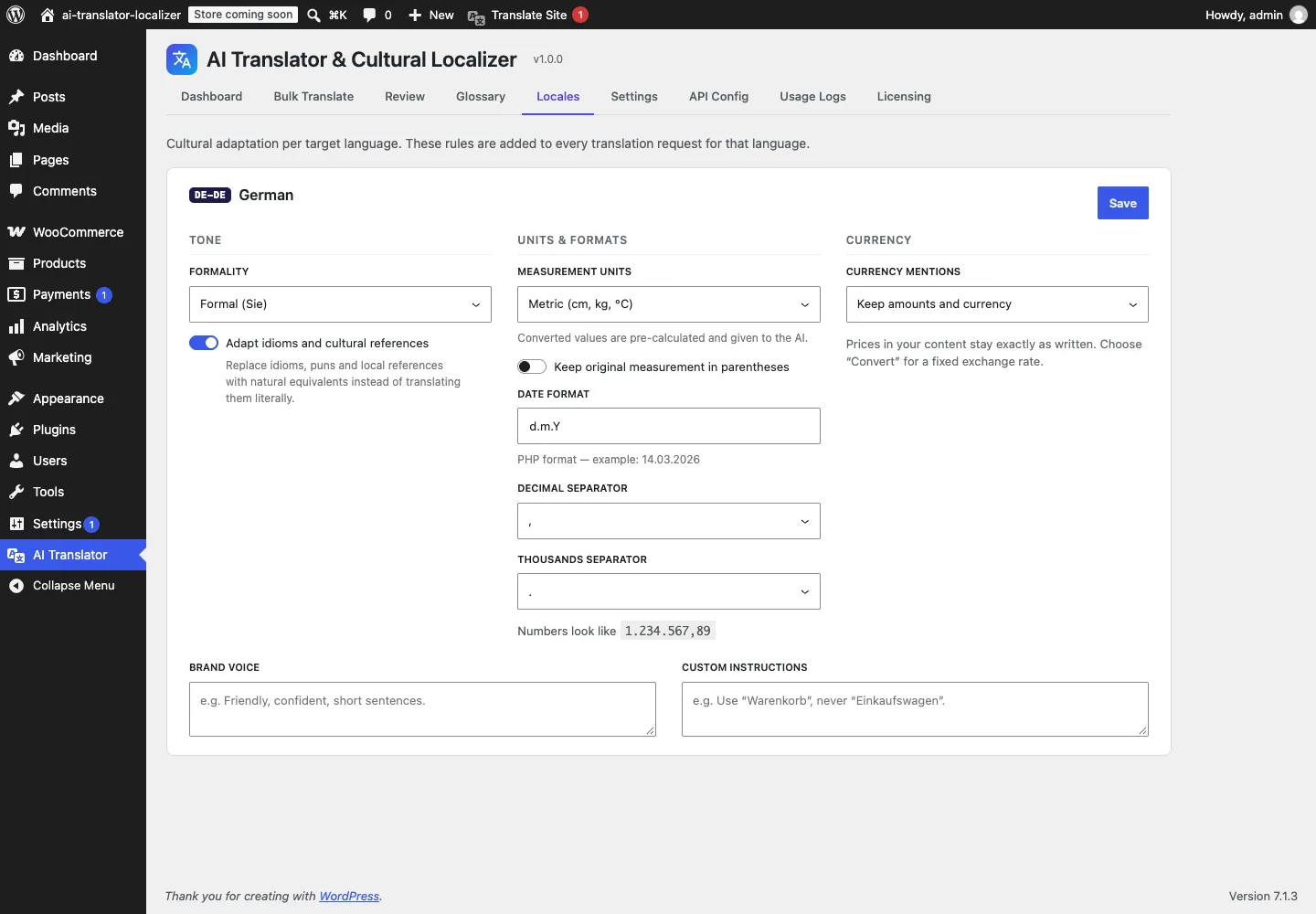
Open Locales. Each language starts with sensible defaults (for example, de_DE is formal, metric, EUR and DD.MM.YYYY; en_US is imperial), and you can change:
- Formality: formal, informal, or follow the source.
- Measurement units: metric, imperial/US, or keep as written. The plugin detects measurements and pre-calculates the converted values before the AI rounds them naturally, and it can keep the original in parentheses.
- Currency mentions: keep as written, keep but localise the format, or convert with a fixed rate you enter.
- Date format and separators.
- Adapt idioms: replace idioms with local equivalents, or translate faithfully.
- Brand voice / Custom instructions: free text added to every request for that language.
4. Estimate, then run a bulk translation
Open Bulk Translate, pick the post types and languages, and tick Only items without a translation if some pages are already done. Click Estimate cost to see the number of segments, tokens and an approximate cost before anything is sent. Then Start translation. The job runs in the background with progress and Pause, Resume and Cancel, plus a log for each item.
It covers more than the body text: titles, excerpts, slugs, Yoast SEO and Rank Math fields, WooCommerce attributes and variation descriptions, custom fields, taxonomy terms, and the site title and tagline.
5. Review with a native speaker
Open Review to see source and translation side by side, segment by segment. Your reviewer edits a segment and clicks Save & update translation, or clicks Approve. Segments that a person edited or approved are marked as such and are never replaced by later syncs.
6. Let updates sync themselves
With Auto-sync on update on, editing a source post sends only the paragraphs that changed. Everything else comes from the translation memory. The DEV3 AI Translation box on the edit screen shows "X of Y segments reused" and has a Translate / Sync button for each language.
Tips and pitfalls
- Review inside the plugin, not in WPML's own editor. Edits made in Review are protected. If someone edits the translated post directly in WordPress, later syncs skip it (shown as "skipped") unless you choose Sync now to overwrite it or turn off Protect manual edits.
- Start with "Only items without a translation" on your first bulk run so existing work is untouched.
- Set a monthly budget in API Config before large jobs. For regular bulk translation, enable billing on the Google Cloud project behind the key. "Quota exhausted" or 429 errors mean the key hit its rate limit; enable billing or lower Segments per request.
- TranslatePress page still in English? Clear your page cache, check that the language is published in TranslatePress, and visit the language URL (for example
/de/…). - Privacy. The text you translate, plus your glossary and locale instructions, is sent to Google Gemini with your own key, only when a translation runs. No visitor data is sent. The key is stored encrypted and never reaches the browser. If your content contains personal data, make sure your privacy policy covers AI processing.
Who this is for
- WooCommerce stores expanding into new countries that need product pages, attributes and SEO fields localised, not just translated.
- Agencies running multilingual sites for clients, where a glossary and protected human edits keep reviews from turning into rework.
- Content-heavy sites that update often and do not want to pay to re-translate whole pages for a one-line change.
Permissions are simple: users with edit_posts can translate and review posts they can edit, and users with manage_options manage settings, the glossary and bulk jobs.
If you want to see how it was built, the case study covers the project. For a multilingual setup that needs more than a plugin, our web development team can help.
Getting started
DEV3 AI Translator & Cultural Localizer ships in the DEV3 AI Content, SEO & Site Tools bundle, alongside six other plugins for SEO, accessibility, editorial planning, moderation, custom fields and site health. Install it on top of your existing WPML, Polylang or TranslatePress setup, build your glossary, set up one market and see how it reads.