Your analytics say a growing share of visitors come from abroad, but the orders don't follow. Part of the reason is simple: a shopper in Paris sees a price in dollars, does mental arithmetic, wonders about card fees, and closes the tab. Showing prices in their own currency helps, but only if it's done properly. A converted price like €23.47 looks odd next to local shops charging €22.99. A coupon worth "$10 off" has to mean the same in yen. And an order paid in euros has to read correctly in your admin and emails months later, after the rate has moved.
This guide walks through selling internationally on WooCommerce with local-currency pricing, using DEV3 AI Multi Currency & Geo Pricing.
What good multi-currency pricing looks like
- Shoppers see their currency automatically, and can switch if they want.
- Prices look local. €22.99, £19.99, ¥2,380, not €23.47.
- Key products can have hand-set prices in important markets.
- The whole checkout is converted, not just product prices: shipping, coupons, minimum spends and free-shipping thresholds.
- Orders keep their currency, with the rate used saved for reporting.
- Exchange rates update on a schedule, and you're told when one moves sharply.
- Page caching doesn't serve one visitor's euros to the next visitor.
Step 1: Decide which currencies to offer
Don't add every currency in the world. Start with the markets that already send you traffic and orders. You'll need WordPress 6.0+, PHP 7.4+ and WooCommerce 8.0+. The classic and block cart and checkout and HPOS are all supported.
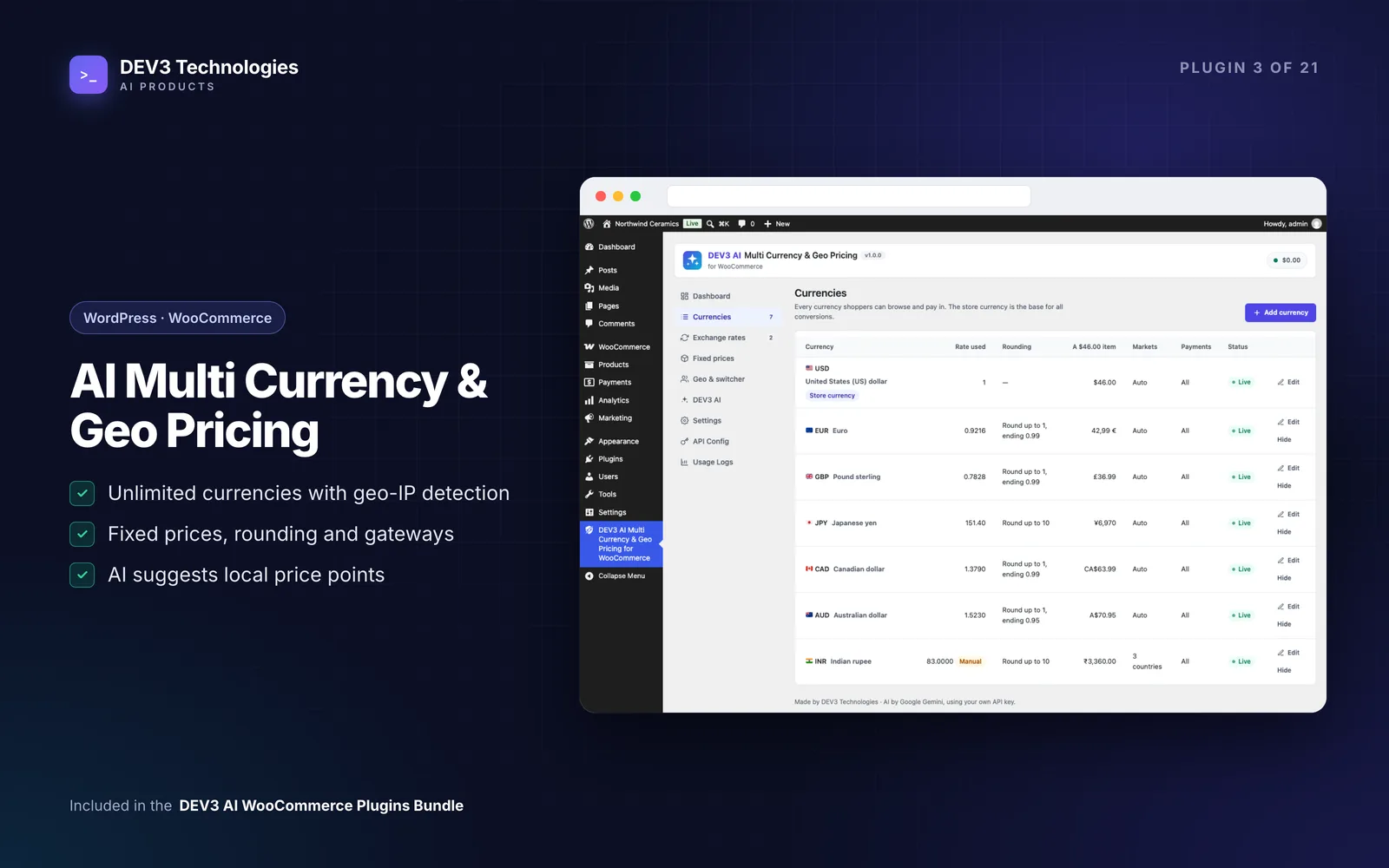
Install the plugin, open DEV3 AI Multi Currency & Geo Pricing → Currencies and click Add currency for each one. Your store currency is the base, and the market rate is fetched straight away. For each currency, check the symbol, its position, decimals and separators. Germany writes 1.234,56 €, the UK writes £1,234.56, and getting it right is part of looking local.
Step 2: Make prices look local with rounding rules
This is the single biggest difference between "converted" and "local". Edit a currency and set a rounding rule: a mode (round up, down or nearest), a step and an ending.
| Currency | Step | Ending | Example result |
|---|---|---|---|
| EUR | 1 | 0.99 | 22.99 |
| JPY | 100 | 80 | ¥2,380 |
The table on the edit screen shows what a sample item becomes. For a quicker start, open DEV3 AI → Smart rounding. Click Use recommended presets (no AI), or tick currencies and click Generate with DEV3 AI for price points based on your real catalogue prices. Review the before-and-after prices, untick anything you don't want and click Apply selected.
Rounding only applies to product prices. Shipping, coupon amounts, minimum spends and fees are converted and rounded to the currency's decimals, never pushed to .99.
Step 3: Pin prices for your hero products
Some products deserve a deliberate price in each market, such as your best seller or an item you advertise abroad. Open Fixed prices, search by name or SKU, click Edit and type the regular and sale price for the currencies you want to pin. Leave a field empty to keep converting it. You can also set fixed prices on the product edit screen, including for each variation.
For broader market adjustments, DEV3 AI → Market price advisor suggests regional adjustments with reasons and a confidence level. Each one is a percentage on top of the converted price for that currency, and nothing changes until you apply it.
Step 4: Choose a rate source and schedule
Open Exchange rates and pick a provider: Frankfurter (ECB data) and the European Central Bank need no key, while Open Exchange Rates, ExchangeRate-API and Fixer use your own key. Choose an update schedule (hourly, twice daily, daily or weekly), set an alert threshold and click Update rates now.
Each currency can also carry an exchange fee, which is added to converted product prices if you want to cover conversion costs. Prefer stability? Switch a currency to a manual rate, and alerts will tell you when the market moves away from it.
Step 5: Detect the shopper's currency
In Geo & switcher, choose the detection mode: geo IP (Cloudflare or CloudFront headers, or WooCommerce's MaxMind geolocation), browser language, or both. Each currency can own a list of countries, so Austria, Germany and Ireland all get euros. Click Test detection to check.
Then choose how the switcher looks and where it appears: a block, shortcode, widget, menu item or the floating corner switcher.
Step 6: Decide how customers pay
Under Checkout currency, pick one:
- Pay in the chosen currency. The order is created in the shopper's currency, and the base currency and exact rate are saved on the order for reports.
- Pay in the store currency while showing local prices. Useful if your payment gateway or accounting can't handle multiple currencies yet.
You can also limit payment gateways per currency, for example a local payment method only for the currency it supports.
Step 7: Explain it at checkout
Shoppers like to know what they'll be charged. Open DEV3 AI → Checkout notices & FAQ to generate a draft, or write your own under Notice and FAQ in Geo & switcher. Turn on Show currency notice and FAQ on cart and checkout, or place the Currency FAQ block on any page.
Step 8: Sort out caching, then test
Still in Geo & switcher, set Cache compatibility under Page caching. When a cached page was rendered for another currency, the browser fetches fresh prices. WP Rocket, LiteSpeed Cache and WP Super Cache vary by the currency cookie. Clear your cache once after setup.
Then place a real test order in another currency and check the order, the email and the totals. You can also preview any currency by visiting your shop with ?currency=EUR.
Tips and pitfalls
- Check free-shipping thresholds. They're converted for each currency, so "free over $50" becomes the equivalent in euros, without .99 rounding.
- Watch the rate alerts. If a currency drops sharply, your local prices drop with it unless you've fixed them. Explain with DEV3 AI gives a plain-language reading of an alert.
- Use the dashboard. It shows revenue for the last 30 days by currency, converted with the rate saved on each order.
- Subscriptions work too. WooCommerce Subscriptions sign-up fees are converted.
- Privacy is light. The AI features send currency settings, sample product names and prices and aggregated sales per currency. No shopper personal data.
Who it's for
Stores with real international traffic, brands expanding into Europe, the UK or Asia, and anyone who's tried a "price converter" and found the checkout didn't match. The case study explains how the whole checkout is converted, not just the price tags.
Get started
DEV3 AI Multi Currency & Geo Pricing is included in the DEV3 AI WooCommerce Plugins Bundle. Add two or three currencies, apply rounding presets, then place a test order in each. For a full international store build, from local payments to translated content, talk to our web development team.