Maybe you sell one-off vintage pieces, collectables, refurbished equipment or art, and fixed prices keep leaving money on the table. Or you've got a handful of rare items and no idea what they're worth. Auctions solve both problems, but running them on your own WooCommerce store raises fair questions. Which auction format should you use? How do you stop someone sniping the item in the last five seconds? What happens when the winner doesn't pay? And how do you spot a seller's friend pushing the price up?
This guide answers those questions with DEV3 AI Auctions for WooCommerce, a plugin that turns any WooCommerce product into an auction with a live bid panel, and lets winners pay through your normal checkout.
What a well-run store auction looks like
Shoppers trust an auction when:
- The rules are clear before they bid. Start price, whether there's a reserve, the increment and the end time.
- The page updates live. No refreshing to see if they've been outbid.
- The ending is fair. A late bid extends the clock instead of stealing the item.
- Paying is familiar. The same checkout they'd use for any other order.
- Bidder names are masked, and suspicious bidding is dealt with.
You, as the seller, want a reserve so nothing sells too cheaply, a deadline for winners to pay, and a way to relist items that don't sell.
Step 1: Pick the right auction type
DEV3 AI Auctions supports four types. Choosing the right one matters more than any other setting.
| Type | How it works | Good for |
|---|---|---|
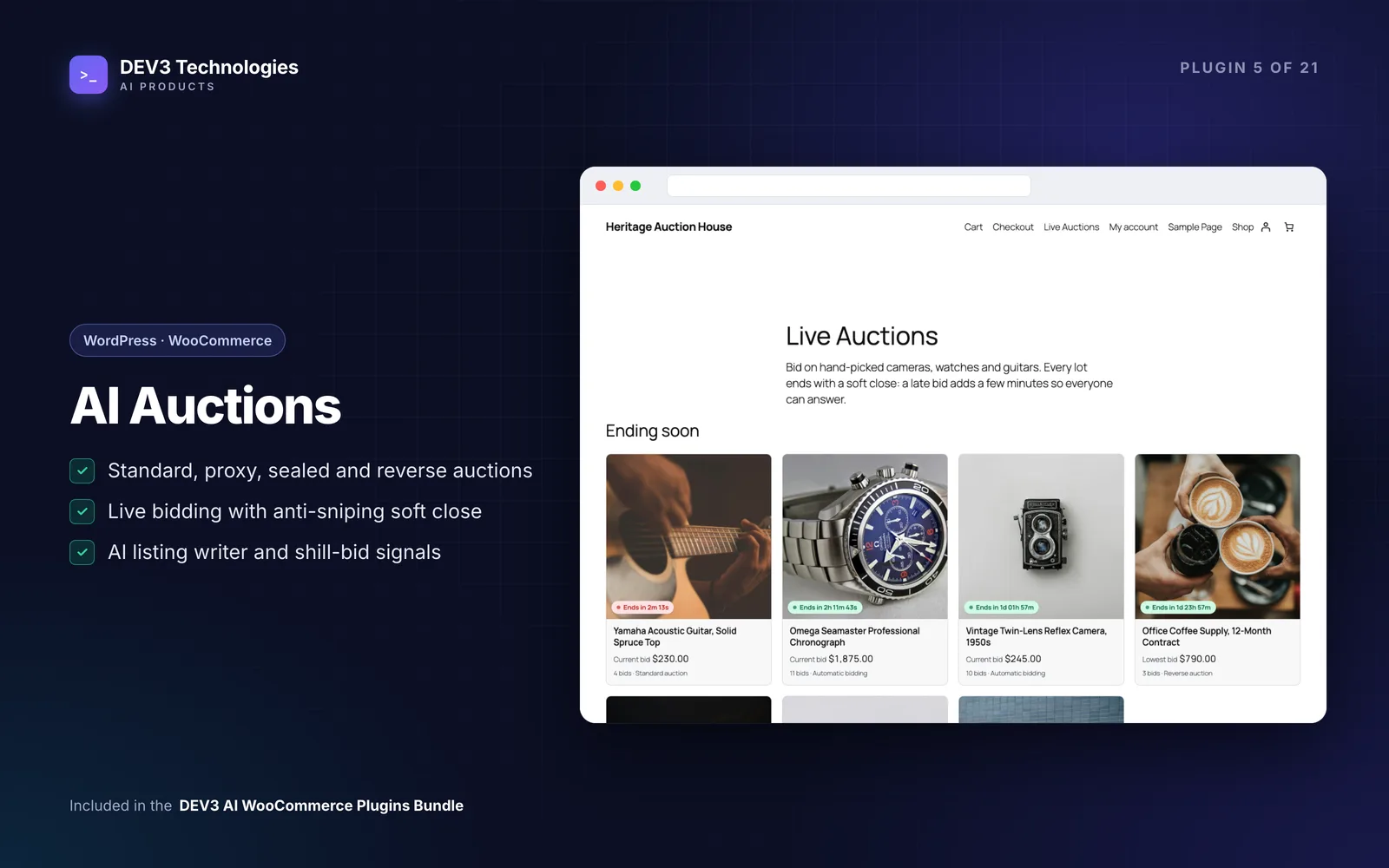
| Automatic (proxy) | Bidders enter the most they'd pay, and the plugin bids for them one increment at a time up to that maximum. | Most retail auctions. Bidders don't need to sit and watch. |
| Standard | Every bid is placed by hand. | Simple, high-engagement lots. |
| Sealed | Bidders can't see each other's bids. | Tenders, or items where you don't want bidding wars. |
| Reverse | The lowest bid wins. | Procurement-style requests. |
With proxy bidding, if two maximums are equal, the earlier one wins. That rewards committed bidders and is easy to explain on your FAQ page.
Step 2: Set your store-wide defaults
After installing, open DEV3 AI Auctions → Settings:
- Bidding: choose the default auction type, duration, bid increments (fixed or tiered) and when buy now stays available.
- Anti-sniping: set the window and the extension. A bid inside the last few minutes pushes the end time out, which is what makes the ending feel fair.
- Payment & relisting: how long winners have to pay, and when to relist unsold or unpaid items.
- Storefront: name masking, bid history and live refresh intervals.
- Fraud signals: the score threshold, what counts as a new account, and whether to pause an auction automatically.
If you run a Dokan or WCFM marketplace, you can also tick Let Dokan and WCFM vendors list auctions so sellers create lots from their own dashboards.
Step 3: Create your first auction
- Go to Products → Add New, or click New auction on the dashboard, and choose Auction product as the product type.
- In the Auction tab, set the type, start price, reserve, buy-now price, increments, an optional bidding deposit, and the start and end times.
- Add photos and publish.
The product page now shows a live bid panel with the current bid, whether the reserve is met, a countdown, quick bids and masked recent bids. Shoppers can also add the lot to a watchlist.
Let DEV3 AI draft the listing and prices
If you've connected a Google Gemini key, the DEV3 AI tools save real time on one-off items:
- Listing writer: add notes such as "bought in 2019, small scratch on the back" and click Write listing with DEV3 AI. You get a draft title, description and condition notes based on the product photos and your notes.
- Price advice: start, reserve and buy-now suggestions from similar past auctions.
- Best end time: a suggested end time from your store's traffic and bid history.
Every AI result is a draft. Accepted drafts fill in the form, and you click Update to save. Without a key, rule-based price and end-time advice still works.
Step 4: Put auctions where people will find them
Add the Auctions block or [dev3au_auctions] to a page to show lots that are ending soon and coming up. Customers follow everything under My Account → Auctions: won (with Pay now), winning, outbid, watchlist and not won. If you want that view elsewhere, use the My Auctions block or [dev3au_my_auctions].
Check the outbid, win and "not won" emails in WooCommerce → Settings → Emails so they match your store's tone. With a key, DEV3 AI can write outbid and win emails for each item.
Step 5: Manage live auctions
Open Auctions and pick a lot to see the leader, their maximum, watchers and the full bid history, including automatic bids. From there you can End now, Pause bidding, Cancel or Extend by a number of minutes. Remove bidder voids that bidder's bids and recalculates the auction from the rest.
Step 6: Review suspicious bidding
The dashboard tells you when bidders are flagged for review. Open Fraud review to see each flag's risk score and the named signals behind it, such as a bidder on the same network as the seller, a new account, or a pattern of answering other bids within a minute. Explain with DEV3 AI gives a second opinion based on anonymous signals only. You then choose Dismiss, Confirm & pause auction or Remove bids & block. The decision is always yours.
Step 7: Get paid
When an auction ends, the winner gets an email with a Pay now link. It puts the item in the cart at the winning price, minus any deposit, and goes to the normal WooCommerce checkout, including the block checkout. Unpaid wins expire after the time you set and can relist automatically.
Tips and pitfalls
- Use a reserve instead of a high start price. A low start attracts bidders, and the reserve protects you.
- Think about deposits for expensive lots. A bidding deposit discourages time-wasters, and it's taken off the winning price at checkout.
- Keep payment windows short and stated. Put the deadline in your auction terms so relisting doesn't surprise anyone.
- Don't worry about the final-second rush. Bids on the same auction are handled one at a time, and a retried request isn't counted twice, so the busiest minute doesn't cause lost or duplicate bids.
- Your other plugins keep working. The visible price is mirrored to WooCommerce's price, so sorting, filters and feeds behave.
Who it's for
Collectors' shops, vintage and antiques sellers, art galleries, charity fundraisers, refurbished-goods resellers and marketplaces running on Dokan or WCFM. It works without an AI key, and the AI features are there when you want help writing listings and setting prices. See the live bid panel, admin detail and fraud review screens in the case study.
Get started
DEV3 AI Auctions is part of the DEV3 AI WooCommerce Plugins Bundle. Set your defaults, run one test auction with a colleague bidding against you, then open it to customers. If you need a bigger auction or marketplace build, our web development team can help.