All case studies

DEV3 Technologies · own product

DEV3 AI Vendor Assistant: an AI helper inside Dokan and WCFM where each vendor only ever sees their own store

Our own WordPress plugin for Dokan and WCFM marketplaces: vendors get a listing writer, price suggestions, buyer reply drafts, store bio and SEO, and performance tips, while the owner controls access, monthly credits and moderation.

Industry
E-commerce (multi-vendor marketplaces)

Live project preview

Client systems are private — screenshots shown where permitted.

DEV3 Technologies · own product — screenshots
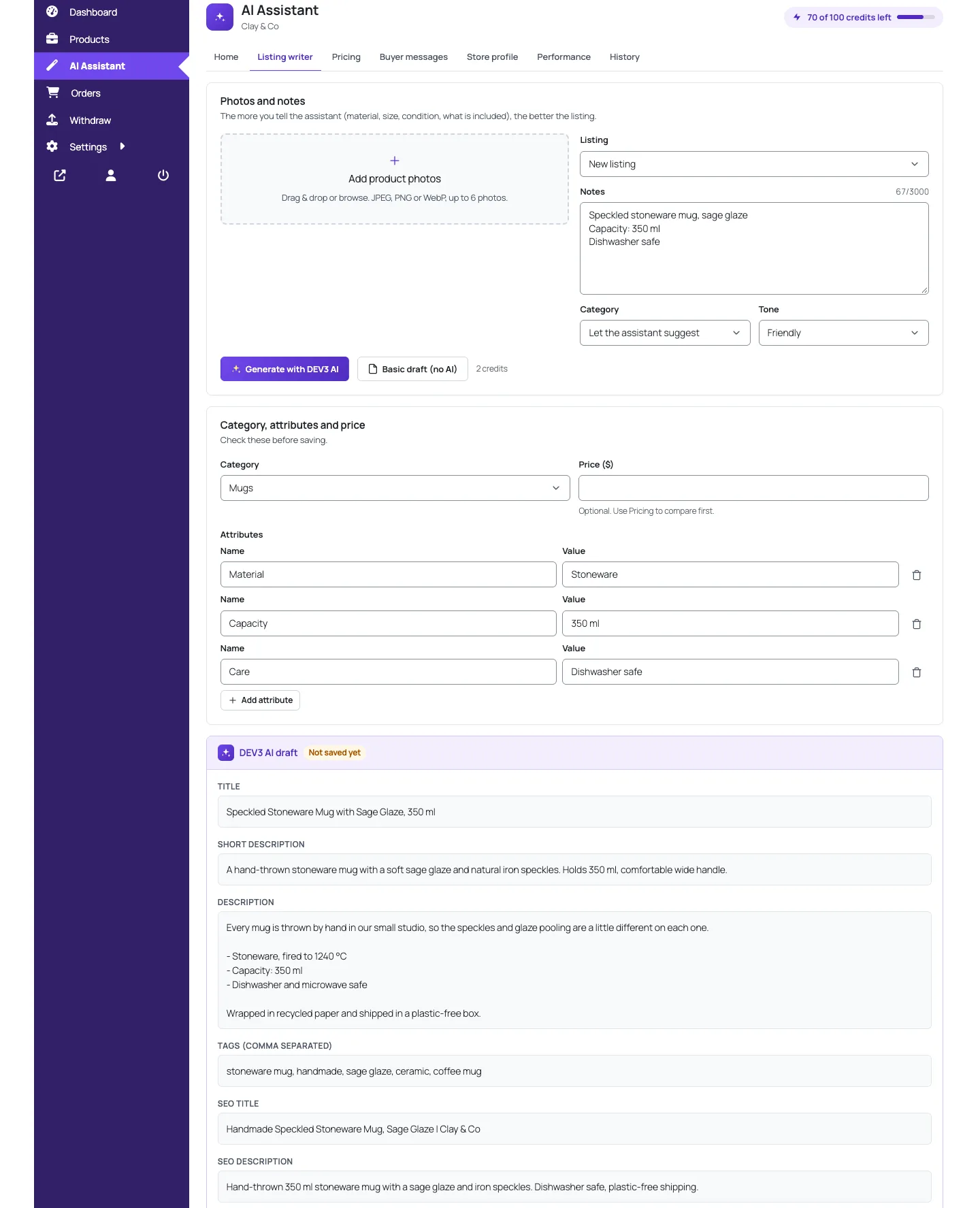
The listing writer inside the Dokan vendor dashboard: notes and photos become a draft title, descriptions, attributes, tags and SEO text, and nothing is saved until the vendor creates the listing.

The listing writer inside the Dokan vendor dashboard: notes and photos become a draft title, descriptions, attributes, tags and SEO text, and nothing is saved until the vendor creates the listing.

The challenge

Marketplace vendors write thin listings, guess at prices and leave buyer messages unanswered. AI helps with all three, but the existing options hand every vendor unlimited use of the owner's API key with no accounting, write straight into live listings, and say little about whose data the model sees. A marketplace is also a shared database: one WooCommerce install holds every vendor's products, orders, reviews and uploads, and Dokan and WCFM model vendors, staff and orders differently. We needed one assistant that fits both dashboards, gives the owner per-vendor quotas and moderation, still works with AI switched off, and can prove that vendor A can never read or change anything belonging to vendor B.

Our solution

We built DEV3 AI Vendor Assistant for Dokan & WCFM as a WordPress plugin in PHP with React screens for the vendor dashboard and the wp-admin app. The assistant appears as an "AI Assistant" page inside the marketplace's own vendor dashboard, in that marketplace's colours.

Key design decisions

  • One adapter layer over two marketplaces. An abstract Adapter answers every marketplace question: who is a vendor, which vendor a staff member works for, who owns a product, which orders contain a vendor's items, where the store bio and SEO fields live and what status a new product gets. Dokan and WCFM each implement it, and the dev3va_marketplace_adapters filter accepts more.
  • Ownership checks in one place. Vendor\Access resolves the acting vendor (staff map to their vendor) and returns a product, photo, order or draft only when it belongs to that vendor. Anything else is a 404, so the IDs of other stores are never confirmed.
  • Five gates on every vendor route. Logged in, valid REST nonce, a vendor or staff member, the owner has not switched the assistant off for this store, and the feature is enabled globally or by a per-vendor override. POST requests are also rate limited per user.
  • Public data only across stores. Price suggestions compare a product with similar published listings using title, price, rating, review count and store name. Sales and costs are never read. The server keeps the AI's price between 0.5× the lowest and 1.5× the highest comparable.
  • Credits and a ledger. Each vendor has monthly credits (listing writer 2, other features 1, adjustable by filter). Every AI call writes a ledger row with tokens and estimated cost, cached answers cost nothing, and a vendor who runs out gets a clear 429 while the basic helpers keep working.
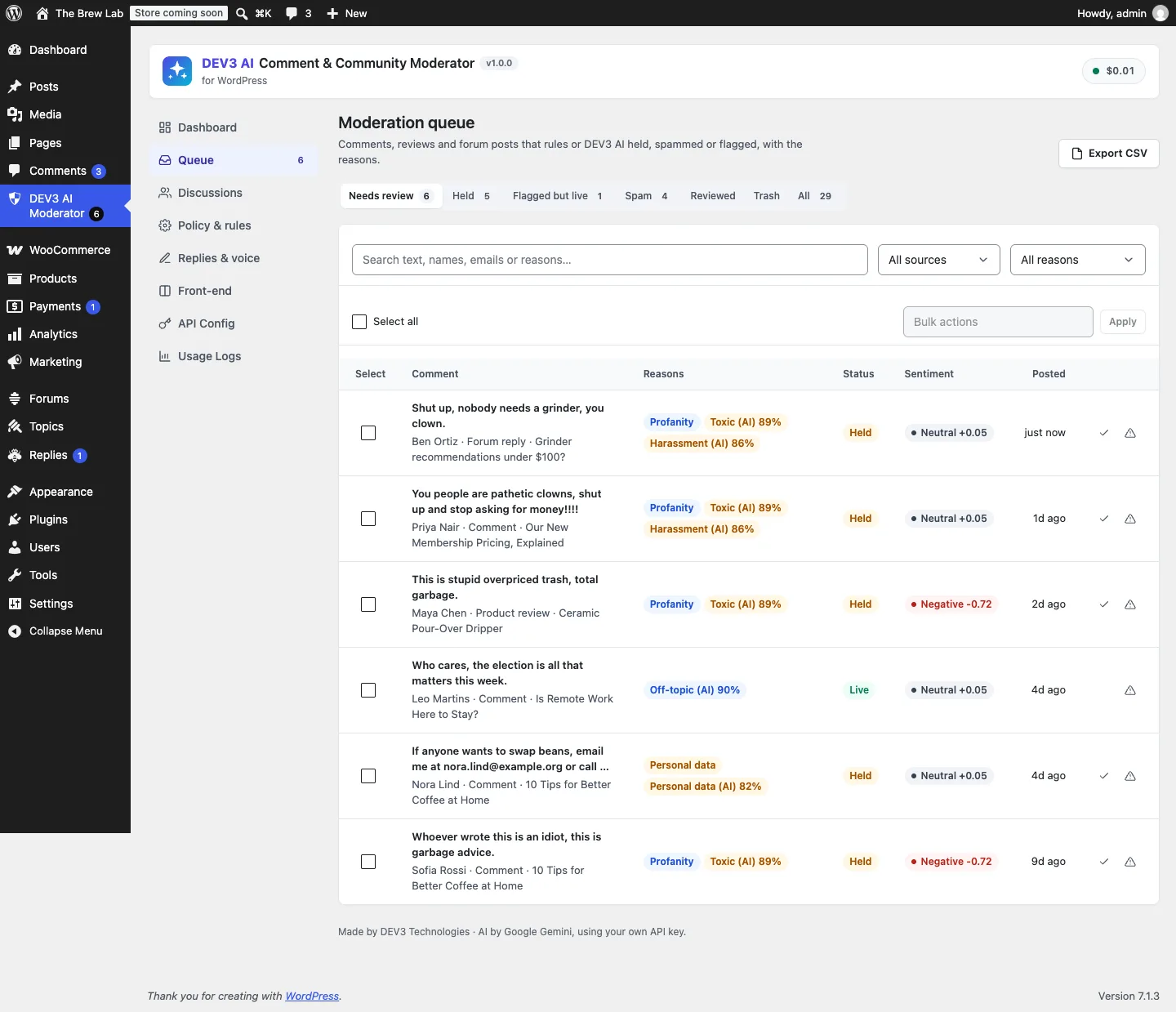
  • Drafts and moderation. Every result is a draft the vendor accepts, edits or rejects. AI-written listings can be held as pending for review or flagged, blocked words can warn or block, and the admin can run an AI policy check before approving.

Architecture

The vendor page is registered through Dokan's dashboard nav, query-var and template hooks, or WCFM's menu, endpoint and view hooks, with a shortcode for any other page. The React app calls a dev3va/v1 REST namespace. Listing drafts, price suggestions, buyer replies, store profile and performance tips are separate services, and each one takes the vendor ID from Access instead of the request. The buyer inbox reads product reviews, customer order notes, WCFM inquiries and Dokan Pro support topics, each scoped to the vendor, and writes replies back to the same source. Buyer names are cut to a first name before they reach the screen or the AI. Two custom tables hold drafts and the credit ledger. The API client, settings, usage log and budget cap come from a shared core used across DEV3's plugins.
Results

The plugin is complete. It ships in the DEV3 AI WooCommerce Plugins Bundle on the DEV3 marketplace, alongside 20 other WooCommerce plugins, and is being prepared for CodeCanyon. What was built and verified:

  • 59 PHPUnit tests in wp-env, with a bootstrap that loads either Dokan Lite or WCFM so the same suite covers both adapters
  • 7 isolation tests that replay vendor routes as logged-out users, customers, another vendor and staff, and assert 401, 403 or 404 plus untouched prices, drafts and reviews
  • 36 Jest tests for the vendor app, the admin app and the shared UI kit
  • Dokan Lite and WCFM tested for real in wp-env; Dokan Pro and WCFM Ultimate features (vendor staff, Pro store SEO, support topics) built against their documented hooks and tested with stubs
  • AI paths tested with mocked Google Gemini API responses; a run with a live key is still to come
  • Build, phpcs (0 errors, 0 warnings), make-pot and packaging gates all passing

Known limits: Dokan treats administrators and shop managers as vendors of their own store, so they see the assistant too, scoped to their own products.

Setup guide

No licence key or activation is needed: install the zip and every feature works, with or without an AI key.

Requirements

  • WordPress 6.0 or newer and PHP 7.4 or newer (tested on PHP 8.3)
  • WooCommerce 8 or newer, active
  • One marketplace: Dokan (Lite or Pro), or WCFM Frontend Manager plus WCFM Marketplace (free or Ultimate)
  • Optional: a Google Gemini API key. Without one, every feature uses its basic (non-AI) helper

1. Install the plugin

  1. The plugin ships inside the DEV3 AI WooCommerce Plugins Bundle. In your bundle download, find dev3-ai-woocommerce-plugins-bundle/dev3-ai-vendor-assistant/dev3-ai-vendor-assistant.zip.
  2. In WordPress, go to Plugins → Add New → Upload Plugin, choose the zip and click Install Now.
  3. Click Activate. DEV3 AI Vendor Assistant for Dokan & WCFM appears in the plugin list and its menu, DEV3 AI Vendors, appears in the admin sidebar. Its Dashboard shows which marketplace was detected.

2. Connect Google Gemini (optional)

  1. Create a free API key in Google AI Studio (sign in with a Google account, then Create API key).
  2. Go to DEV3 AI Vendors → API Config, paste the key and save. The key stays on your server; vendors' browsers only talk to your WordPress REST API.
  3. Pick the model (gemini-2.5-flash is the default) and set a monthly budget in USD for the whole site. When it is reached, AI pauses and vendors keep the basic helpers.

Prefer config files? Add define( 'DEV3VA_GEMINI_API_KEY', 'your-key' ); to wp-config.php instead.

3. Set it up

  1. In Settings, check the marketplace (auto-detect, Dokan or WCFM), switch features on or off for everyone, set the default monthly credits per vendor and choose the moderation mode for AI-written listings (off, review or flag) and any blocked words.
  2. In Vendors & quotas, turn the assistant on or off per vendor, give a vendor a custom credit limit, or override single features for their store.
  3. Vendors now find AI Assistant in their dashboard menu (Dokan: /dashboard/ai-assistant/, WCFM: /store-manager/ai-assistant/). If the page shows "not found", open Settings → Permalinks once and click Save.
  4. Optional: place the assistant on any page with the shortcode [dev3va_vendor_assistant].
  5. Review AI-written listings in Moderation and follow credits, tokens and estimated cost per vendor in Activity (CSV export available).

Updating

Download the new bundle version, then upload the plugin zip in Plugins → Add New → Upload Plugin and choose Replace current with uploaded. Settings, drafts and the ledger are kept.

Uninstalling

Deactivate and delete the plugin from Plugins. Settings, drafts and the credit ledger are kept in the database, so reinstalling picks up where you left off. Products the assistant created belong to the vendors and stay in WooCommerce.

How to use

Write a listing from photos and notes (vendor)

  1. In the Dokan or WCFM vendor dashboard, open AI Assistant and go to the Listing writer tab.
  2. Click Add product photos (up to 6 JPEG, PNG or WebP photos) and type a few notes. Lines such as Capacity: 350 ml become attributes.
  3. Under Listing, keep New listing or pick one of your products to improve. Choose a Category (or let the assistant suggest one) and a Tone.
  4. Click Generate with DEV3 AI (2 credits by default), or Basic draft (no AI) for a free draft built from your notes.
  5. Check the draft, then click Edit, Regenerate, Reject or Create listing. With moderation on, the new product waits for the marketplace's review before it goes live.

Check a price (vendor)

  1. Open the Pricing tab and pick one of your products, or type a title.
  2. Choose a Goal: competitive, premium or quick sale. Optionally add what makes your product special.
  3. Click Generate with DEV3 AI or Basic draft (no AI). You see the similar listings, the lowest, median and highest price, and a suggested price with a range.
  4. Adjust the number if you like and click Apply price to set your product's regular price.

Answer buyers (vendor)

  1. Open Buyer messages. The inbox lists reviews on your products, notes buyers left on your orders, WCFM inquiries and Dokan Pro support topics. Needs reply shows what is still open.
  2. Pick a message, choose a Tone, add optional instructions, and click Generate with DEV3 AI or Basic draft (no AI).
  3. Edit the draft and click Send reply. It is posted where the message came from: under the review, as a customer note on the order, or as the inquiry reply.
  4. For an email or chat message, click Paste a message instead; that draft is for copying, not sending.

Polish the store and follow up on tips (vendor)

  1. In Store profile, generate a bio, tagline, SEO title, SEO description and keywords, then save them into your marketplace store settings. You can also add your own reply policies here.
  2. In Performance, compare the last 30 days with the 30 before, see listing quality issues and low stock, and click Do it now on a tip to jump to the fix.
  3. Everything you drafted, applied or discarded is in History, along with moderation results.

Manage vendors and credits (owner)

  1. Go to DEV3 AI Vendors → Vendors & quotas and click a store.
  2. Switch AI assistant access on or off, turn on Custom limit for this vendor to change their monthly credits, or set single features to on, off or default.
  3. Click Save. The change applies to the vendor's next request. Follow credits, tokens and estimated cost in Activity, with CSV export.

Review AI-written listings (owner)

  1. Go to DEV3 AI Vendors → Moderation. The To review tab lists listings held for review or flagged for blocked words.
  2. Open a listing to see its photos, text and any blocked words. Click Check again to run the AI policy check against your marketplace listing policy.
  3. Click Approve & publish, or Reject with a note. The vendor sees the result in History and, if enabled, gets an email.

Related case studies