Most small business websites have one form that brings in the money: "Request a quote", "Contact us" or "Book a call". And most of them treat every submission the same. A budget-and-deadline enquiry from a company email lands between a student's question, a newsletter sign-up and a complaint, and whoever checks the inbox has to read all of them to find the one that matters today.
This guide shows how to turn Gravity Forms, WPForms or Contact Form 7 submissions into a prioritised lead inbox with DEV3 AI Entry Insights: a score on every entry, the urgent and unhappy ones flagged, and replies drafted in the sender's language.
What good lead triage looks like
A useful setup answers four questions without anyone opening every message:
- Which entries are hot? A lead score with a reason you can read, not a mystery number.
- Which need care today? Urgent requests and unhappy senders, even when they aren't sales leads.
- What is this about? A one-line summary and a category such as quote request, support, complaint or booking.
- What's the trend? Are complaints rising, are good leads coming from one form?
It also has to stay out of the visitor's way. A form that gets slower because an AI is thinking is a form that loses leads.
Step-by-step setup
1. Connect your form plugin
- Upload
dev3-ai-entry-insights.zipin Plugins → Add New → Upload Plugin and activate it. - Make sure at least one supported form plugin is active: Gravity Forms 2.5+, WPForms Lite or Pro 1.8+, or Contact Form 7 5.8+. You can use several at once.
- Open DEV3 AI Entry Insights. New submissions are captured from now on.
If you use WPForms Lite or Contact Form 7, this matters more than it looks: neither keeps a copy of submissions. The plugin stores every entry in its own table, so you get an inbox, search, notes and CSV export for forms that previously only sent an email. Contact Form 7 entries are captured even when the mail fails to send.
2. Decide whether to add an AI key
Everything in this guide works with rules alone: score, sentiment, urgency, category, tags, alerts, templates, the dashboard and export. Adding a Google Gemini key in API Config (then Validate) adds a DEV3 AI analysis a few seconds after each entry arrives: a short summary, intent, category, urgency, a 0–100 lead score with a reason, the language and up to five suggested tags. You can set a monthly budget cap there and turn AI off at any time.
The AI runs in the background, never inside the form submission, so the form isn't slowed down.
3. Choose forms and import older entries
On Forms, each detected form plugin is listed with its version. For every form you can switch capture and AI analysis on or off. A newsletter form probably doesn't need analysis; your quote form does.
Got a backlog? For Gravity Forms and WPForms Pro forms, click Import existing entries, choose how many (newest first) and Start import. It runs as a background job. Then use Analyze unanalysed with DEV3 AI to process what's waiting.
4. Teach it what a good lead looks like
Open Rules. This is where you encode your own judgement:
- Score source: the DEV3 AI score, rules only, or the average of both.
- Starting score (default 20) and hot lead threshold (default 70).
- Signals with editable points: phone left, company email, company field, budget field, buying words, tight timeline, detailed message, unhappy tone.
- Keyword points, for example
enterprise +20orstudent −15.
Use Try the rules to score a sample message without saving anything or calling the AI. Paste in a real enquiry you'd want to win and one you wouldn't, and adjust the points until they land on the right side of the threshold. After changing rules, Re-score all with rules on Forms updates existing entries.
5. Add auto-tags
Under Rules → Auto-tags, click Add tag rule. Conditions include words in the answers, category, sentiment, urgency, a minimum score, the form plugin or the form. For example:
- "Lead score is at least 70 →
hot-lead" - "Category is Complaint →
needs-care"
Tags added by a rule disappear when the rule stops matching; tags you add by hand stay. AI tag suggestions stay suggestions until you accept them, unless you choose to apply them automatically.
6. Turn on alerts
In Settings, enable email alerts for hot leads, high urgency and/or negative sentiment. Each entry alerts once, to the addresses you list (the admin email by default). Now the hot quote request reaches someone's phone instead of waiting for the next inbox check.
The daily workflow
Triage. Open Entries and switch to Hot leads or Needs attention (open entries that are urgent, unhappy or hot). Filter by form, sentiment, category, urgency, tag or minimum score. Click an entry to see the score gauge, summary, intent, the reason for the score, all answers and an internal note for your team.
Reply. In the entry drawer, pick a tone and add notes such as a start date or a price you're happy to quote, then click Draft reply with DEV3 AI. The draft is written in the sender's language with the brand voice, sign-off and facts you set under Replies. Edit it, then Send. Nothing is sent automatically. For standard answers, Start from a template… fills {first_name}, {form}, {site} and {summary} with no AI call.
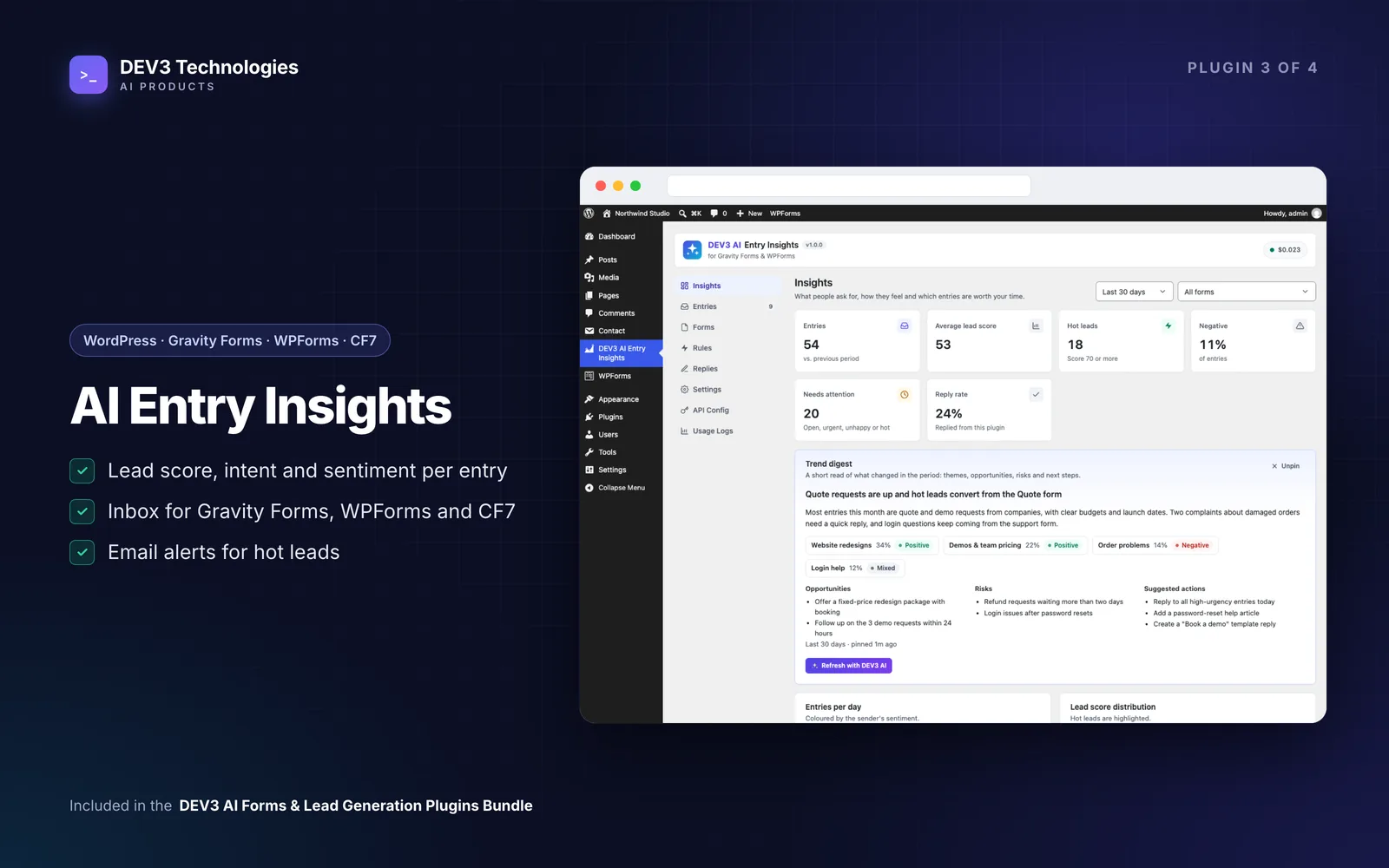
Review the period. On Insights, pick 7, 30 or 90 days and a form. You get entries with trend, average lead score, hot leads, negative share, reply rate, charts by sentiment and score, categories, top intents and a per-form table. Summarize trends with DEV3 AI writes a digest of themes, opportunities, risks and actions that you can pin to the dashboard.
Tips and pitfalls
- Start with rules, then add AI. Rules are instant and explainable. Once they reflect your business, the AI score adds nuance on top, and the "average of both" setting balances the two.
- Label your fields clearly. "Budget", "Company" and "Timeline" make the budget and company signals work.
- Check WP-Cron. If your site can't reach itself, entries waiting for AI are processed while the plugin screens are open. A real cron job is the better fix.
- Gravity Forms stays the source of truth. Deleting a Gravity Forms entry removes the plugin's copy, but not the other way round.
- Privacy is built in. Only text answers go to Gemini. Phone, password, hidden, file, signature, payment and consent fields are never sent, emails are reduced to their domain and names to the first name. Entries are included in WordPress's personal data export and erase tools.
- Push hot leads onward. Developers can hook
dev3ei_entry_analyzedto send scored entries to a CRM.
Who it's for
Agencies with a quote form, service businesses whose bookings and complaints arrive through the same form, WPForms Lite and Contact Form 7 sites with no entry storage, and Gravity Forms sites sitting on hundreds of unread entries. If you want the scoring connected to your CRM or sales process, talk to our AI implementation team, or read how the queue and rules engine were built in the case study.
Get started
DEV3 AI Entry Insights is part of the DEV3 AI Forms & Lead Generation Plugins Bundle, alongside the Form Builder, Popup Builder and Form Autofill & Spam Shield. Install it next to the form plugin you already use and your next submission arrives scored.